
A website may suddenly stop loading, display outdated content, or reject the correct login details. In many cases, the problem is caused by expired cookies or cached files stored in your browser.
You do not always need to clear all browsing data. Removing cache and cookies for one website can fix common errors without signing you out of every other account or deleting data from unrelated websites.
This guide explains how to clear cache and cookies for a single website in Chrome, Microsoft Edge, and Safari. Follow the steps below to troubleshoot the issue, or contact GamsGo customer support if the problem affects a subscription or account purchased through GamsGo.

Why Should You Clear Cache and Cookies for One Website?
Browsers save cookies and temporary files to help websites load faster. However, this stored data may become outdated or conflict with a recent website update.
Clearing the data for one website may help fix:
- Login errors
- Blank or frozen pages
- Old page content
- Incorrect account information
- Buttons that do not respond
You may need to sign in again after deleting the website’s cookies.
How to Clear Cache and Cookies in Chrome
Chrome on Windows and macOS
- Open Chrome.
- Click the three-dot menu and select Settings.
- Go to Privacy and security > Third-party cookies.
- Select See all site data and permissions.
- Search for the website name.
- Click the delete icon next to the website and confirm.
Chrome will remove the cookies and stored data for that website only.
Chrome on Android
Open Chrome and tap the three-dot menu.
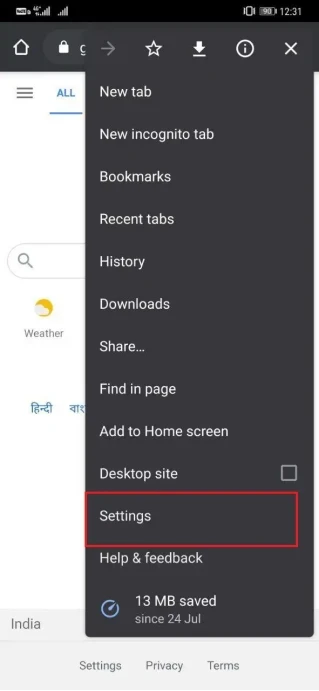
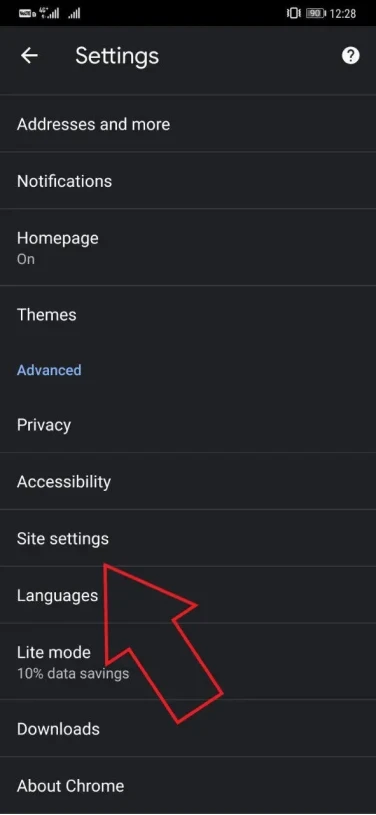
Select Settings > Site settings > All sites.
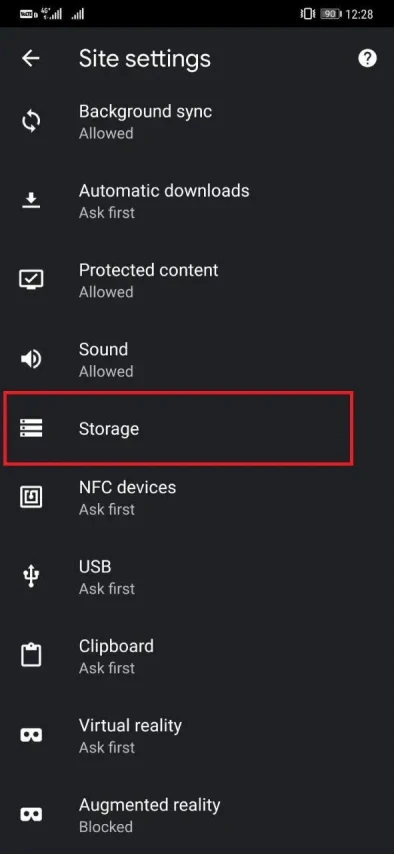
- Find and open the website.
Tap Clear and reset.

- Confirm that you want to remove the stored data.
The menu names may look slightly different depending on your Chrome version and Android device.
Chrome on iPhone
Chrome on iPhone does not provide the same website data list as the desktop version. You need to clear browsing data for a selected time range.
- Open Chrome.
Tap the three-dot menu.
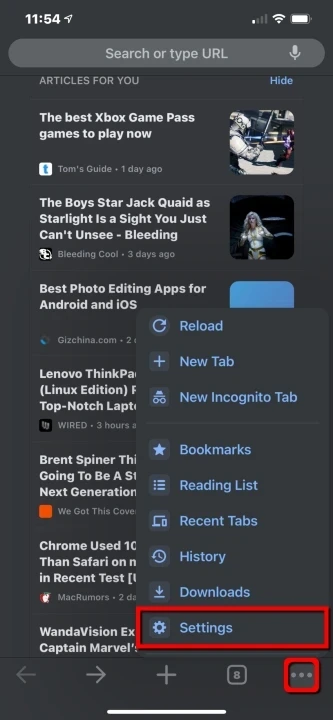
Select Delete Browsing Data.
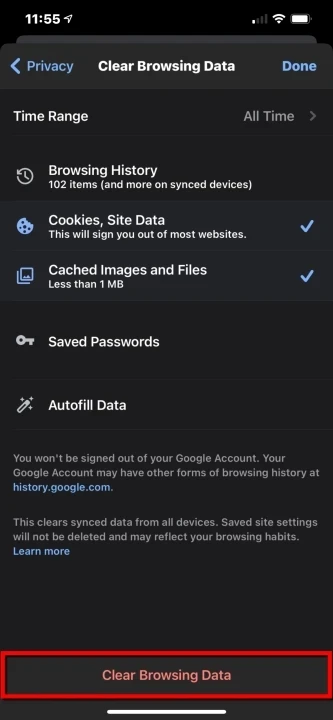
- Choose a time range.
Select Cookies, Site Data and Cached Images and Files.

- Tap Delete Browsing Data.
This may remove data from more than one website and sign you out of other accounts.
How to Clear Cache and Cookies in Microsoft Edge
Edge on Windows and macOS
- Open Microsoft Edge.
- Click the three-dot menu and select Settings.
Go to Privacy, search, and services.
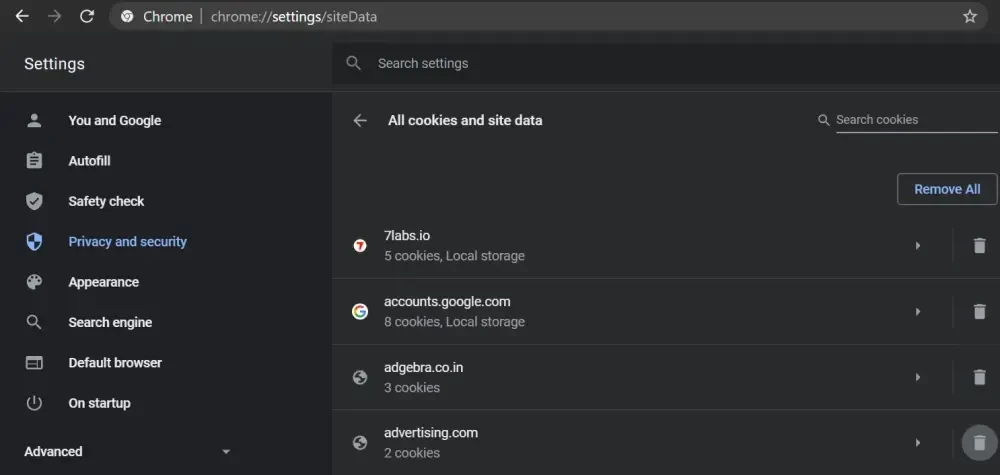
- Select Cookies, then open See all cookies and site data.
- Search for the website.
Open the website entry and click the delete icon.
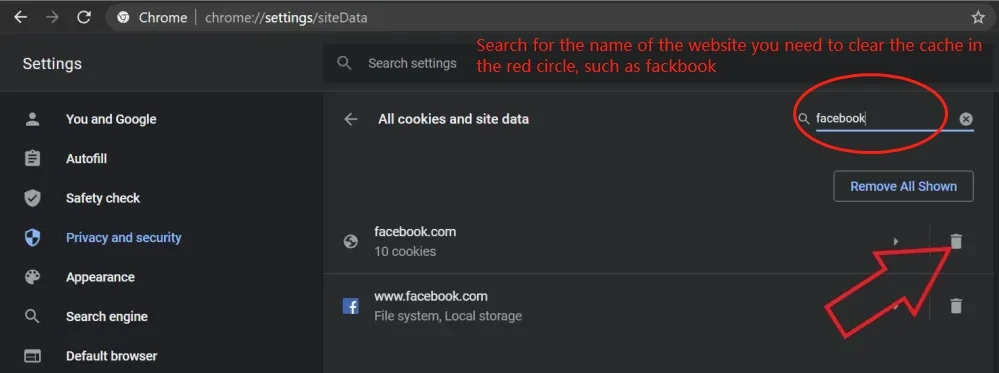
Only the cookies and stored data connected to that website will be removed.
How to Clear Cache and Cookies in Safari
Safari on Mac
- Open Safari.
Select Safari > Settings.
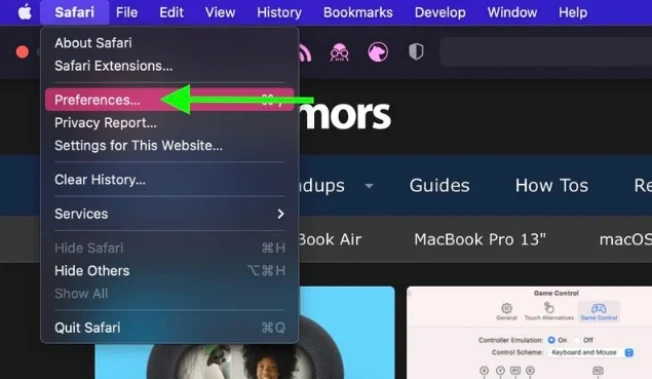
Open the Privacy tab.

- Click Manage Website Data.
- Search for the website.
Select it and click Remove.
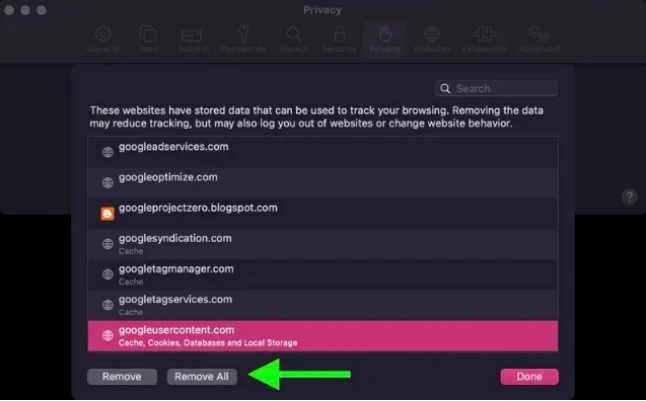
Do not click Remove All unless you want to delete data for every website.
Safari on iPhone
- Open the Settings app.
Go to Apps > Safari.
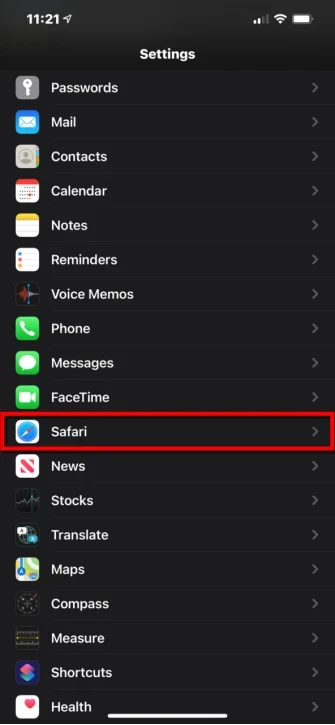
Tap Advanced > Website Data.
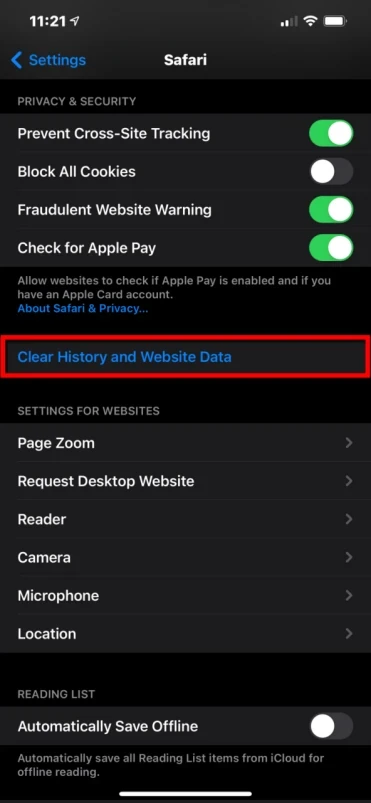
Find the website in the list.
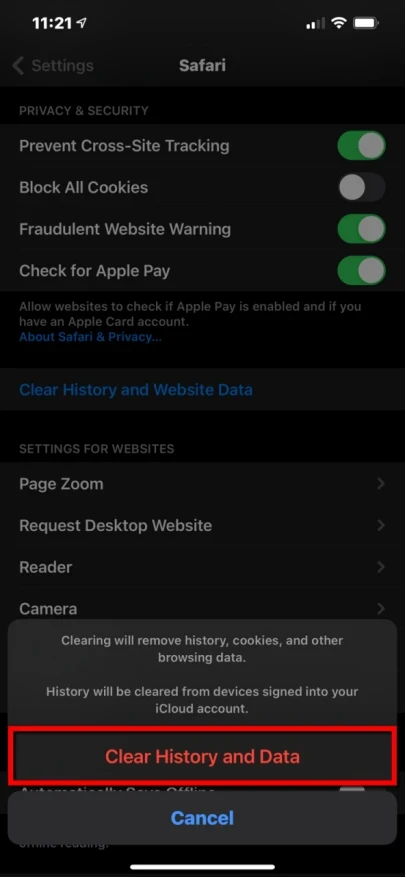
- Remove the data connected to that domain.
You can also select Remove All Website Data, but this will clear cookies and stored data from all websites.
What Should You Do After Clearing Website Data?
Close the browser and open it again. Return to the website, reload the page, and sign in again if required.
If the problem continues, try another browser, disable browser extensions, or restart your device.
Conclusion
Clearing cache and cookies can solve many common website problems. Removing data for one website is usually the better choice because it does not affect all your other browser sessions.
After clearing the data, reopen the website and check whether it loads correctly. If you are troubleshooting Netflix or looking for a more affordable subscription, you can also check the Netflix plans available on GamsGo.
Frequently Asked Questions
Will clearing cookies log me out?
Yes. Cookies often store login sessions, so you may need to enter your username and password again.
Will clearing cache delete my saved passwords?
Normally, no. Cache files are separate from passwords saved by the browser. Make sure you do not select the password option when clearing all browsing data.
Can I clear data for only one website?
Chrome, Edge, and Safari on Mac allow you to remove data for a selected website. Chrome on iPhone may require you to delete data for a wider time range.
Articles associés