If you cannot receive emails while using GamsGo, please add noreply@gamsgo.com, noreply@id.gamsgo.cc, and noreply@gosplit.com to your email whitelist and try again.
How do you whitelist an email? I’m going to show you how to do it on major email apps. For detailed instructions, continue reading the section for the desktop or mobile email app you use.
📌 Pro tip: Link your email subscribers to this page in your welcome email (or on your email sign up thank you page) to make it easy for them to whitelist your emails.
Mobile Email Apps
If you check email on a phone or tablet, the steps below show how to whitelist an email address in the most common mobile email apps and help important messages reach your inbox.
Gmail
How to Whitelist an Email in Gmail?, you have two options:
- Report an email as “not spam” (if the email is in spam).
- Move an email from the promotional inbox to the primary inbox.
If an email is ending up in your spam folder, open the email and click Report not spam.
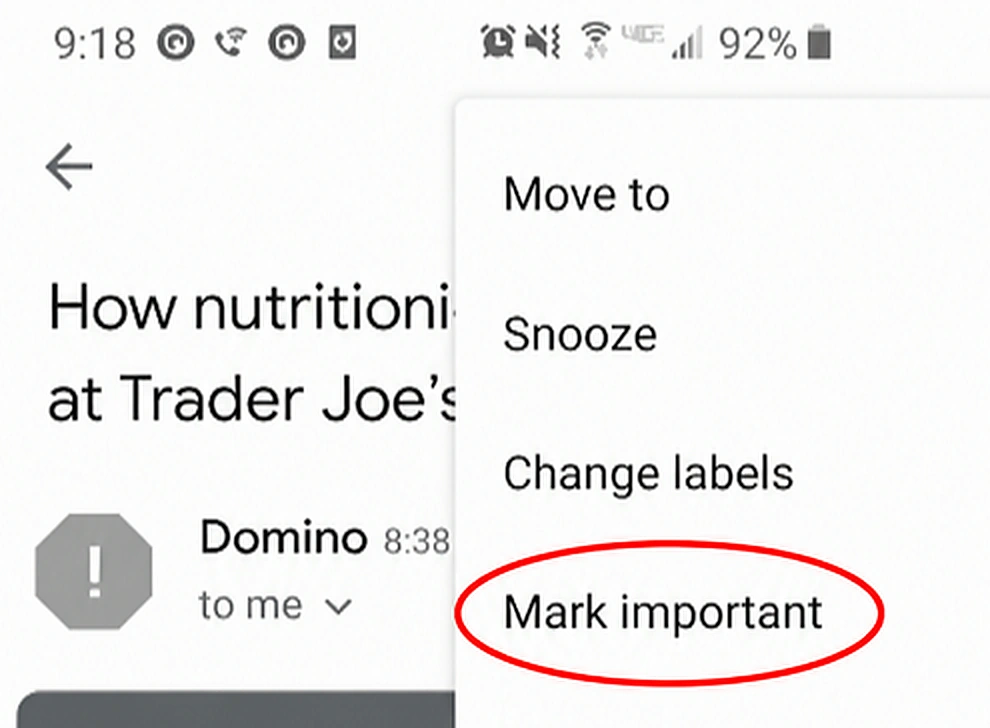
You can also tap the three dots in the upper right corner and click Mark important to give it priority in your inbox.
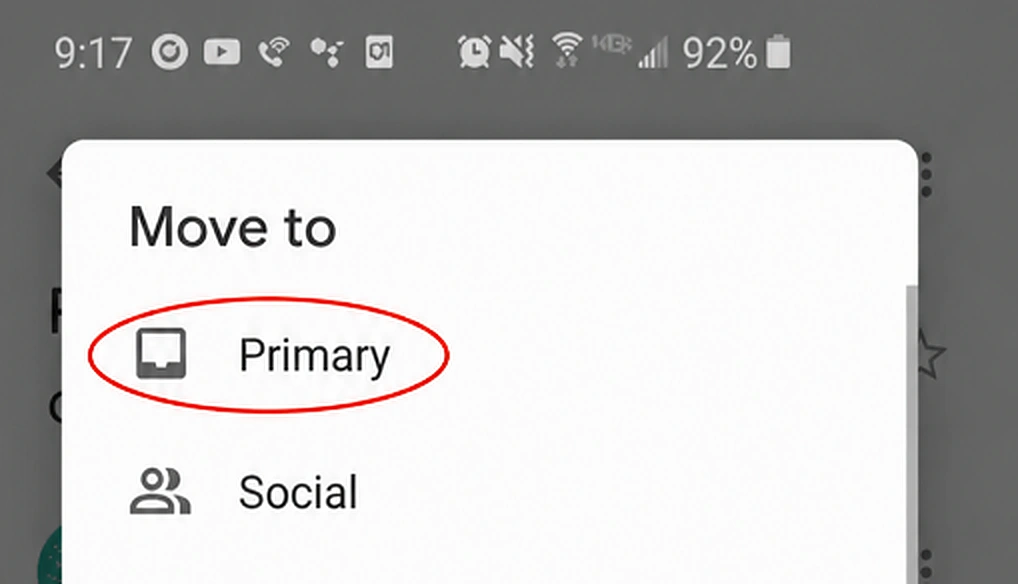
To move an email from the promotional folder to your primary inbox, open the email and tap the three dots in the upper right corner, then tap Move to > Primary.
Apple Mail
Apple Mail does not have a traditional whitelist setting.To keep a sender out of Junk,mark their messages as Not Junk.
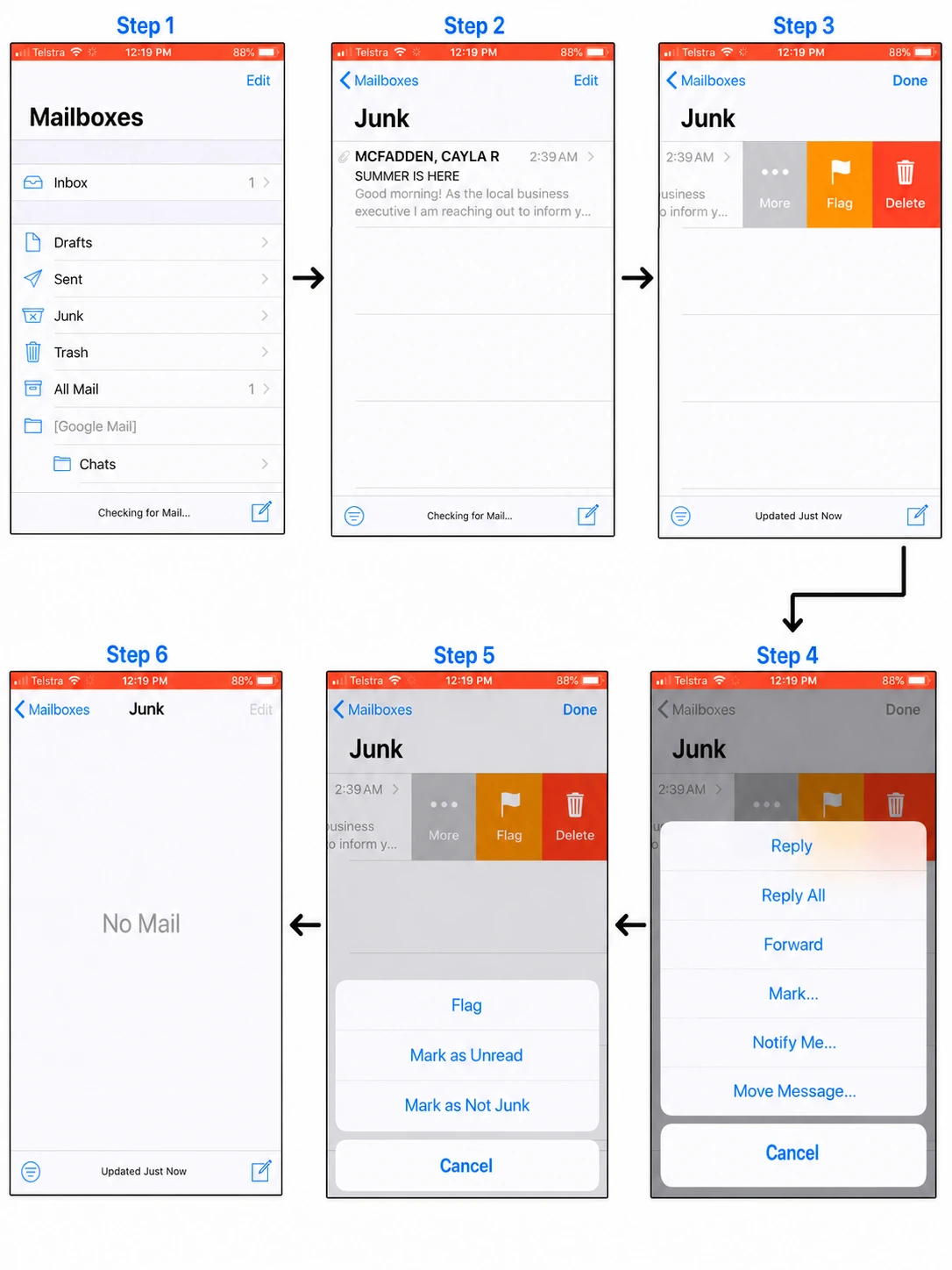
- Open the Mail app and go to Mailboxes.
- Open the Junk folder.
- Find the email and swipe left.
- Tap More, then tap Mark....
- Tap Mark as Not Junk.
- Confirm the email is no longer in the Junk folder.
Yahoo
How to whitelist an email in Yahoo?To add an email address to your Yahoo! Mail mobile contacts (and ensure that emails are delivered), follow these steps:
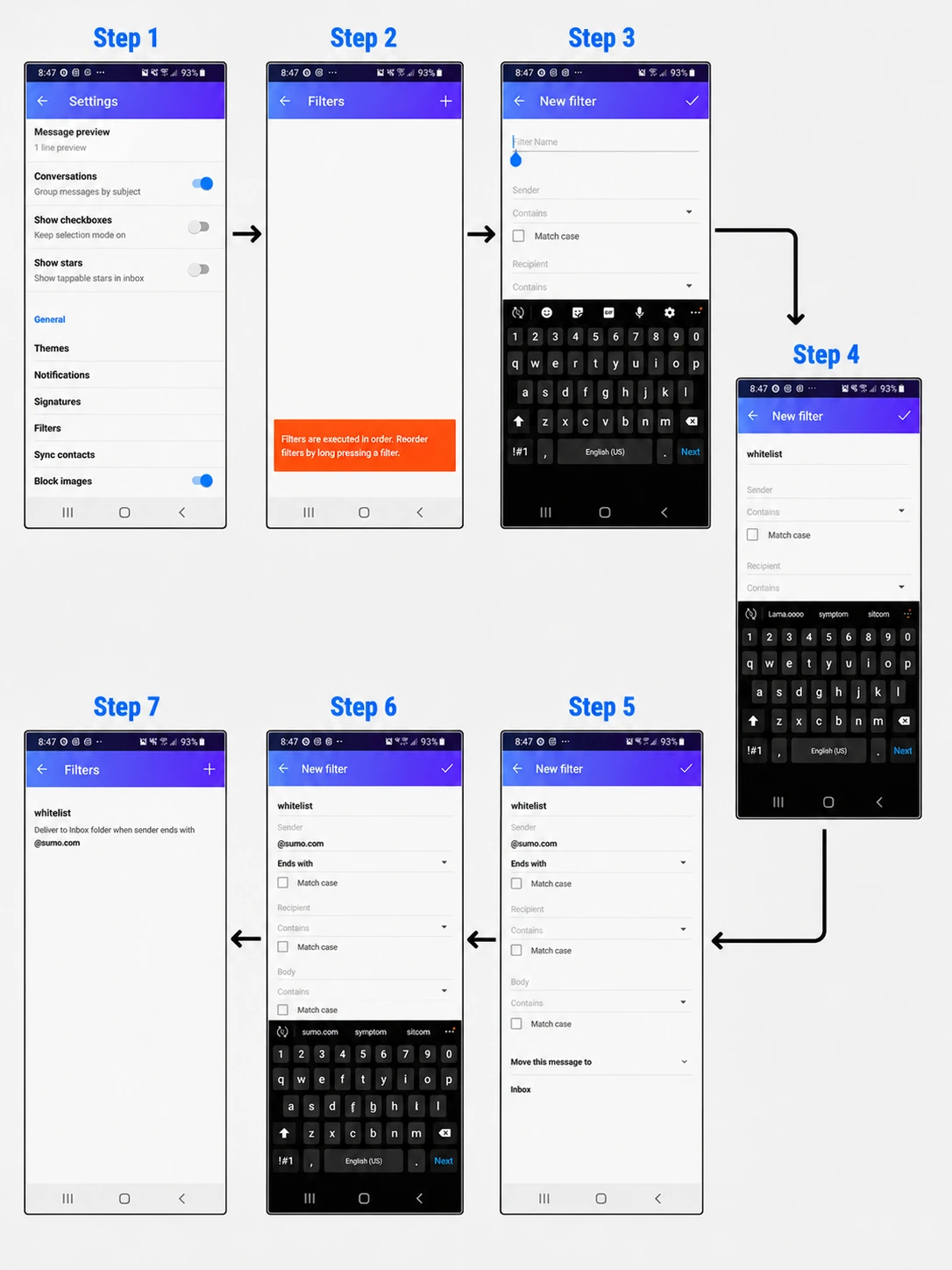
- Open Settings, then scroll to Filters.
- Tap Filters, then tap the + icon.
- Create a new filter.
- Name the filter, such as whitelist.
- Add the sender email address or domain in the Sender field.
- Set Move this message to as Inbox.
- Tap the ✓ icon to save the filter.
Outlook Mobile
How to whitelist an email in Outlook?In Outlook for mobile, you can add a sender to your "Focused Inbox" to ensure their emails reach you. Here's how:
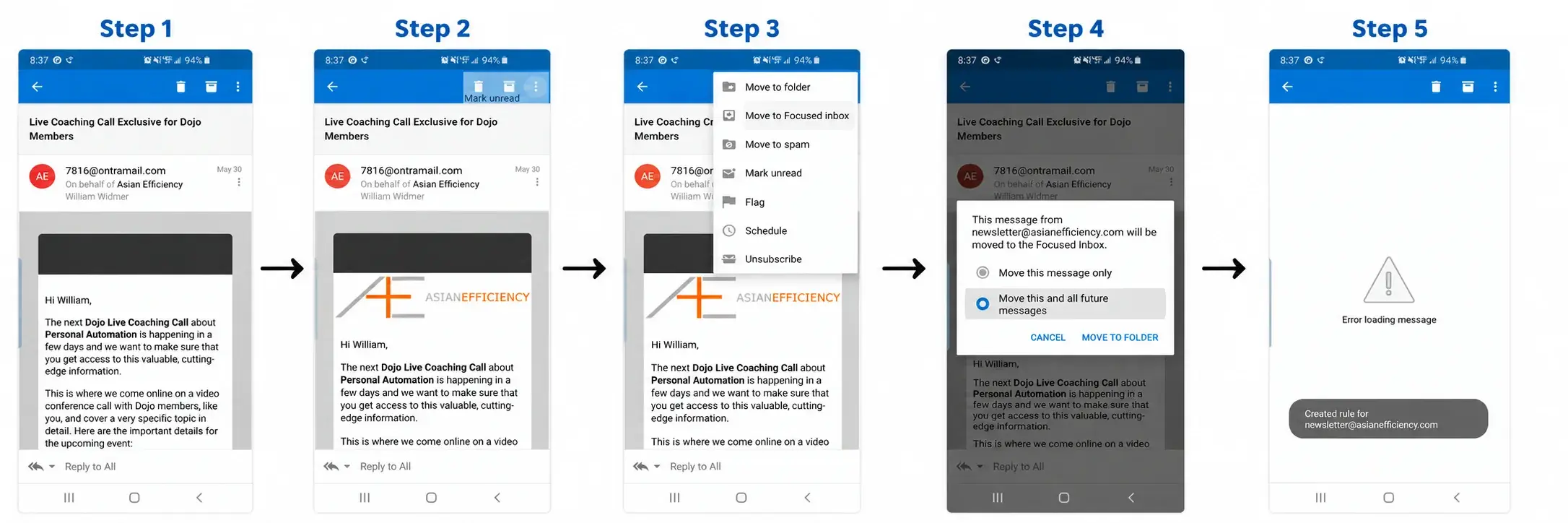
- Open the email you want to whitelist. Tap the three dots in the top-right corner of the screen.
- Tap the three dots in the top-right corner of the screen. (not the dots inside the email)
- Tap Move to Focused Inbox.
- Select “Move this and all future messages” then tap MOVE TO FOLDER.
- Confirm the rule has been created for future messages.
Desktop Email Apps (Mac/PC)
Gmail
There are three ways to whitelist email in Gmail:
1. Gmail tabs. If you’re using Gmail tabs (Promotional and Social), click and drag the email you want to whitelist from the tab it’s in to the Primary tab.
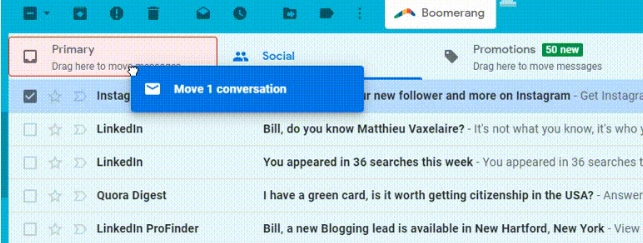
2. Marking an email as “not spam”.Once done, you’ll get an alert saying “This conversation has been moved to Primary. Do this for all future messages from sender@theirdomain.com?” Click Yes.

If the email is already in your spam folder, mark it as “not spam”. Open the email in your spam folder that you want to whitelist, then click Report not spam.

3. Creating a filter
Finally, if an email is already in your "Primary" folder, but you want to ensure that all emails from that sender are always placed in that folder, you can create a filter. Here are the steps:
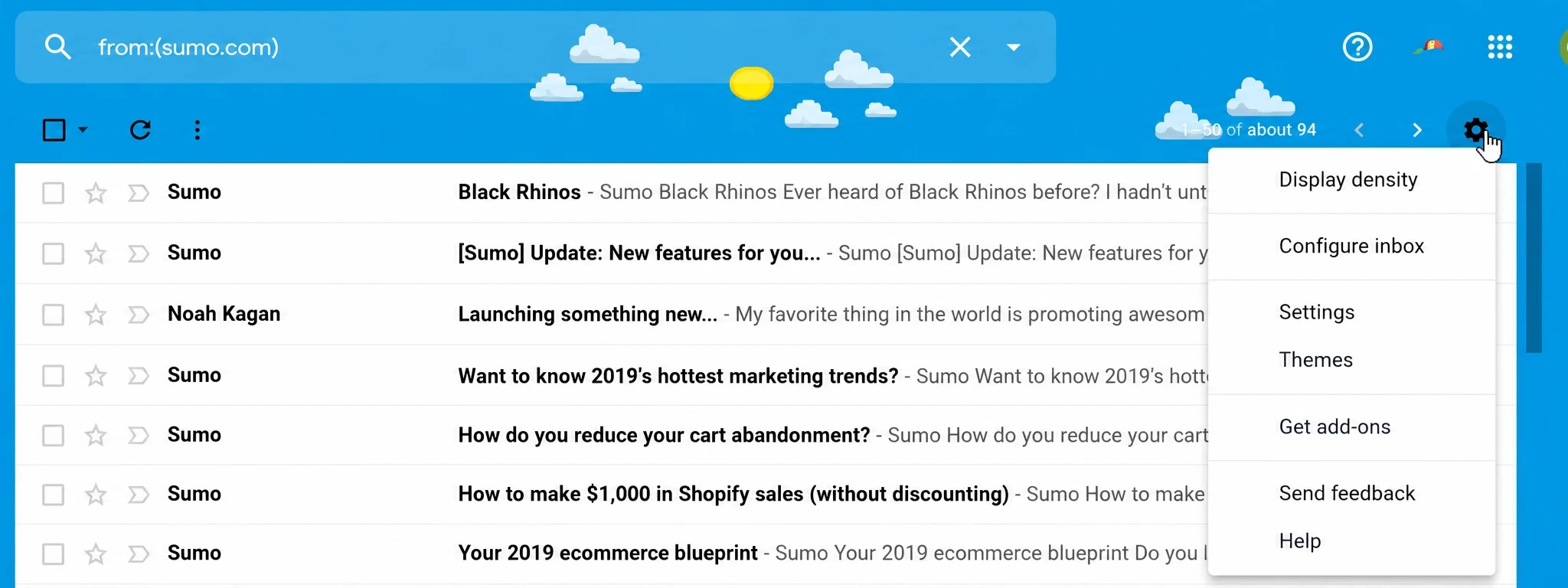
1. Click the cog icon in the top-right corner, and then select Settings from the drop-down menu.
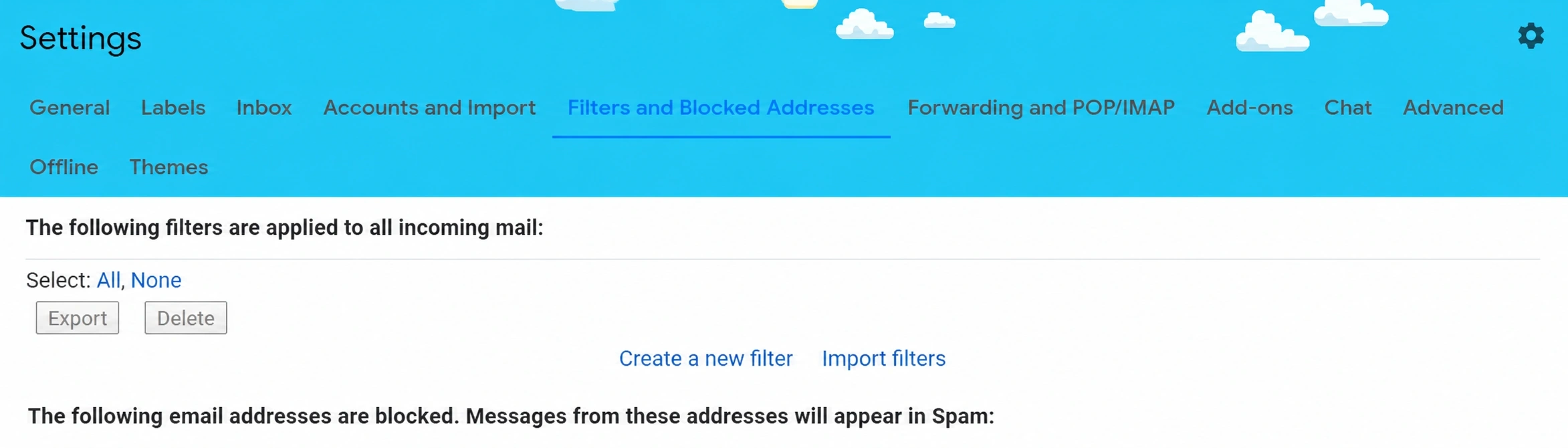
2. Click the Filters tab then Create a new filter.
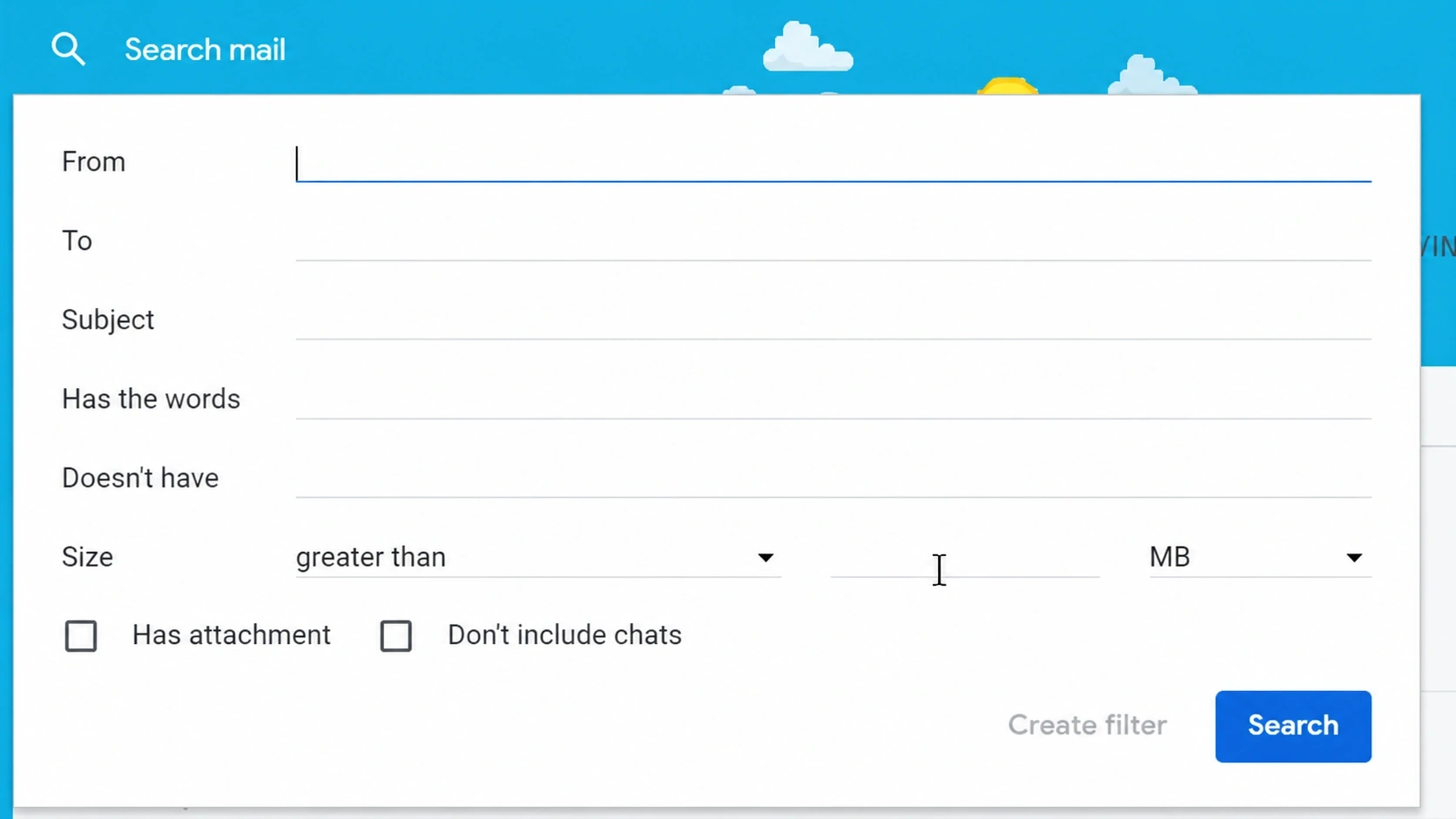
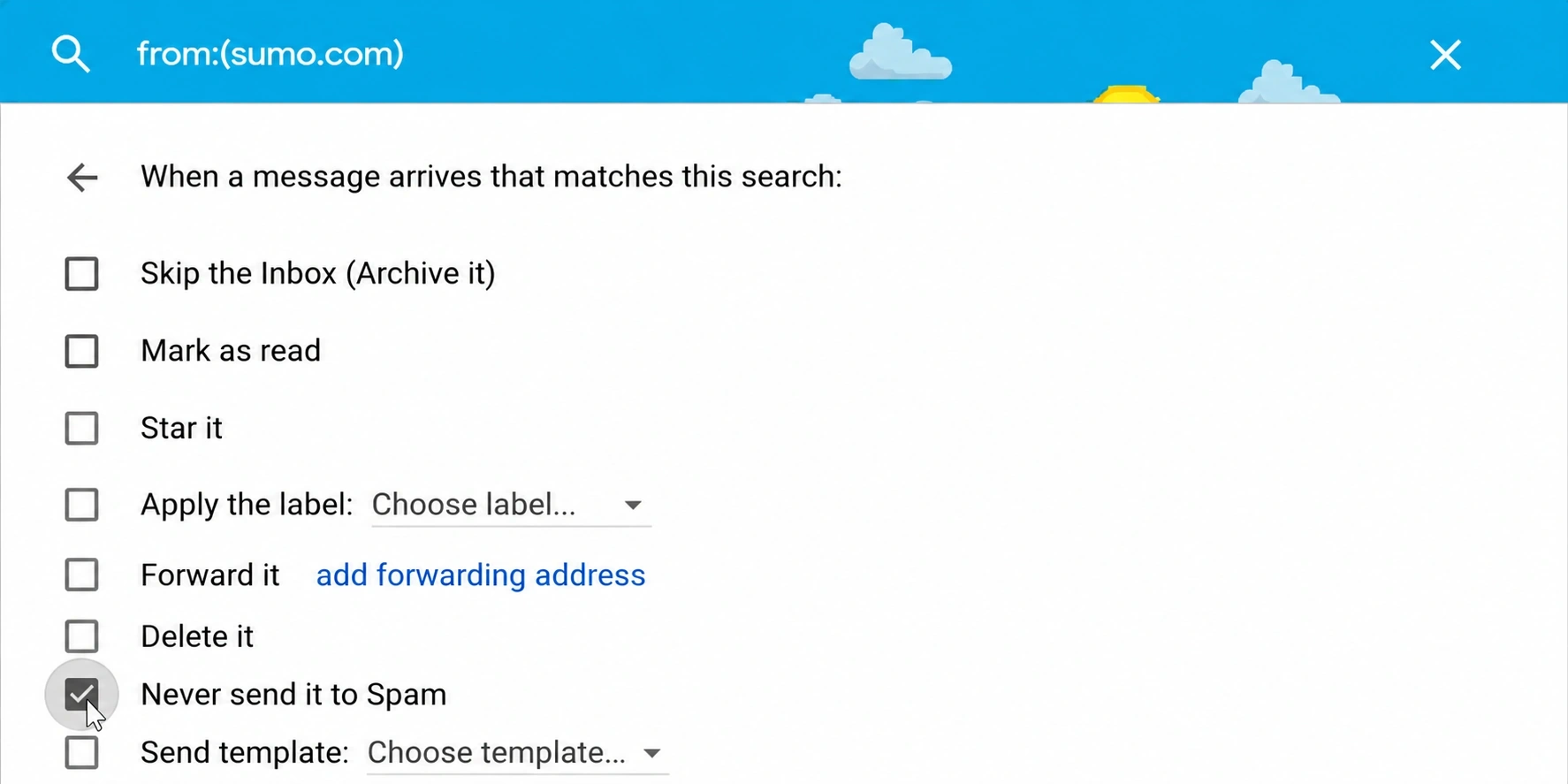
3. Enter the domain of the email you want to whitelist in the From field.
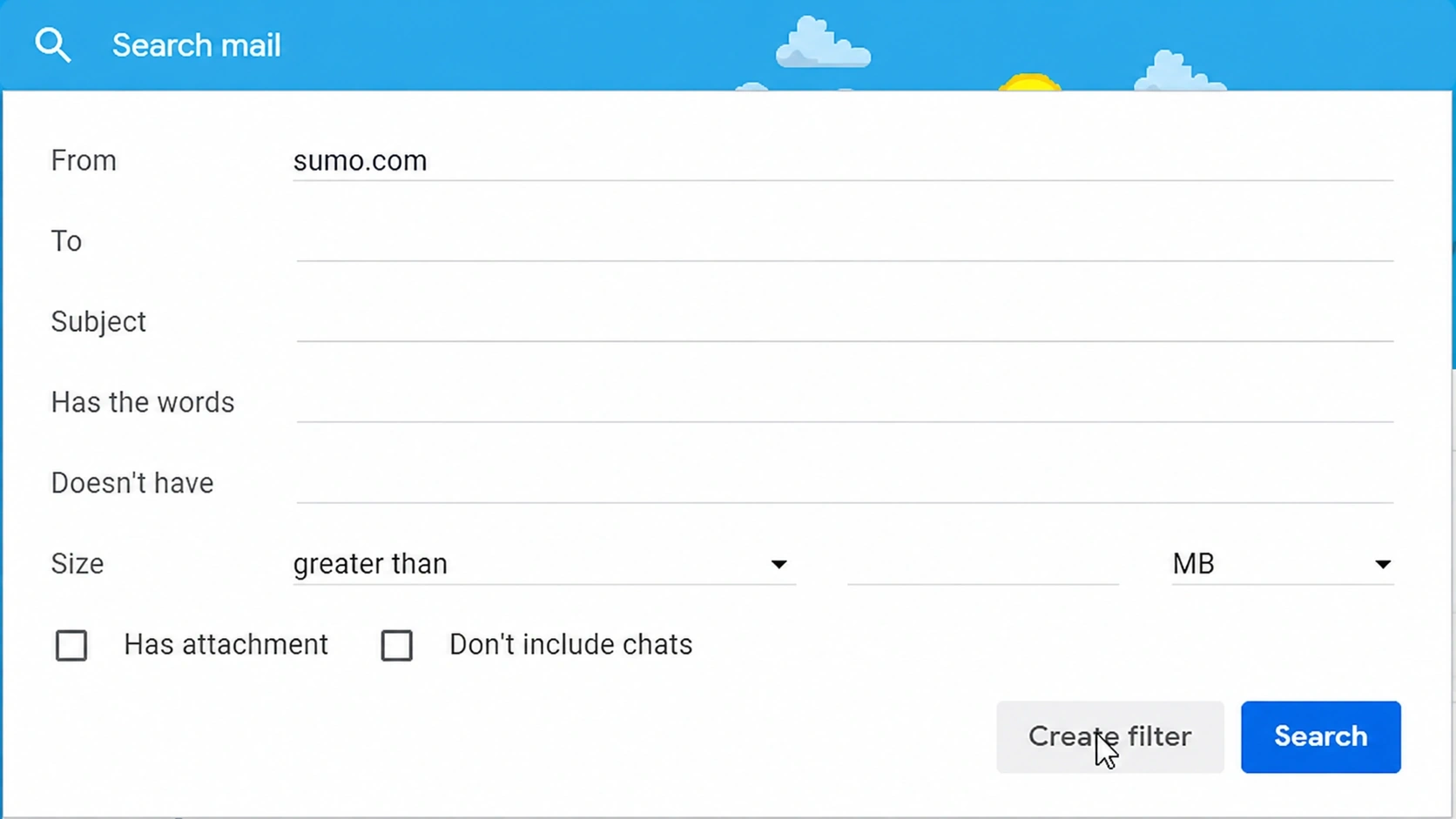
4. Click Create filter with this search.
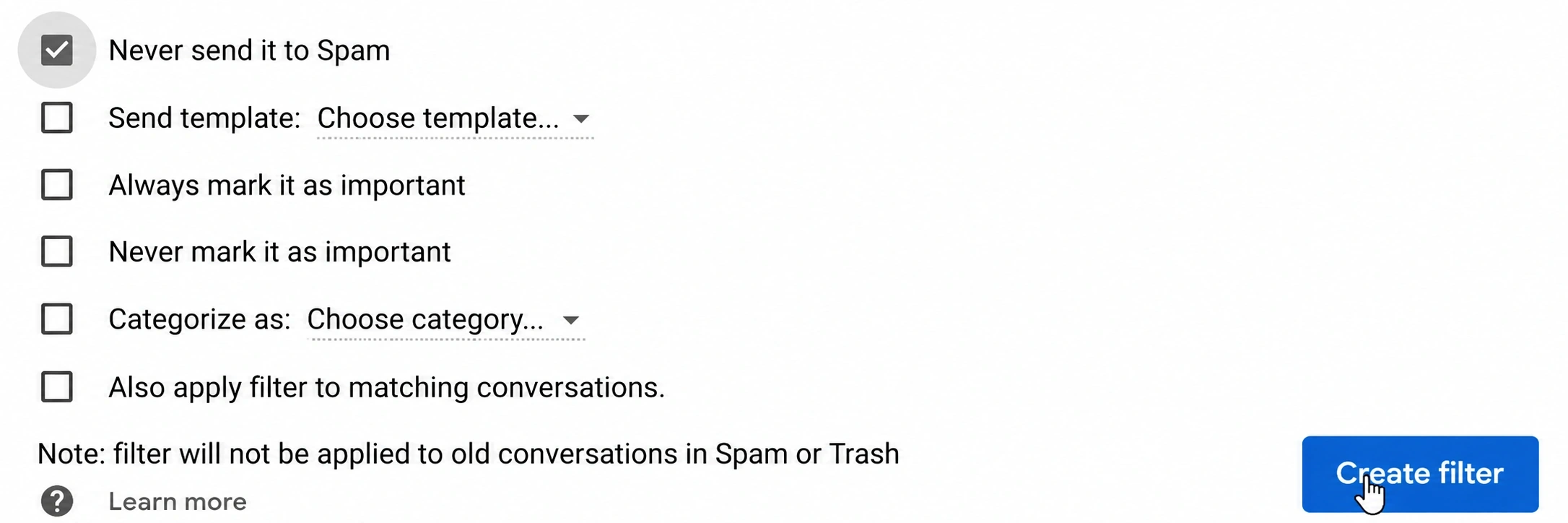
5. In the box titled When a message arrives that matches this search select Never send it to spam.
6. Click the Create filter button.
Outlook 20XX
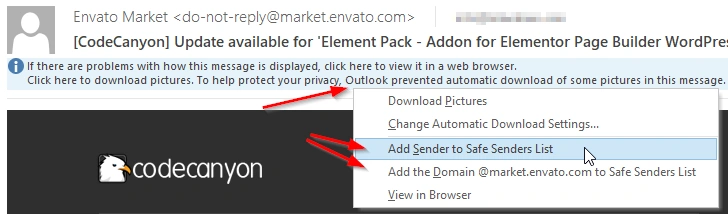
To add an email message to the whitelist in any version of Outlook 2000 or later, you can:
1. Click the blue Click here to download pictures information box.
2. Click Add Sender to Safe Senders List. You can also click Add the Domain @domain.com to Safe Senders List to whitelist all emails coming from any email address on that domain.
Outlook.com
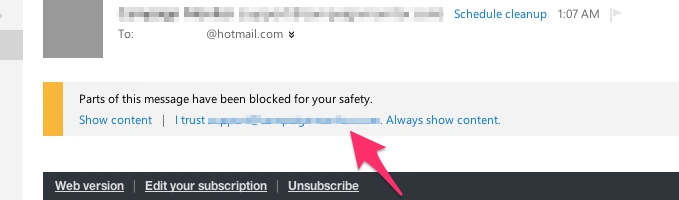
To whitelist email in outlook,you need to open the email you want to whitelist. An alert message should display stating, “Parts of this message have been blocked for your safety.” Click I trust sender@domain.com. Always show content.
AOL Mail
To whitelist emails on AOL:
1. Open the email you would like to whitelist.
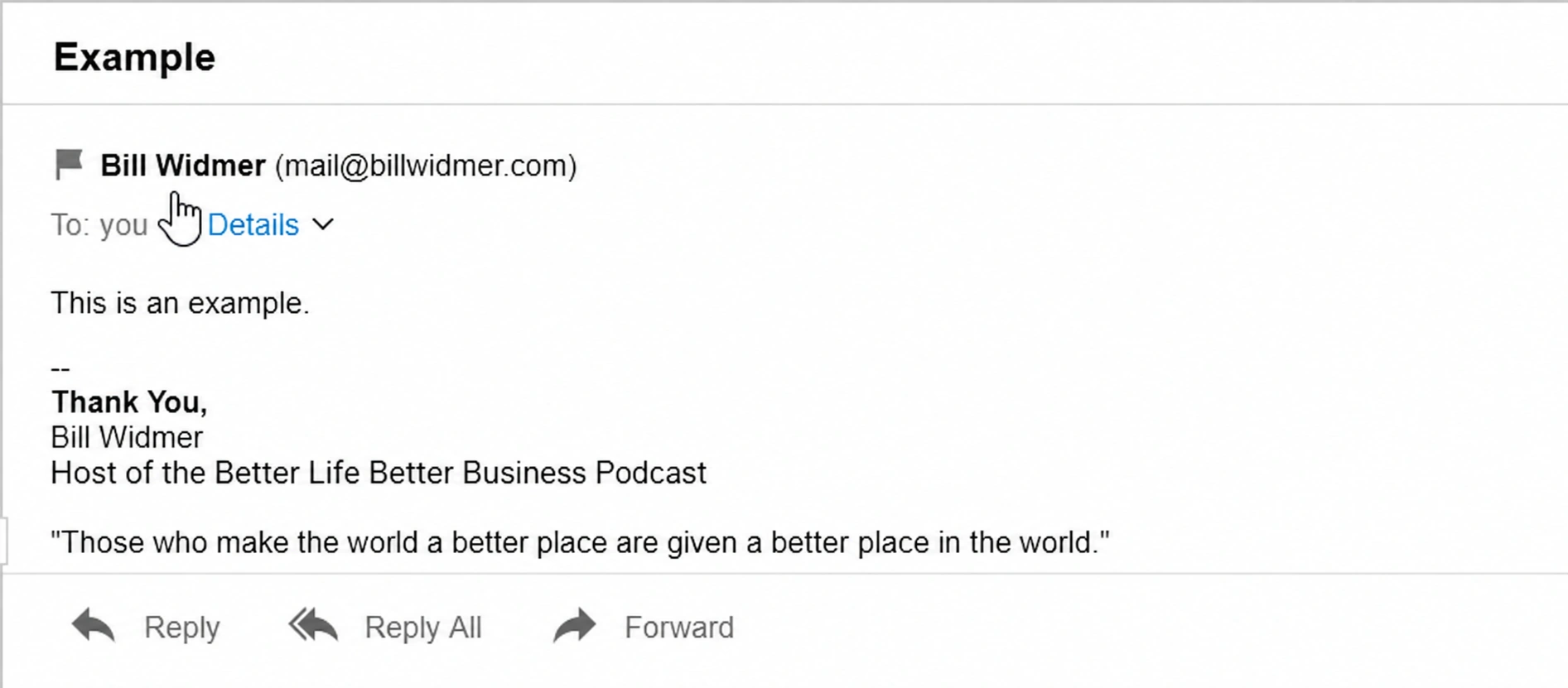
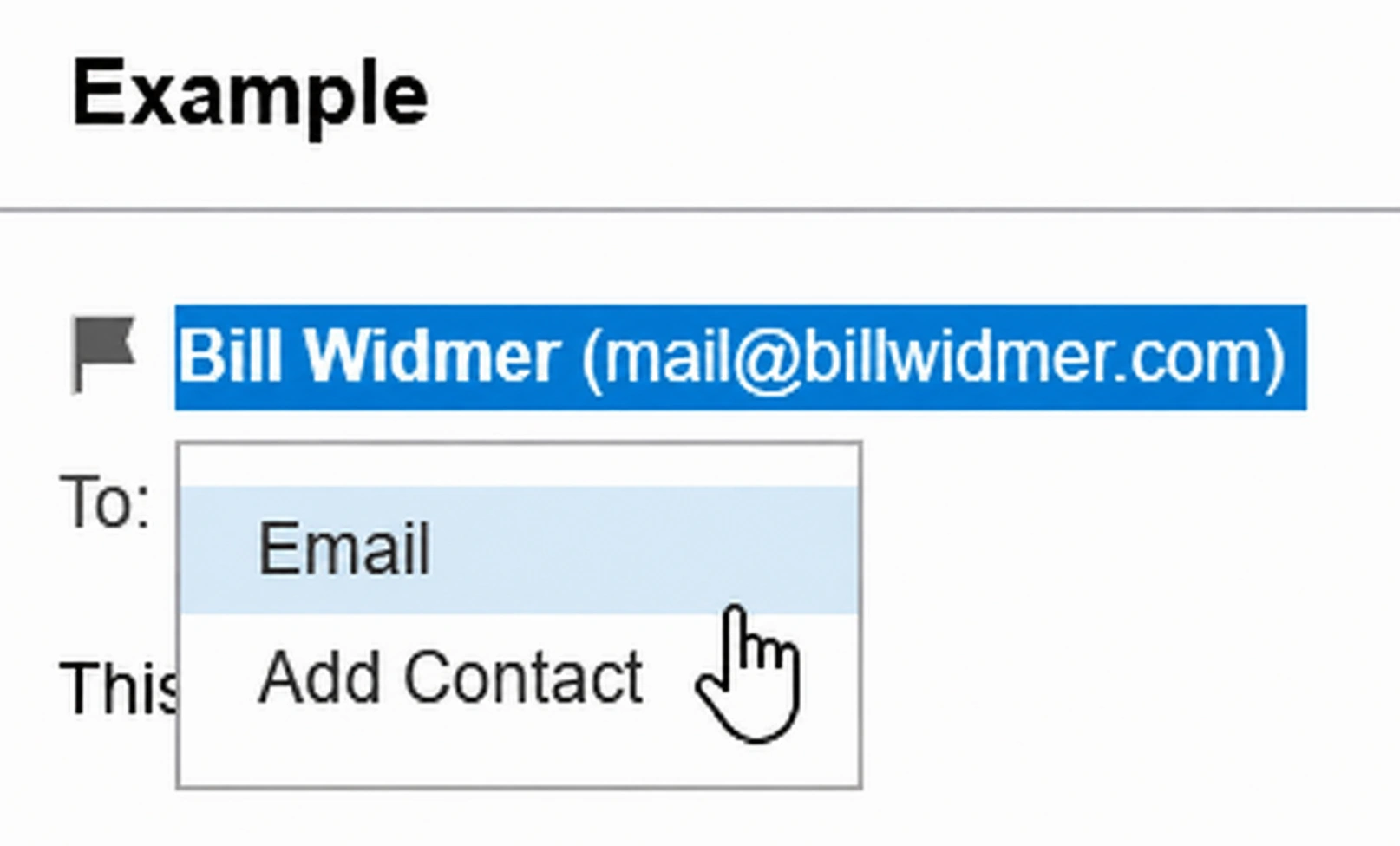
2. Click their email contact name and address, then click Add Contact.
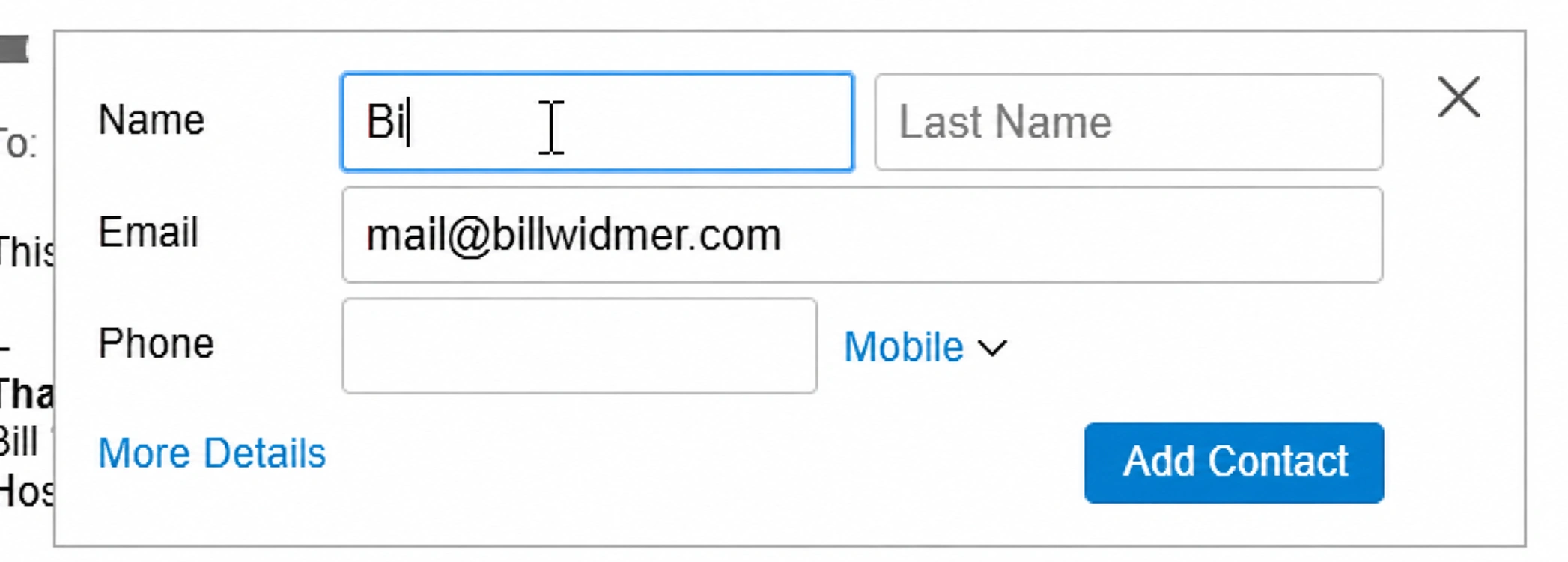
3. Enter their first and last name (company name works).
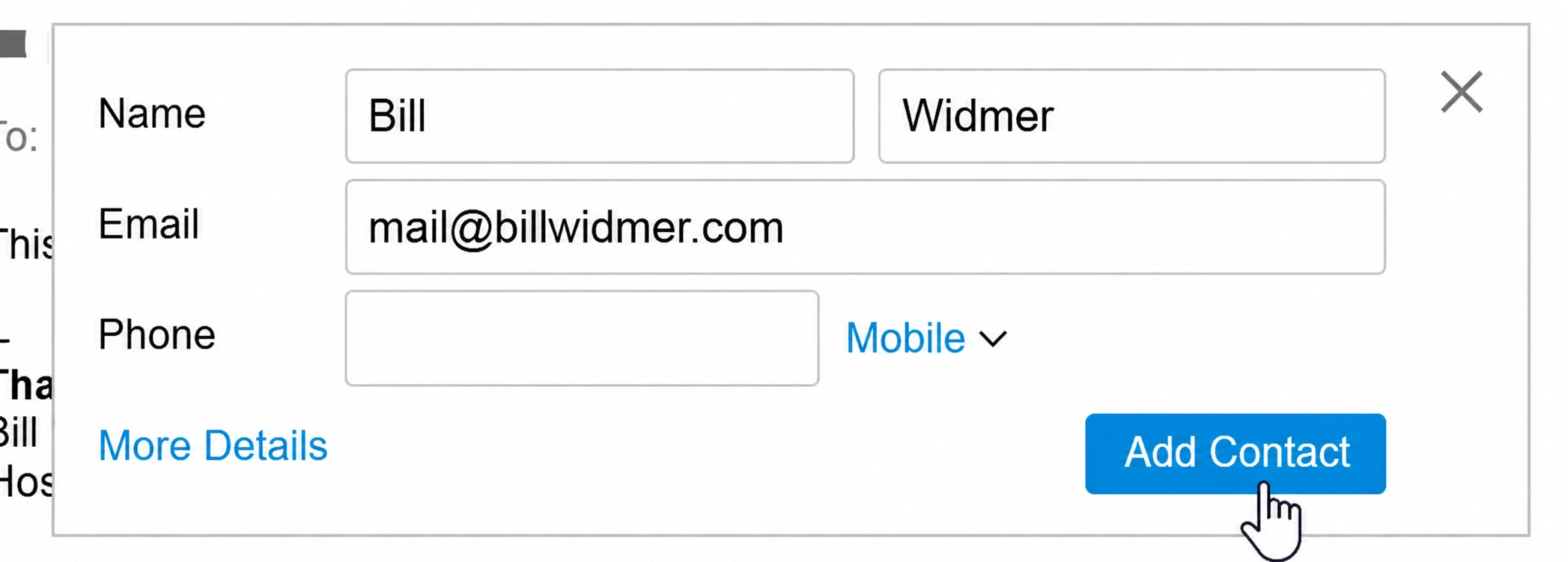
4. Click Add Contact again. That’s it!
Comcast/Xfinity
If you have an email account from Xfinity (formerly Comcast), here’s how to whitelist a contact:
1. Once you're on the Inbox page, click the Address Book tab.
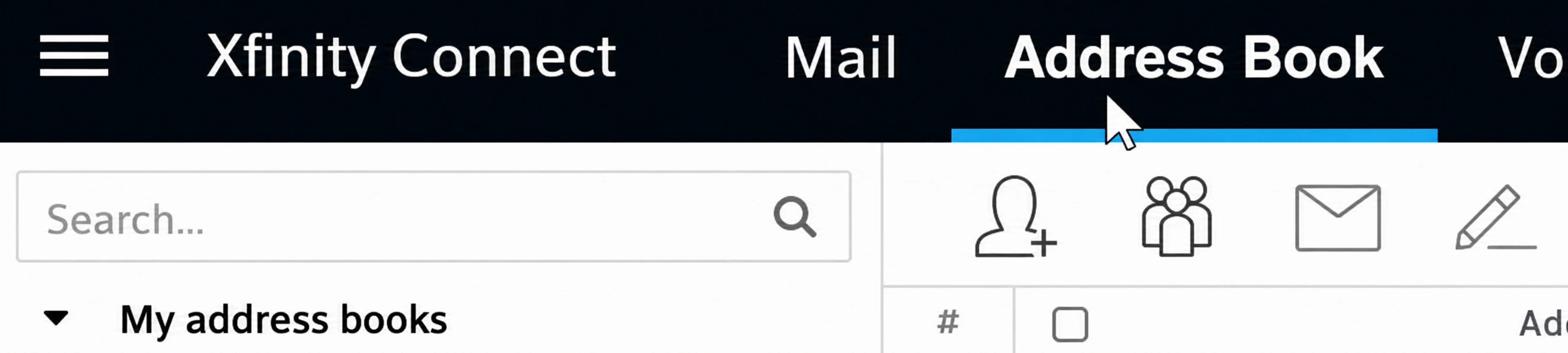
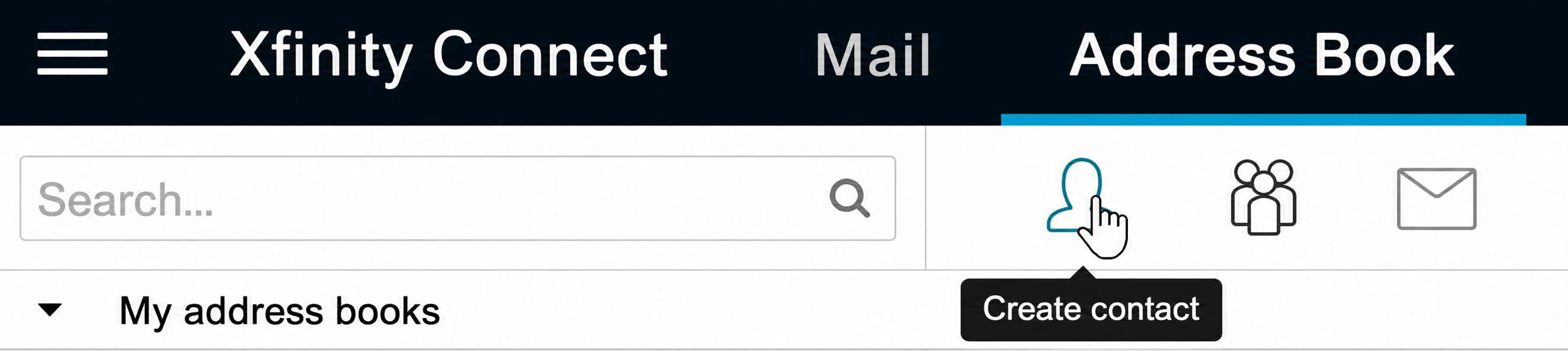
2. Click +Create Contact in the top menu (looks like a head silhouette with a plus sign).
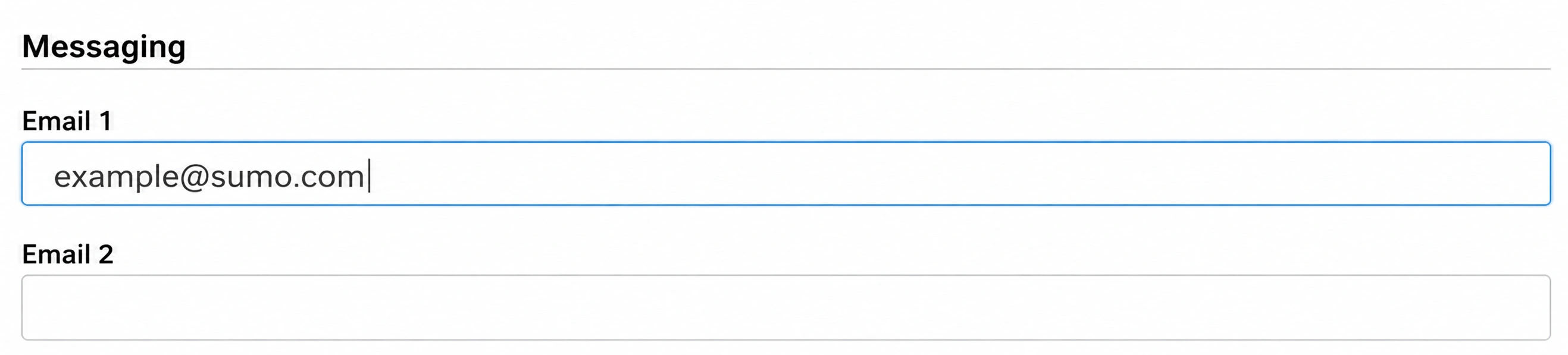
3. Add the sender’s email address.
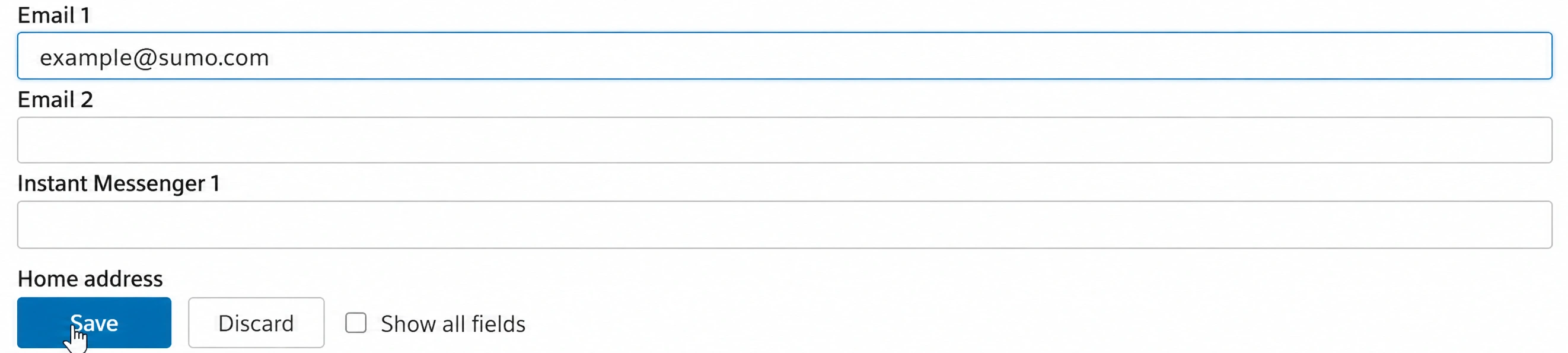
4. Click Save to save and whitelist the contact.
AT&T and Yahoo Mail
AT&T uses the Yahoo! Mail app platform, so the process for setting up a whitelist is the same for both. To add contacts who use the following email service providers to your whitelist, you can:
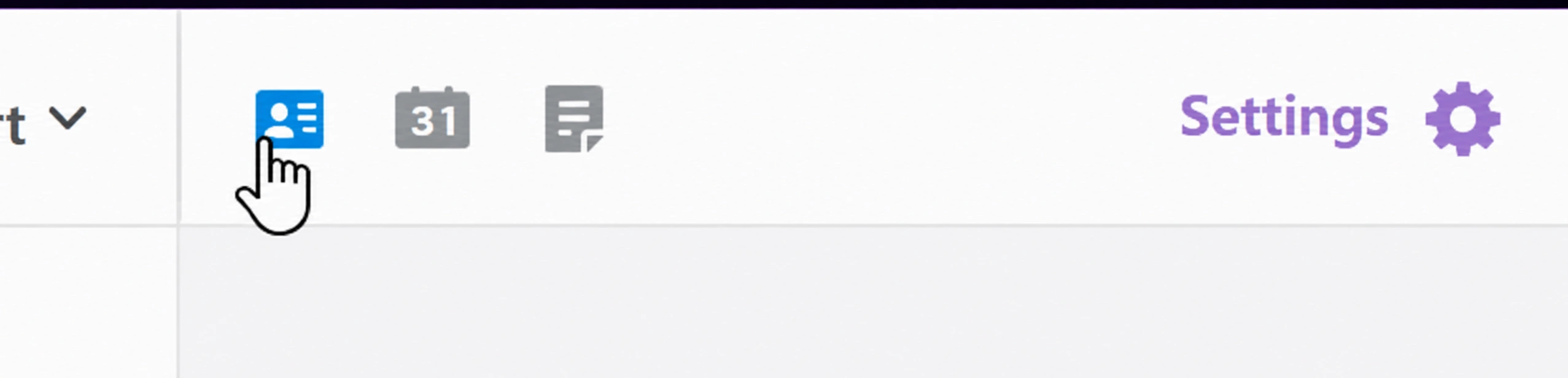
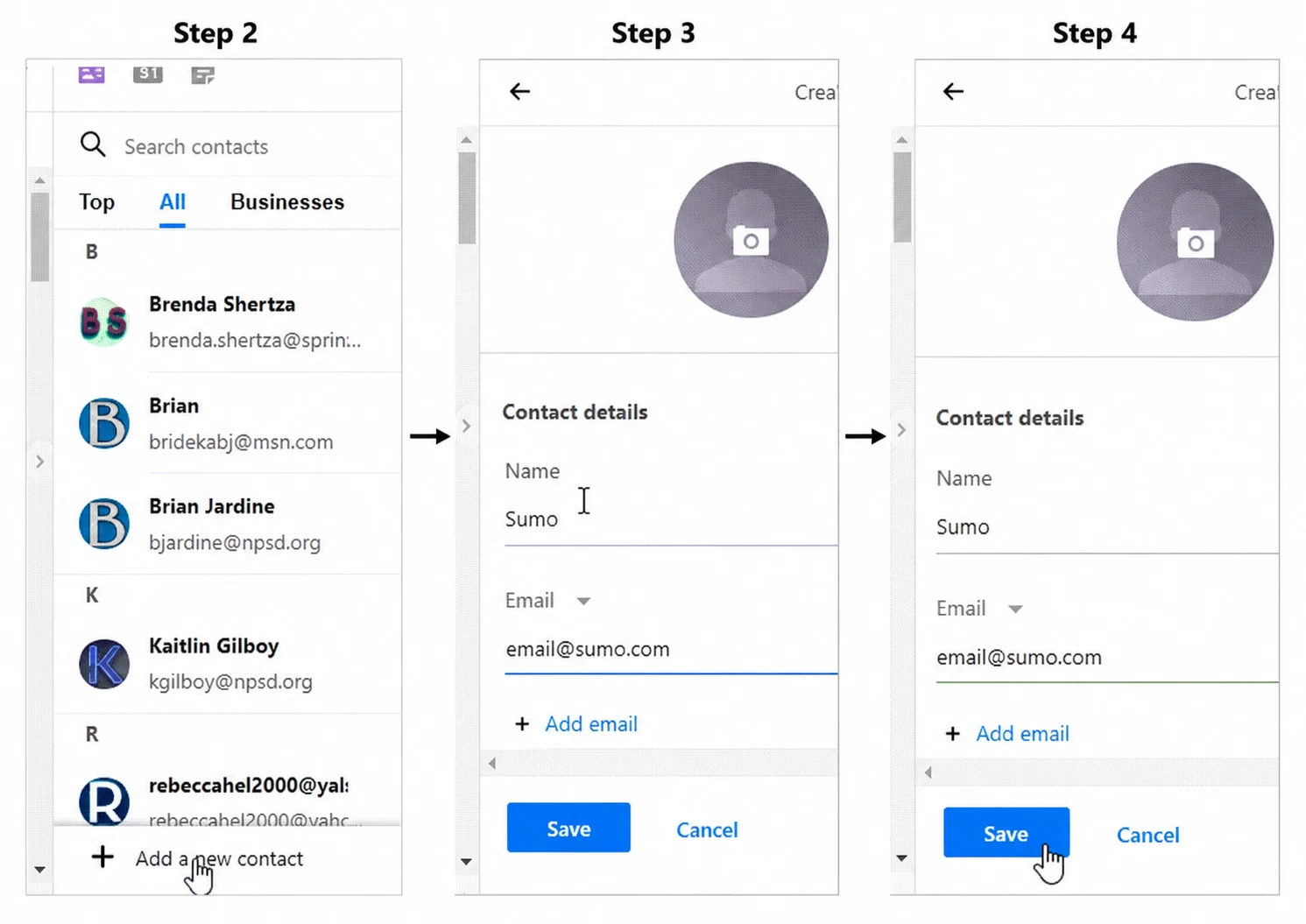
1. Click the contact book in the right-hand menu.
2. At the bottom of the sidebar, click +Add new contact.
3. Enter the name and email information of the sender you want to whitelist (you can use a business name).
4. Click Save.
Mac OS X Mail app
To whitelist all emails from a domain in the Mail app for Mac OS X or macOS, you should:

1. In the top menu, click Mail > Preferences.
2. Click the Rules tab.
3. Click Add Rule.
4. Enter a whitelist name in the Description field, such as "Whitelist: sumo.com" to create the new rule.
5. For conditions, set the first dropdown menu item to any. It should say: If any of the following conditions are met.
6. In the following dropdown menus, select From in the first field and Ends with in the second field.
7. In the text box after Ends with, enter the domain name you want to whitelist. Add the “@” symbol before the domain name if you want the filter to match that exact domain more specifically.
8. Click the plus sign next to the last condition to add another domain with the same criteria if you want to whitelist more domains.
9. In the Perform the following actions section, set the three dropdown items to: Move Message, to the mailbox: Inbox (or any target folder you want).
10. Click OK to save the rule.
Final Thoughts
Email whitelisting is one of those small tasks that can save you a lot of frustration later. Whether you use Gmail, Yahoo, Outlook, Apple Mail, or another email app, taking a minute to mark a sender as safe can help important messages stay out of spam, junk, or promotions folders.
If you use email on both your phone and computer, it is worth checking the steps for each app you rely on. A quick whitelist setup today can make sure order confirmations, work updates, newsletters, downloads, and other messages you actually want are much easier to find next time.
If you also need other Office apps, you can check discounted Office 365 accounts on GamsGo and save 70%.
We’ve prepared an exclusive promo code for all blog readers:
Enjoy an additional 3% off on your next purchase!
FAQ
What Does It Mean to Whitelist an Email Address?
Whitelisting means marking a sender as trusted so future emails are less likely to go to spam or junk. This may involve adding the sender to contacts, choosing “Not Spam,” or creating a safe-sender rule.
What Is the Easiest Way to Whitelist a Sender?
Add the sender to your contacts, then mark any message in spam or junk as “Not Spam.” On services that support it, create a filter or safe-sender rule for stronger protection.
Is Adding a Sender to My Contacts Enough?
Not always. Adding a contact helps, but delivery can still depend on spam filters, sender reputation, and message content. For best results, also mark the email as “Not Spam” and create a rule.
Can I Whitelist an Entire Email Domain?
Some providers let you trust a whole domain, while others only support single addresses. Only whitelist domains you know and trust, because all messages from those domains may be treated as safe.
Why Are Emails Still Going to Spam After Whitelisting?
Check spam, junk, blocked senders, and filter settings. Confirm the address is correct, remove it from blocked lists, and mark recent messages as “Not Spam.” Update settings in webmail too.
Related Articles
How to Use Promo Codes Efficiently for Huge Savings?