Sharing a streaming account is cheaper, but choosing the wrong profile can quickly mess up your watch history and recommendations.
This guide explains what a profile means, where to find your assigned profile on GamsGo, and how to rename it on Netflix, Disney+, Deezer, Paramount+, HBO Max, and SkyShowtime.
Before paying the regular subscription price, you can also check GamsGo for discounted streaming subscriptions and manage your assigned profile more easily after purchase.
What Does “Profile” Mean?
A profile is an individual user space inside a streaming or music subscription account. Each profile can have its own viewing history, personalized recommendations, watch progress, playlists, or content preferences, depending on the platform.
In simple terms, profiles allow several users to share the same subscription account while keeping their activity separate. For example, if one user watches action movies and another user watches cartoons, their recommendations and watch progress will not be mixed as easily.
| Profile feature | What it does | Why it matters |
|---|---|---|
| Separate watch history | Each profile keeps its own viewing records. | Your watched titles will not be mixed with other users’ activity. |
| Personalized recommendations | The platform recommends content based on the profile’s activity. | You get suggestions that better match your own interests. |
| Watch progress | The profile remembers where you stopped watching. | You can continue a movie or series from the correct point. |
| Profile name | The profile can usually be renamed. | A clear name helps you identify your assigned profile quickly. |
What Do Profiles Look like on Different Streaming Platforms?
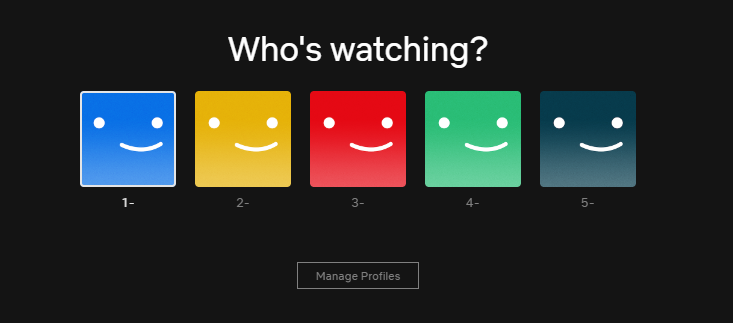
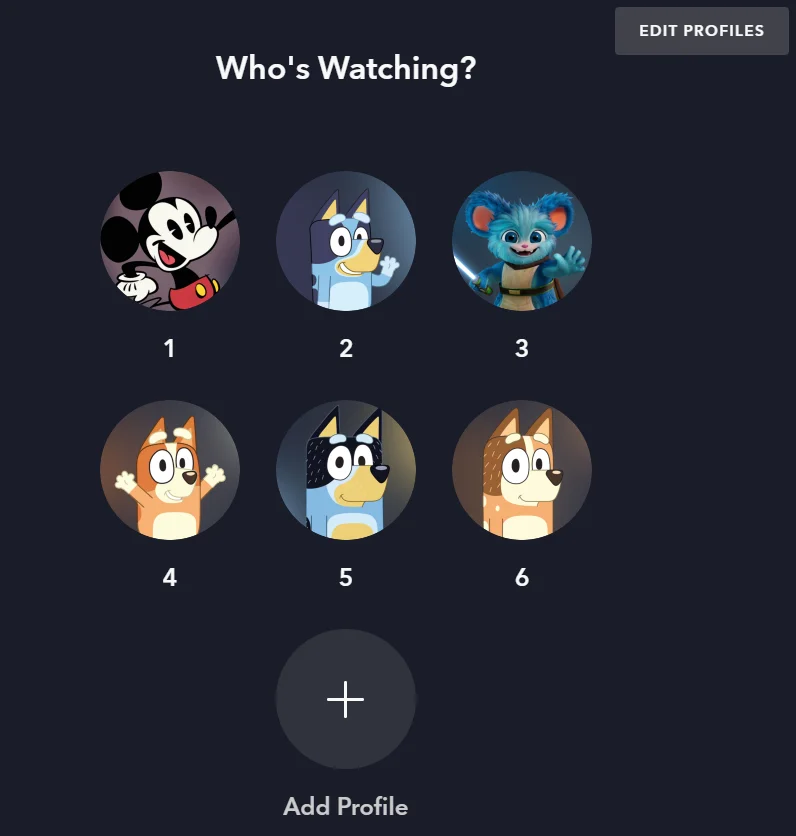
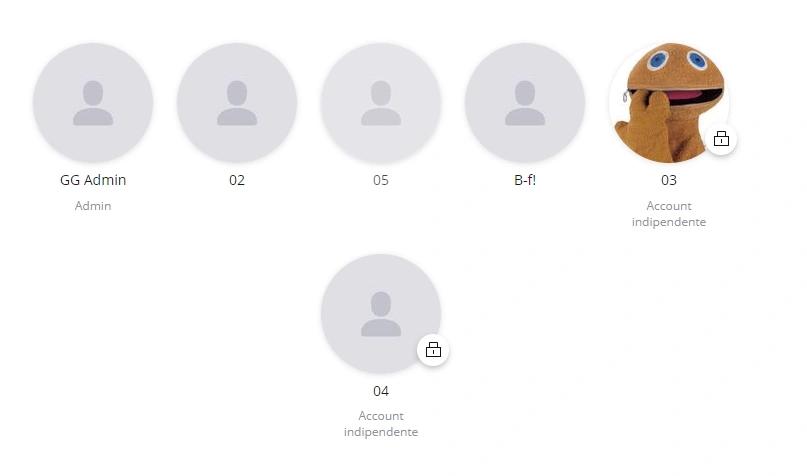
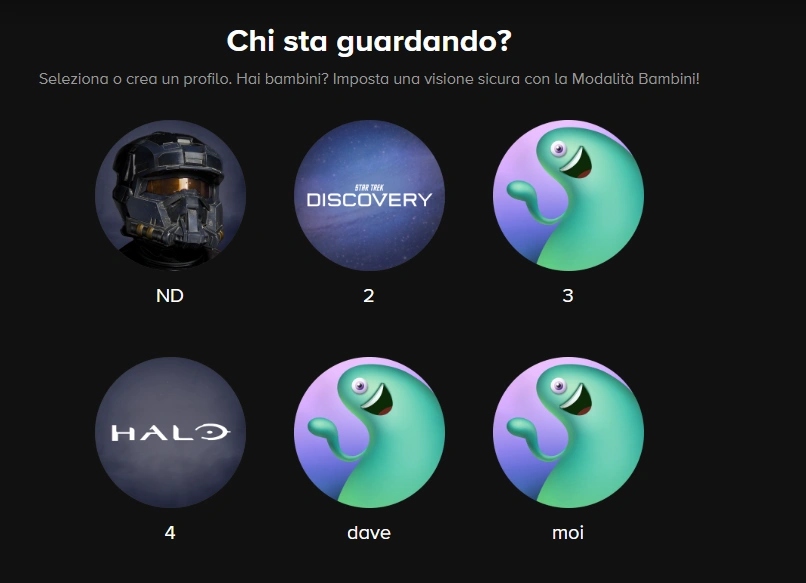
Different platforms display profiles in slightly different ways, but the basic idea is the same: choose the correct profile before you start watching or listening.
Netflix:
Disney+:
Deezer:
Paramount+:
HBO Max:
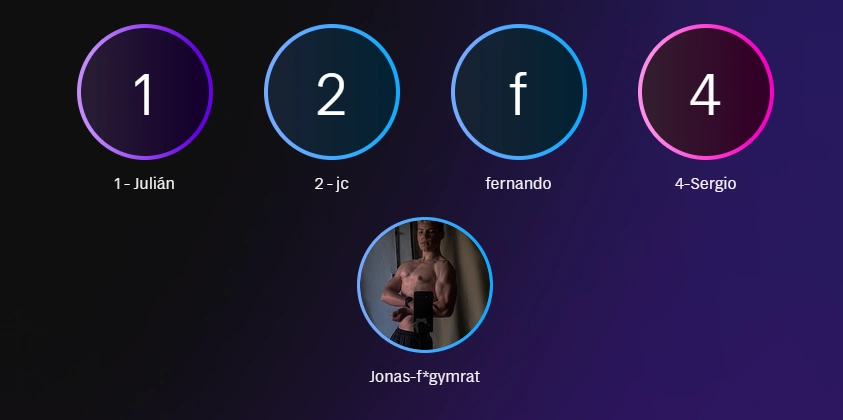
SkyShowtime:
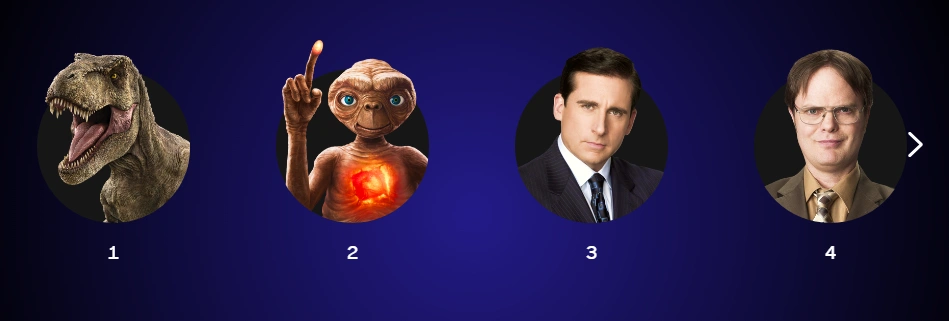
Where Can I Find the Profile Assigned on GamsGo?
After your purchase is complete, GamsGo will assign a specific profile to you. You can find this information on your subscription details page.
- Log in to your GamsGo account.
- Go to the Subscription page.
- Open the subscription you purchased.
- Check the assigned profile number in the subscription details.
- Use only the profile that matches the number shown on GamsGo.
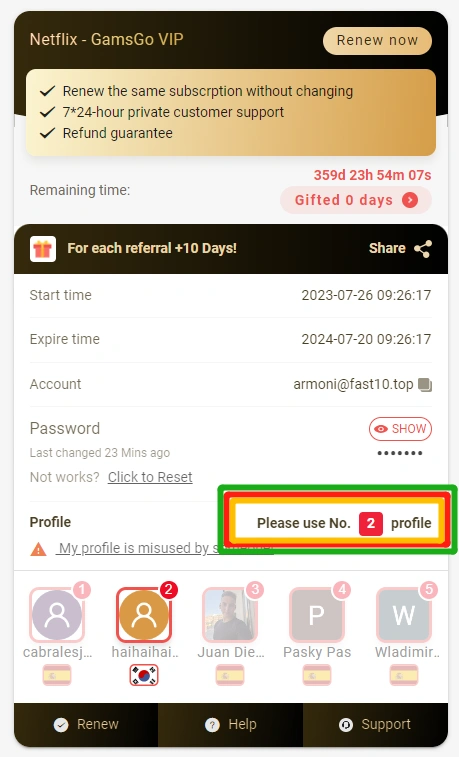
The profile number shown on GamsGo is important. If your assigned profile is number 2, you should select the profile that starts with 2 after logging in to the streaming account, even if it appears in a different position on the screen.
Why Should I Rename My Profile?
Renaming your profile helps you and other users recognize which profile belongs to you. This is especially useful for shared subscriptions, because each user should only use the profile assigned to them.
- It helps you avoid choosing the wrong profile: a clear name makes your profile easier to identify at login.
- It keeps your viewing history separate: using the correct profile protects your watch progress and recommendations.
- It helps other users: other users can see that the profile is already in use.
- It makes future logins faster: you do not need to check every profile again each time.
What Name Should I Use for My Profile?
We recommend naming your profile based on the profile number assigned by GamsGo. The easiest format is:
| Recommended format | Example | Meaning |
|---|---|---|
| Profile number + first name | 2_Mandy | The profile number is 2, and the user’s first name is Mandy. |
| Profile number + nickname | 3_Andy | The profile number is 3, and the user uses Andy as a nickname. |
For example, if GamsGo assigns profile number 2 to you and your first name is Mandy, you can rename the profile as 2_Mandy. This makes it clear that profile 2 belongs to you.
How to Rename a Profile on Netflix, Disney+, Deezer, Paramount+, Prime Video, And Hbo Max
For Netflix, Disney+, Deezer, Paramount+, Prime Video, and HBO Max, the process is usually similar. First, log in to the account and select the profile that matches your assigned profile number.
If your GamsGo profile number is 2, look for the profile that starts with 2. It does not matter whether it appears in the second, fourth, or fifth position. The number in the profile name is what you should follow.
In the example below, the marked profile is the one that should be renamed:
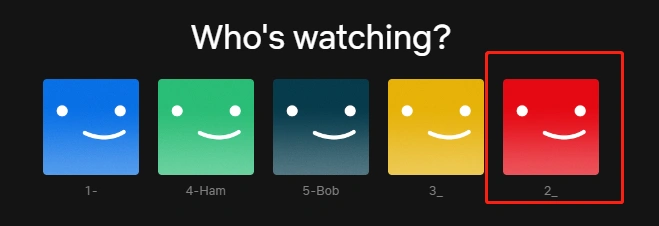
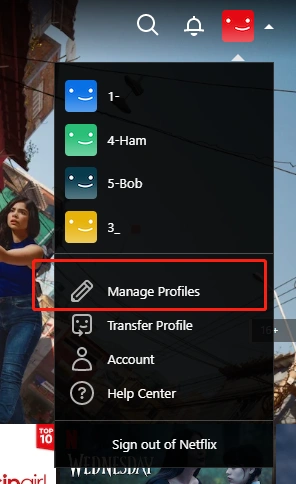
- After entering the correct profile, click Manage Profiles. This option is usually located near the avatar or in the profile menu.
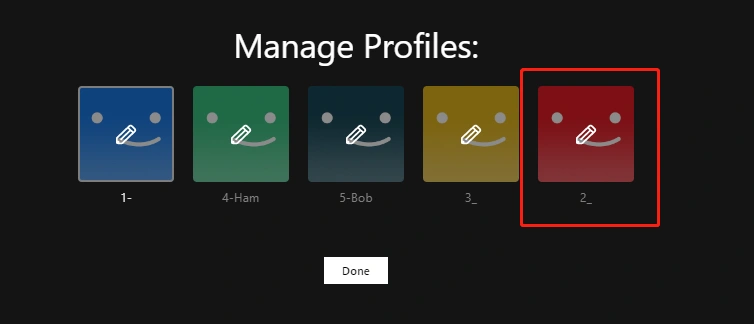
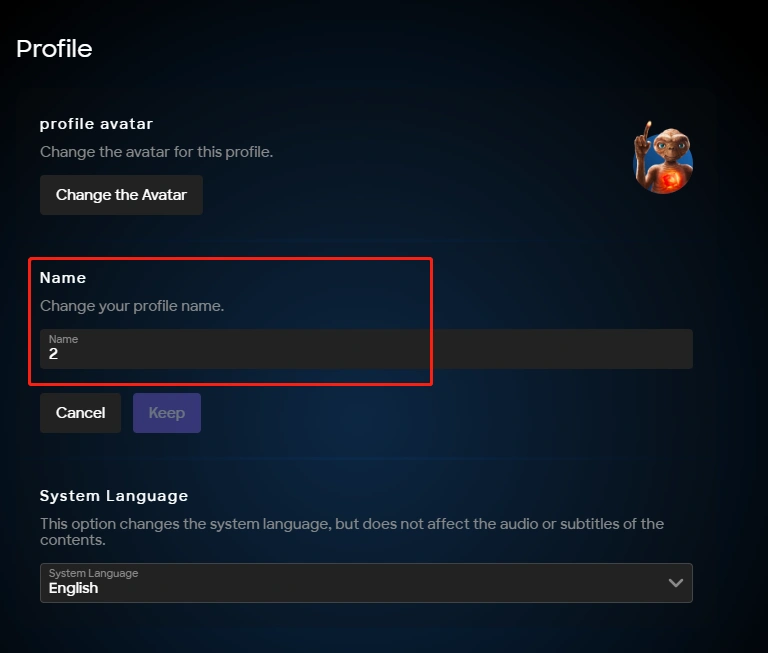
- Click the profile you want to rename.
- Enter the new profile name, such as 2_Andy, and click Save.
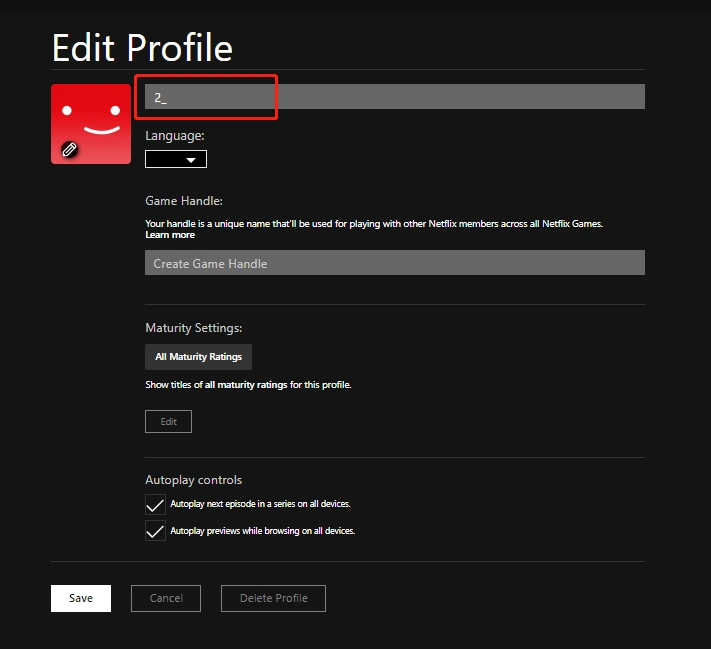
After saving the new name, return to the profile selection page and confirm that your assigned profile now shows the correct number and name.
How to Rename a Profile on SkyShowtime
SkyShowtime works a little differently. In many cases, you do not need to enter the profile first to rename it. You can edit the profile directly from the profile selection screen.
- After logging in, move your mouse over the profile you want to rename and click the pencil icon.
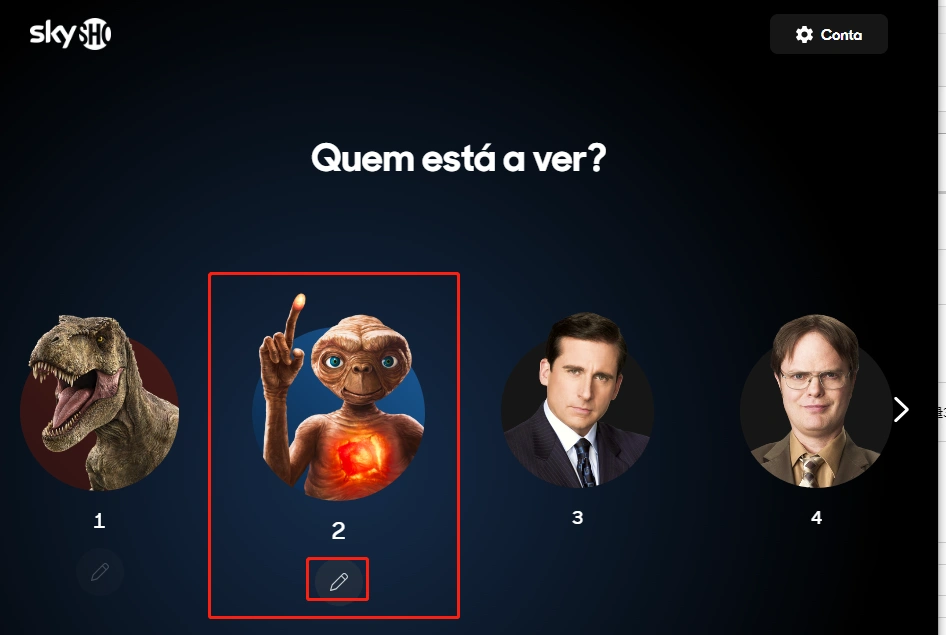
- Enter the new profile name based on the profile number assigned by GamsGo.
- Save the changes and check that the new profile name is displayed correctly.
Why GamsGo Makes Shared Subscription Management Easier?
Shared subscriptions can be confusing when several people use the same account. GamsGo makes the process easier by assigning a specific profile to each user and showing the profile information in the subscription details.
- Clear profile assignment: you can check which profile belongs to you directly on the GamsGo subscription page.
- Less confusion after login: using the assigned profile number helps prevent users from entering the wrong profile.
- Convenient subscription management: your subscription details, account information, and profile instructions are kept in one place.
- Customer support: if you have trouble finding or using your assigned profile, you can contact GamsGo support for help.
To avoid profile conflicts, always use the profile number shown in your GamsGo subscription details and rename it with a clear format, such as 2_Mandy. This keeps your viewing history organized and makes shared subscription use much smoother.
Conclusion
Renaming your assigned profile is a simple but important step when using a shared subscription. Always check the profile number shown in your GamsGo subscription details, choose the matching profile after login, and rename it with a clear format such as 2_Mandy.
GamsGo also offers discounted streaming subscription options, such as a discounted Netflix Premium subscription, an HBO Max Premium account for less, and an affordable Paramount+ subscription.
After purchase, just follow the assigned profile instructions in your GamsGo subscription details to use the right profile smoothly.
We’ve prepared an exclusive promo code for all blog readers:
Enjoy an additional 3% off on your next purchase!
Valid across all categories — streaming accounts, AI tools, game top-ups, software subscriptions, and more.
FAQ
Can I Change the Profile Avatar as Well?
Yes, most streaming platforms allow you to change the profile avatar when editing the profile. However, the most important part is to keep the assigned profile number in the name, so the profile remains easy to identify.
Can I Rename My Profile from a Mobile App?
In many cases, yes. Netflix, Disney+, HBO Max and other platforms usually support profile editing from both mobile apps and web browsers. If you cannot find the option in the app, try editing the profile from a browser.
What Should I Do if the Profile Name Has Already Been Changed by Another User?
Check your assigned profile number again in your GamsGo subscription details. If the number still matches your assigned profile, rename it back using the recommended format. If you are unsure, contact GamsGo support before changing anything else.
Will Changing the Profile Name Affect My Watch History?
No. Renaming the profile normally keeps the existing watch history, recommendations, and saved progress under the same profile. It only changes the name displayed on the profile selection screen.
Related Articles:
7 things you need to know about Amazon Prime Video
How to Stream Crunchyroll on Discord with Friends (No Black Screen)