Discord has grown incredibly fast over the past few years, and its global monthly active users have now surpassed 200 million. It’s easily one of the most popular voice-chat platforms among gamers today.
And within this massive gaming community, PS5 users make up a big slice — many console players want a simple way to use Discord voice chat directly on their PS5 while gaming with friends.
The good news? This feature is now fully supported and much easier to set up than before.
In this guide, you’ll learn exactly how PS5 and Discord work together, with a clear step-by-step setup tutorial, troubleshooting tips, and a few helpful alternatives in case you need them.
Does the PS5 Have Discord?
Yes — the PS5 now officially supports Discord voice chat.
However, it works differently from what many people expect. You don’t install a Discord app on your PS5, and you can’t open the full Discord interface directly on the console.
To use Discord, you need to open the app on your phone or computer first. Join a server, select a voice channel, and then tap “Transfer to PlayStation”. Your PS5 will automatically take over the voice call from there.
In other words, the process is more like “transferring Discord voice chat to your console.”
But keep in mind that PS5 only supports Discord voice, and does not allow you to:
- Browse Discord server channels
- View or send text messages
- Use bots or manage channels
- Access the full Discord client interface
This is because Sony designed the integration specifically to solve cross-platform voice chat for players. Their priority is stable voice bridging — so only Discord Voice is included, not the full client (chat, channels, DMs, etc.).
If you often use Discord on your PS5 to team up with friends 🎮, you can also give your account a little extra “vibe.”
On GamsGo marketplace, you can buy Discord Nitro at a lower price ✨ and enjoy higher-quality voice chat, larger upload limits, server boosts, and more personalized avatars and stickers. It’s an easier, more affordable way to upgrade your overall chatting experience — better value, smooth to use.
How to Use Discord on PS5 (Step-by-Step Guide)
To use Discord on your PS5, you essentially need to do two things: Link your PlayStation account with your Discord account and transfer a voice channel from your phone or computer to your PS5.
Here’s the clearest step-by-step walkthrough:
Step 1: Get the required apps (done on your phone)
Before you start, make sure you have two apps installed on your phone: the Discord app and the PS App.
Discord is where you’ll join a voice channel, and the PS App is needed to link your PlayStation account with your Discord account.
All tasks in this step are completed entirely on your phone — you don’t need to set up anything on the PS5 yet.
Step 2: Link Discord to your PlayStation account on your phone
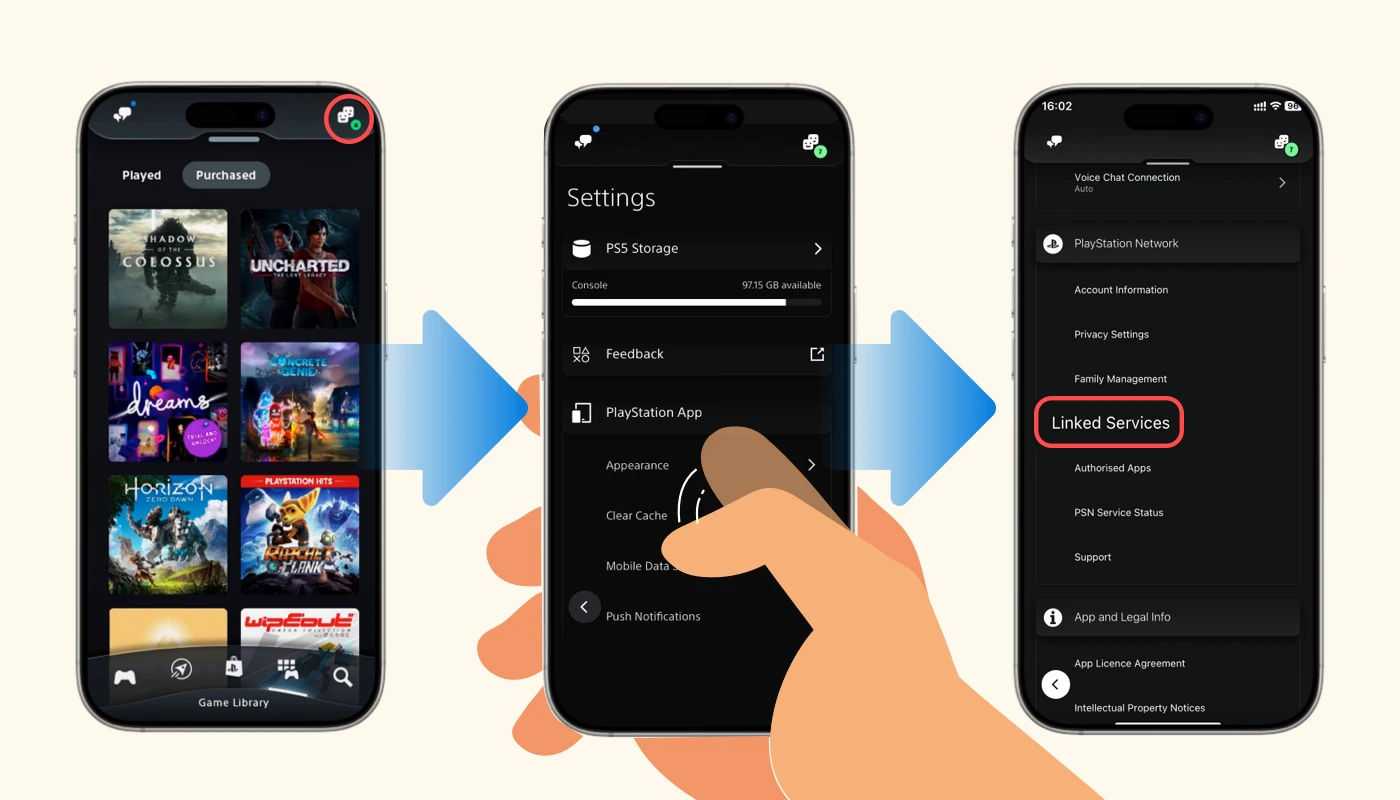
Next, you’ll need to link your accounts through the PS App on your phone. Just follow these steps:
Open the PS App and tap your profile icon in the top-right corner
Go to Settings
Select Linked Services
Choose Discord and sign in to your Discord account when prompted
Confirm the authorization that allows “PlayStation Network” to access your Discord info
Once this step is done, your Discord account is officially connected to your PSN account.
Step 3: Check on your PS5 to confirm the link
After linking your accounts on your phone, you’ll need to confirm that Discord is properly connected on your PS5.
Turn on your console, go to Settings, then navigate to Users and Accounts.
From there, enter Linked Services, where you’ll see all external accounts connected to your PS5.
If everything went smoothly, you should see Discord listed as “Connected.”
If it’s not there, it means the link didn’t go through. Simply select Discord again, log in, and re-authorize the connection.
Step 4: Join a Discord voice channel (on your phone or PC)
Next, you need to join a voice channel on Discord.
On your phone or computer, open Discord, go into any server, and select the voice channel you want to join.
Once you’ve joined the channel, your voice session is active and ready to be transferred to your PS5.
⭐ Step 5: Transfer your Discord voice chat to the PS5 (the most important step)
This is the key step — and also the part many users don’t know about. You need to perform it on your phone or computer.
After joining a voice channel, Discord will show a “Transfer to PlayStation” option
Tap Transfer to PlayStation
A device list will pop up — select your PS5
Confirm, and the transfer will complete
Once this is done, your PS5 will automatically take over the voice channel, and your Discord audio will switch from your phone or computer directly to the console.
Step 6: Start using Discord voice chat on your PS5
After you tap “Transfer to PlayStation” in Discord, your PS5 will automatically take over the voice channel.
You’ll first see a “Discord Voice connected” notification pop up in the bottom-left corner of your screen — this means the voice chat is now successfully running on your PS5.
Next, press the PS button on your controller to open Game Base.
Here, you’ll see your active Discord voice chat, along with the member list and options to adjust volume, mute yourself, and more.
From this point on, your Discord voice chat is fully operating through your PS5.
Want to learn more Discord tips? You can also check out our other guides, such as 《How to Watch Netflix on Discord》, 《How to Watch Crunchyroll on Discord》, or 《How to Watch Netflix on Switch》 — all designed to help you enjoy smoother cross-platform streaming experiences.
Why can’t my PS5 use Discord?
When setting up Discord on PS5, many players run into issues such as missing options or failed connections. Below are the most common reasons and their corresponding fixes to help you troubleshoot quickly:
The PlayStation × Discord link wasn’t completed on your phone:
If you didn’t successfully authorize Discord in the PS App, your PS5 won’t show any Discord-related options.
Go back to PS App → Settings → Linked Services → Discord and complete the authorization.Account regions don’t match (US/EU/JP differences):
Region mismatches between your PSN account and Discord account can cause delays or authorization errors.
Try using a Discord account from the same region as your PS5, or switch to a US/EU region for linking.Your PS5 system software is outdated:
If your console isn’t updated to a version that supports Discord integration, voice chat won’t work.
Go to Settings → System → System Software and update to the latest version.You’re using a child account:
Accounts with underage restrictions block voice and communication features, which prevents Discord from appearing.
A parent account can adjust permissions in Family Settings, or you can switch to an adult account.Insufficient permissions in the Discord voice channel:
If the voice channel requires certain roles or permissions, the “Transfer to PlayStation” option won’t show up.
Try switching to a public voice channel or check with the server admin regarding permissions.
These are the most common reasons why Discord may not work on a PS5. Go through the solutions one by one—most issues can be fixed quickly.
If the problem still persists, you can also check your network connection, PSN privacy settings, or re-link your accounts, as these may also affect Discord’s visibility and connection.
How to use Discord on PS5 without linking your accounts
If you don’t want to link your Discord account — or if you’re running into issues during the linking process — there are still alternative ways to use Discord voice chat on your PS5.
These methods aren’t as smooth as the official integration, but they can be useful in a pinch.
Here are two common alternatives:
Use PS5’s hidden browser to access Discord Web:
The PS5 doesn’t have a standard browser entry point, but you can access its built-in browser through menus like “User Agreement.”
Once inside, you can open the Discord web version and use voice chat.
However, due to limited browser performance, voice quality and stability won’t match the official integration. This method is best used only as a temporary workaround.Run Discord on your phone and split the audio to your PS5:
Some players choose to stay in a Discord voice call on their phone and use a headset or an audio splitter to route the phone’s audio into the PS5.
It’s a bit messy, involves extra cables, and isn’t the most convenient setup — but if you need cross-platform voice chat and can’t link your account, it still gets the job done.
These alternatives are not as stable as the official “Transfer to PlayStation” voice-handoff feature and don’t offer a true system-level Discord experience. But if you only need Discord temporarily or your account can’t be linked, they’re still workable short-term solutions.
Can you install Discord on PS4?
The PS4 does not support native Discord integration like the PS5.
Because the PS4 uses an older system architecture and doesn’t include the official Discord APIs, Sony never released any built-in Discord support for it.
However, if you still want to chat with friends while playing games on your PS4, there are two practical workaround options:
Use Discord on your phone for voice chat:
The most common solution is to stay in a Discord voice call on your phone while you play.
You can use dual headphones or an audio splitter so you can hear both your game audio and your friends at the same time.Use Discord on a PC + PS Remote Play:
If you regularly use a computer, you can run PS Remote Play on your PC to play your PS4 games, and keep Discord open on the same device for voice chat.
This setup requires a stable network, but it generally offers a better experience if you’re at a desk.
These methods aren’t as smooth or stable as the PS5’s official Discord integration, but for players still using a PS4, they remain viable alternatives.
How to Set Up Discord on Xbox?
Xbox is another major gaming console, and the way you use Discord on it is quite similar to the PS5.
The overall process follows the same logic: link your accounts → transfer the voice chat.
As long as you follow the steps in order, you shouldn’t run into any major issues.
Here’s the detailed setup process:
Turn on your Xbox and go to the home screen.
Open Settings → Account.
Select Linked social accounts.
Find Discord in the list and choose Link.
Follow the prompts to sign in to your Discord account using your phone or computer.
On the Discord authorization page, allow access to link your Discord with Xbox.
Return to your Xbox — once the link is complete, you can start using Discord voice chat on your console.
After completing these steps, your Xbox will be able to connect with Discord for stable voice communication. Whether you’re joining a friend’s party or transferring a voice channel directly from Discord, everything will move seamlessly to your Xbox, keeping your in-game communication clear and smooth.
Conclusion
In short, the PS5 doesn’t support installing the full Discord client. Instead, it relies on the PS App and account linking to create a “voice bridge.”
As long as you link your accounts on your phone and then transfer the voice channel to your PS5 after joining it on Discord, the console will take over the voice chat smoothly.
Once you understand this, you won’t waste time searching for a “Discord app download” option on PS5 — because it simply doesn’t exist.
You’ll also have a much clearer idea of how Discord is supposed to work on the PS5.
Hopefully, this guide helps you complete the setup with ease and enjoy a smoother cross-platform gaming experience.
FAQ
Do I need a PS Plus membership to use Discord on PS5?
No, you don’t. Discord voice on PS5 is a system-level “account integration feature,” and it does not require a PS Plus subscription. Even without PS Plus, you can link your Discord account, join voice channels, and transfer the voice chat to your PS5 normally.
How do I unlink Discord from my PS5?
You can unlink it directly from your console or through the PS App. On PS5:Go to Settings → Users and Accounts → Linked Services → Discord → Unlink. On the PS App: Tap your profile icon to enter Settings, go to Linked Services, select Discord, and tap Unlink.
How to install Discord on PS5?
You can’t install Discord on PS5 because the console doesn’t support the full Discord app. Instead, link your Discord account in the PS App, join a voice channel on your phone or PC, and use “Transfer to PlayStation” to move the call to your PS5.
Related Articles
YouTube Premium in 2026: Is It Still Worth the Subscription?