Among 668 Valorant pro players with publicly available settings, the median eDPI is just 231, equivalent to approximately 0.29 sensitivity at 800 DPI. Many ranked players use much higher sensitivity settings, often leading to overshooting targets, shaky micro-adjustments, and inconsistent flick shots.
If you've copied the settings of popular streamers but still struggle with your aim, their sensitivity might simply not suit your playstyle. The best Valorant sensitivity is different for everyone. What works for pros like aspas or OXY may not work for your mouse, desk space, or preferred agents.
In this guide, we'll help you find the best sensitivity for Valorant with easy-to-follow 800 and 1600 DPI comparison charts, real pro player settings, and a simple five-step method to fine-tune your sensitivity for more consistent aim.
Once you've fine-tuned your sensitivity, you can also top up Valorant Points (VP) on GamsGo and treat yourself to some new skins.

Quick Answer: Best Sensitivity for Valorant
The best Valorant sensitivity for most players falls between 200–400 eDPI. We recommend starting at 280 eDPI and adjusting from there.
800 DPI: Set in-game sensitivity to 0.35 (common range: 0.25–0.40).
1600 DPI: Set in-game sensitivity to 0.175 (common range: 0.125–0.20).
Scoped Sensitivity Multiplier: Keep it at 1.0.
The median eDPI among Valorant pro players is approximately 231. Start with the settings above, then use the five-step method below to fine-tune your sensitivity.
How to Find the Best Sensitivity for Valorant: Step by Step
The comparison chart is just a starting point. To find the sensitivity that truly works for you, you'll need to test it in-game. The following five steps take less than an hour and will help you go from a rough estimate to a comfortable, consistent sensitivity setting.
Step 1: Fix Your DPI and Pick a Starting eDPI
First, set your mouse DPI to 800 or 1600 in your mouse software and disable Enhance Pointer Precision (mouse acceleration) in Windows settings.
Start with 280 eDPI, which equals 0.35 in-game sensitivity at 800 DPI or 0.175 at 1600 DPI.
If you're switching from another FPS game, you can convert your existing sensitivity to Valorant using the formulas below to maintain a familiar aiming feel.
Previous Game | Conversion Formula (Same DPI) | Example |
|---|---|---|
CS2 / Apex Legends | Valorant Sensitivity = Previous Sensitivity ÷ 3.18 | 1.5 → 0.47 |
Overwatch 2 | Valorant Sensitivity = Previous Sensitivity ÷ 10.6 | 5.0 → 0.47 |
Step 2: Use the Halving Method in the Range
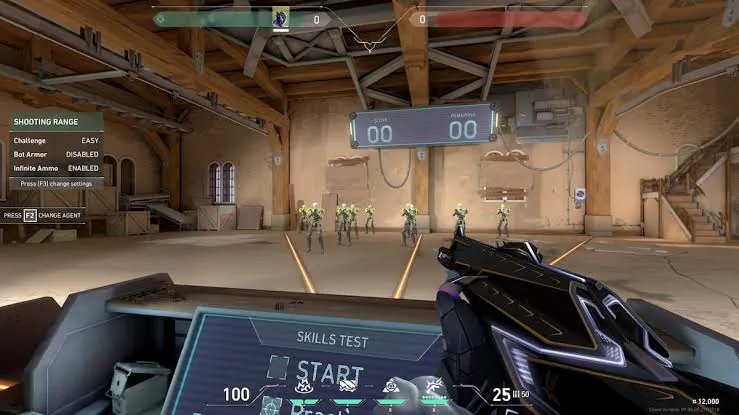
Enter The Range and practice horizontal flick shots on stationary targets, then use moving bots to test your tracking. Starting from 280 eDPI, test settings 50% higher and 50% lower than your baseline to see which direction feels more comfortable.
Once you've found the better direction, narrow your adjustments to 25%, then 12.5%, testing each new setting against the previous one. After three to four rounds, you should have a smaller sensitivity range that feels comfortable and consistent.
Step 3: Check Your Flicks and Your Tracking
The best Valorant sensitivity should help you do two things: land flick shots without overshooting and track moving targets smoothly. Use these common aiming problems to identify whether your sensitivity needs adjusting:
Overshooting targets or shaky crosshair movements: Your sensitivity may be too high. Lower it by 5–10%.
Undershooting targets or constantly lifting your mouse to turn: Your sensitivity may be too low. Increase it by 5–10%.
Unable to make a 180° turn within your mousepad space: Your sensitivity may be too low, or your mousepad may be too small.
Step 4: Test It in Real Matches
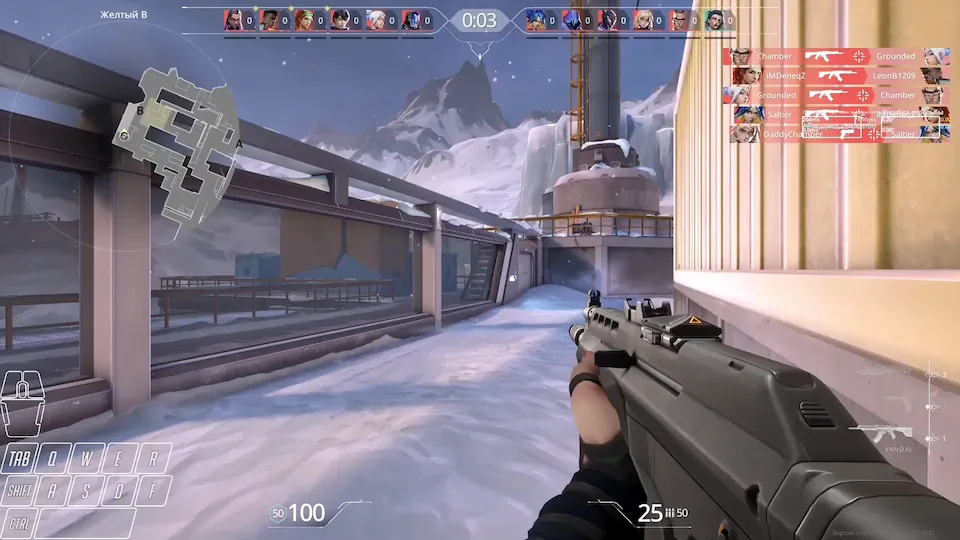
Aiming in The Range doesn't always feel the same as in real matches. Start by playing 3–5 Deathmatch games, focusing on your headshot accuracy at medium to long range and your performance in close-range gunfights. Once you're comfortable with your sensitivity, test it further in Unrated or Competitive matches.
Step 5: Stick With It, Then Fine-Tune
Once you've found a comfortable sensitivity, stick with it for at least 1–2 weeks to build muscle memory and consistency. If you still need to fine-tune your settings, make small adjustments of just 0.01–0.02 at a time.
Avoid making drastic sensitivity changes after every loss. Constantly switching your sensitivity is one of the most common reasons for inconsistent aim in Valorant.
What Is a Good Sensitivity for Valorant?
There is no one-size-fits-all best sensitivity for Valorant, but top players tend to use settings within a fairly consistent range. Pro player data provides a reliable starting point, while in-game testing will help you find the sensitivity that works best for your aim and playstyle.
What the Pros Use
Based on data from 668 Valorant pro players, the average eDPI is 248.3, while the median is 231.2. The average is slightly higher because a small number of players use exceptionally high sensitivity settings.
The same data also shows that 74.3% of pro players keep their Scoped Sensitivity Multiplier at 1.0. This suggests that most professionals prefer consistent sensitivity scaling between scoped and unscoped aiming.
Recommended eDPI Ranges by Playstyle
For most players, a good Valorant sensitivity falls between 200 and 400 eDPI. However, your ideal setting depends on your playstyle, preferred agents, and aiming habits.
Playstyle | eDPI Range | Best For |
|---|---|---|
Low Sensitivity | 160–240 | Operator users, Sentinel players, holding angles, and precise headshots |
Medium Sensitivity Recommended | 240–320 | Most players who want a balance between accuracy and turning speed |
High Sensitivity | 320–400 | Duelist players, aggressive entry fragging, close-range fights, and quick flick shots |
If you're unsure where to start, try 280 eDPI. It sits in the middle of the medium-sensitivity range and is a common choice among Valorant pro players.
Best Sensitivity for Valorant at 800 DPI and 1600 DPI
Both 800 and 1600 DPI are popular choices among Valorant players. The charts below show how different in-game sensitivity settings translate into eDPI and cm/360, helping you choose a setup that matches your aiming style.
Best Sensitivity for 800 DPI Valorant
At 800 DPI, a sensitivity between 0.25 and 0.40 is a practical range for most Valorant players. Start at 0.35 (280 eDPI) if you're unsure which setting to choose.
In-Game Sensitivity | eDPI | cm/360 | Sensitivity Feel |
|---|---|---|---|
0.20 | 160 | 81.6 cm | Very Low (Arm Aiming) |
0.25 | 200 | 65.3 cm | Low |
0.30 | 240 | 54.4 cm | Medium-Low |
0.35 | 280 | 46.7 cm | Medium (Recommended Starting Point) |
0.40 | 320 | 40.8 cm | Medium-High |
0.45 | 360 | 36.3 cm | High |
0.50 | 400 | 32.7 cm | Very High (Wrist Aiming) |
800 DPI is a reliable default supported by virtually all modern gaming mice. It's also widely used among professional players, making their published settings easier to replicate.
Best Sensitivity for 1600 DPI Valorant
At 1600 DPI, the recommended in-game sensitivity range is 0.125–0.20. You can halve your 800 DPI sensitivity to maintain the same eDPI and overall turning speed.
In-Game Sensitivity | eDPI | cm/360 | Sensitivity Feel |
|---|---|---|---|
0.100 | 160 | 81.6 cm | Very Low (Arm Aiming) |
0.125 | 200 | 65.3 cm | Low |
0.150 | 240 | 54.4 cm | Medium-Low |
0.175 | 280 | 46.7 cm | Medium (Recommended Starting Point) |
0.200 | 320 | 40.8 cm | Medium-High |
0.225 | 360 | 36.3 cm | High |
0.250 | 400 | 32.7 cm | Very High (Wrist Aiming) |
1600 DPI can provide finer movement resolution, potentially making small crosshair adjustments feel smoother. However, the difference may be subtle, and higher DPI doesn't automatically improve aiming accuracy.
800 DPI vs. 1600 DPI: Which Should You Use?
At the same eDPI, both settings produce identical overall turning speeds. The main difference is movement resolution and how each setting feels during precise aiming.
Choose 800 DPI for a familiar, widely used setup, or try 1600 DPI if you prefer finer mouse movement detection. Neither offers a guaranteed competitive advantage, so stick with whichever feels more natural and consistent.
What Does Sensitivity Mean in Valorant?
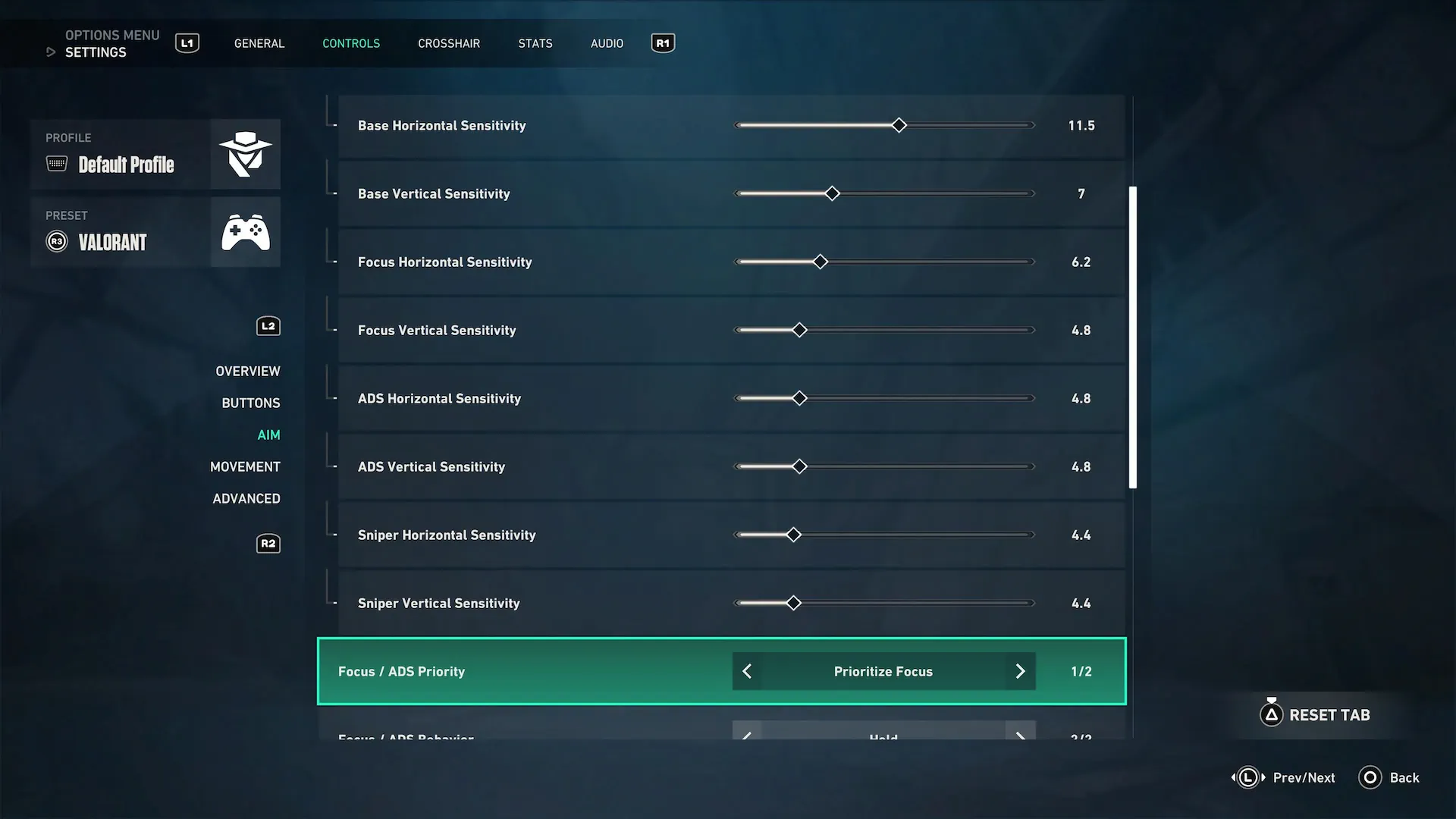
Before changing any sensitivity settings, it's important to understand what you're actually adjusting. Valorant sensitivity isn't determined by a single setting. Instead, it depends on the combination of your mouse DPI and in-game sensitivity.
Mouse DPI vs. In-Game Sensitivity
DPI (Dots Per Inch) is configured on your mouse or through its software. It determines how many movement counts your mouse reports for every inch of physical movement. In-game sensitivity is the multiplier Valorant applies to those movements.
Neither setting alone tells you how fast your crosshair will move. For example, 400 DPI with 0.8 sensitivity and 1600 DPI with 0.2 sensitivity produce the same overall crosshair movement speed in Valorant.
What Is eDPI?
eDPI (Effective DPI) combines your mouse DPI and in-game sensitivity into one value, allowing you to compare Valorant sensitivity settings accurately across different players.
The formula is simple: DPI × In-Game Sensitivity = eDPI. For example, 800 DPI × 0.35 = 280 eDPI. Unlike DPI or in-game sensitivity alone, eDPI provides a consistent way to measure and compare the best sensitivity for Valorant, regardless of mouse DPI.
What Is cm/360?
cm/360 measures the distance (in centimeters) your mouse must travel to complete a full 360-degree turn in Valorant. It's a practical sensitivity metric because it directly reflects your mousepad size and available desk space.
You can calculate cm/360 in Valorant using this formula:
cm/360 = 13,063.6 ÷ eDPI
For example, at 280 eDPI, your mouse needs to travel approximately 46.7 cm for a full turn. A larger mousepad allows you to use a lower eDPI comfortably, giving you more room for precise aiming and controlled movements.
How to Check Your Mouse DPI
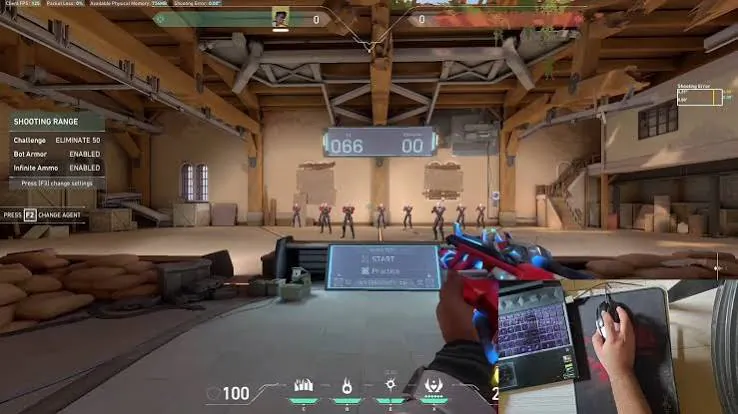
To calculate your eDPI, you first need to know your mouse DPI. Many Valorant players aren't sure what DPI they're currently using, but you can check it using these three methods:
Check your mouse software: Programs like Logitech G HUB, Razer Synapse, and SteelSeries GG display your current DPI settings. This is the most accurate method.
Check the official mouse specifications: If your mouse doesn't have dedicated software, visit the manufacturer's website to find its default DPI settings. You can also check the DPI button and indicator lights on your mouse.
Use an online DPI analyzer: Measure a fixed distance on your desk (such as 1 inch), then move your mouse across that distance following the tool's instructions to estimate your actual DPI.
Once you've confirmed your DPI, we recommend keeping only one DPI setting enabled in your mouse software. This helps prevent accidental DPI changes during Valorant matches, which can suddenly throw off your aim and muscle memory.
Where to Change Sensitivity in Valorant
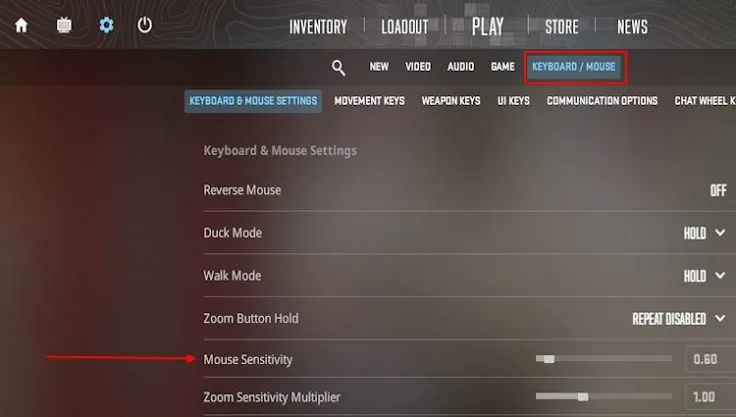
Changing your sensitivity in Valorant takes just a few seconds:
Press Esc to open the menu and go to Settings.
Select the General tab and find the Mouse section.
Under Sensitivity: Aim, enter your preferred in-game sensitivity. You can type a precise decimal value directly.
To adjust your sensitivity while using a scope, change the Scoped Sensitivity Multiplier on the same page.
Other Settings That Affect Your Aim
Even after finding the best Valorant sensitivity, other mouse and game settings can still affect how consistent your aim feels. Here are a few important settings you should check.
Scoped Sensitivity Multiplier
The Scoped Sensitivity Multiplier controls your sensitivity while aiming through a scope. Its default value is 1.0.
As mentioned earlier, 74.3% of Valorant pro players keep this setting at 1.0. We recommend leaving it unchanged at first. If aiming with the Operator feels uncomfortable, try making small adjustments in increments of 0.05.
Mouse Acceleration
Mouse acceleration changes cursor movement based on how quickly you move your mouse. For a consistent desktop experience, you can disable "Enhance Pointer Precision" in Windows and check for acceleration settings in your mouse software.
However, Valorant uses raw mouse input, so Windows pointer acceleration generally does not affect in-game aiming. If your sensitivity feels inconsistent, also check your DPI, mouse software, and game performance.
Polling Rate and Raw Input Buffer
Mouse polling rate determines how many times per second your mouse reports its position to your computer. 1000Hz is a common and practical starting point for Valorant players. Higher polling rates may offer improvements, but the actual benefits depend on your mouse, PC performance, and gaming setup.
It's also important to note that since Valorant Patch 11.06, Raw Input Buffer has been permanently enabled by default. You no longer need to enable it manually, and the option can no longer be toggled in the game settings.
Monitor Resolution
Many players assume that changing their screen resolution will affect their mouse sensitivity, but that's not the case in Valorant.
Whether you're playing at 1080p or 1440p, the physical mouse distance required to complete a full 360-degree turn remains the same at an identical eDPI.
Valorant Pro Player Sensitivity Settings
Want to know what sensitivity settings professional Valorant players use? The table below compares the DPI, in-game sensitivity, eDPI, and cm/360 of several well-known pros.
| Pro Player | DPI | In-Game Sensitivity | eDPI | cm/360 |
|---|---|---|---|---|
| aspas | 800 | 0.4 | 320 | 40.8 cm |
| Primmie | 800 | 0.35 | 280 | 46.7 cm |
| florescent | 1600 | 0.175 | 280 | 46.7 cm |
| OXY | 800 | 0.25 | 200 | 65.3 cm |
As you can see, even top Valorant players use different sensitivity settings, with eDPI values ranging from 200 to 320.
Copying pro player settings can be a useful starting point, but the best Valorant sensitivity ultimately depends on your own aiming habits and playstyle. Use the five-step method above to find the settings that work best for you.
Keep in mind that professional players occasionally change their sensitivity settings, so it's always worth checking their latest publicly available configurations.
Top Up Valorant Points for Less with GamsGo
Once you've improved your aim, why not complete your setup with some eye-catching Valorant skins? However, buying Valorant Points (VP) directly in-game can get expensive, especially when purchasing limited-edition skin bundles.
GamsGo is a London-based digital subscription platform offering over 200 subscription services and gaming top-up products. Through GamsGo's game top-up marketplace, you can purchase Valorant Points at more affordable prices.
Now that you've fine-tuned your sensitivity, it's time to upgrade your collection. Top up Valorant Points on GamsGo and make every headshot feel even more satisfying!
Conclusion
Finding the best sensitivity for Valorant isn't about copying pro player settings. It's about testing different values until you find one that feels comfortable and consistent. We recommend starting at 280 eDPI, narrowing down your ideal range through practice in The Range, and then testing your flick shots, tracking, and micro-adjustments in real matches.
Whether you use 800 DPI or 1600 DPI, the comparison charts in this guide can help you find the sensitivity that works best for your playstyle.
Once you've fine-tuned your sensitivity, why not upgrade your weapons with some of your favorite skins? Head over to GamsGo to top up Valorant Points (VP) at more affordable prices, unlock the skins you've been wanting, and make every precise headshot feel even more rewarding!
FAQ
Does Sensitivity Affect Recoil in Valorant?
Sensitivity doesn't change weapon recoil, bullet spread, or shooting mechanics in Valorant. However, it does affect how easily you control your mouse when managing recoil. High sensitivity can make small corrections harder, while lower sensitivity generally allows for more precise adjustments.
Should I Use the Same Sensitivity for Every Valorant Agent?
It's generally best to use the same base sensitivity for all Valorant agents. Whether you're playing Jett, Reyna, or Chamber, consistent mouse settings help maintain a familiar aiming feel. However, some agent abilities require quick turns, so you can adjust your sensitivity based on your personal preferences.
Why Does My Valorant Sensitivity Feel Different Every Day?
Even if your sensitivity settings haven't changed, factors like fatigue, hand position, mouse grip, mousepad friction, and FPS fluctuations can affect how your aim feels. Before changing your Valorant sensitivity, check your equipment and game performance. Avoid adjusting your sensitivity just because you had one bad aiming day.
Why Does My Valorant Sensitivity Keep Resetting?
If your Valorant sensitivity keeps resetting to default values whenever you launch the game, the issue may be related to corrupted configuration files, settings synchronization problems, or file permissions. Make sure your changes are saved correctly, restart Valorant to test whether the settings persist, and check whether any third-party software is overwriting your game configuration.
Is Valorant Console Sensitivity the Same as PC Sensitivity?
No. Valorant PC and console use different sensitivity systems. PC sensitivity depends primarily on mouse DPI and in-game sensitivity, while Xbox and PlayStation use separate controller settings, including stick sensitivity and aim response curves. These settings cannot be directly compared using eDPI, so recommended Valorant PC sensitivity values shouldn't be applied to console gameplay.