
Cursor is one of the fastest-growing AI coding tools, combining AI code completion, intelligent chat, and Agent-powered coding to help developers write, edit, and manage code more efficiently.
But how do you use Cursor IDE? How is it different from VS Code, and what do Agent, Chat, and Rules do? With Cursor Pro starting at $20 per month and higher-tier plans costing more, choosing the right subscription is also important.
This Cursor IDE guide covers everything you need to know in 2026, from essential features and step-by-step tutorials to practical coding tips and subscription pricing. If you plan to use Cursor Pro long-term, you can also explore GamsGo's Cursor Pro subscription options to reduce your subscription costs while getting the most out of AI-powered coding.

What Is Cursor IDE?
Before getting started, it's important to understand what Cursor IDE actually is. Many people describe Cursor as "VS Code with AI," but that's only part of the story. Let's explore what Cursor is and how it differs from traditional IDEs.
Cursor is an AI-powered code editor developed by Anysphere, a US-based company. First released in 2023, Cursor is built on a fork of the open-source VS Code (Code - OSS). This means that when you first open Cursor, you'll find a familiar interface with a file explorer, integrated terminal, and command palette, making it easy for VS Code users to get started.
The key difference is that AI is built directly into Cursor rather than added as a separate extension. With the release of Cursor 2.0 in October 2025, developers gained the ability to run multiple AI Agents in parallel. Cursor 3.0, released in April 2026, introduced a dedicated Agents Window for managing AI coding tasks running locally, in the cloud, or on remote machines.
In other words, Cursor is evolving from an AI code editor that helps you write code into an AI-powered development workspace where you can manage and direct AI Agents to complete coding tasks.
How Is Cursor Different From a Traditional IDE?
Traditional IDEs, such as IntelliJ IDEA, Visual Studio, and standard VS Code, primarily rely on features like syntax highlighting, type inference, code navigation, and built-in refactoring tools. These features are reliable and useful, but they generally require developers to perform or initiate each coding task manually.
Cursor builds on these capabilities by adding three major AI-powered features:
- Codebase understanding: Cursor indexes your project to understand its structure and context. You can ask natural language questions like "Where is the login logic handled?" and quickly find relevant code without manually searching through files.
- Multi-file code editing: Instead of simply suggesting the next line of code, Cursor can generate, modify, and refactor code across multiple files based on your instructions.
- Autonomous AI Agents: Cursor's Agent can run terminal commands, execute tests, analyze error messages, and make additional code changes to help complete complex development tasks.
The main difference is how you interact with the development environment. Traditional IDEs provide the tools you need to write code, while Cursor adds an AI assistant that can help use those tools on your behalf.
This makes Cursor particularly useful for developers who want to automate repetitive tasks, work with unfamiliar codebases, and speed up their everyday coding workflows.
How Does Cursor IDE Work?
Understanding how Cursor IDE works can help you write better AI prompts and avoid wasting your usage limits. Cursor's AI functionality can be broken down into three key components: which AI model handles your request, how Cursor understands your codebase, and what context is included in each request.
AI Models
Cursor isn't limited to a single AI model. In the model selector, you can choose from third-party models such as Anthropic's Claude, OpenAI's GPT, and Google's Gemini, as well as Cursor's own Composer models.
These include Composer 2, released in March 2026, and Composer 2.5, introduced in May 2026, which became the default model for new Cursor CLI sessions.
If you're unsure which model to choose, you can enable Auto mode, which automatically selects an appropriate model based on your coding task. This makes it easier to balance coding performance, speed, and usage costs without switching models manually.
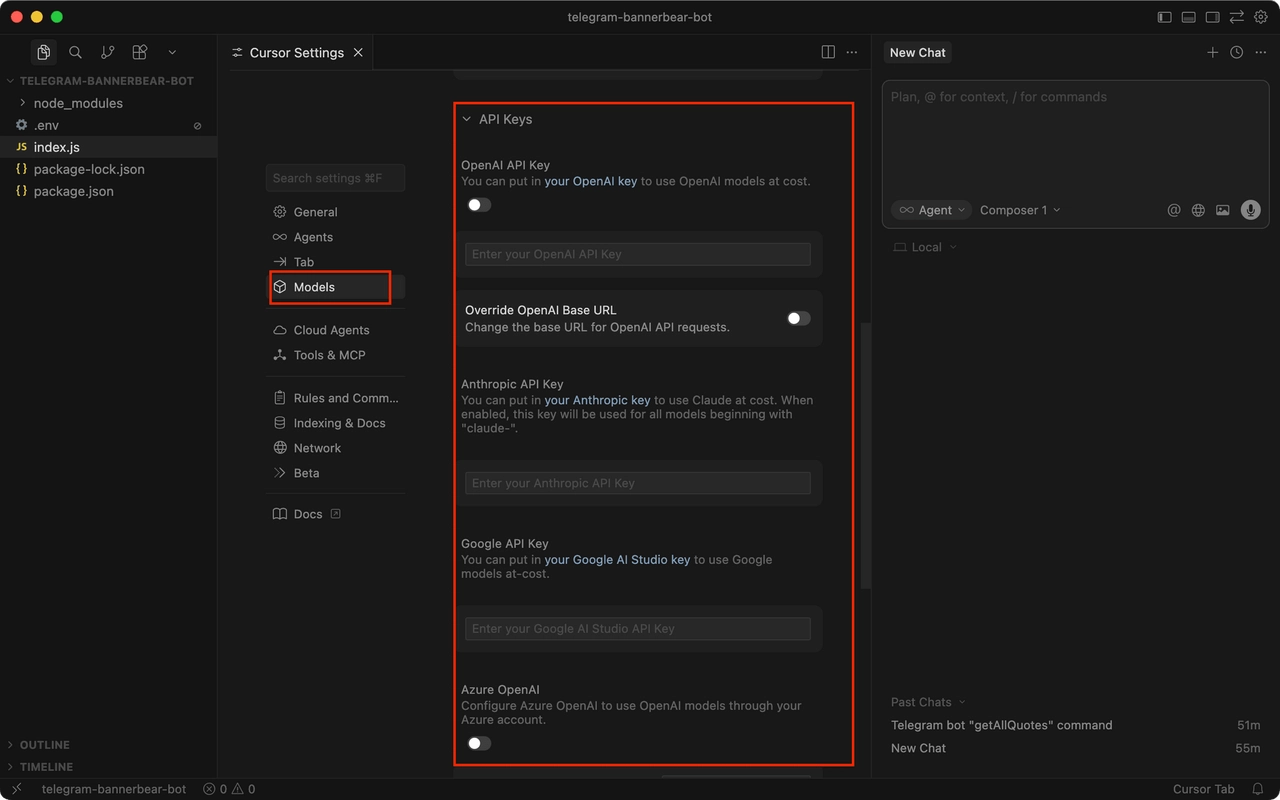
According to Cursor's official documentation, the Pro, Pro+, and Ultra plans each include two separate usage pools: one for Cursor's own AI models, which offers more generous usage limits, and another for third-party models. The Pro plan includes $20 per month in third-party model usage, Pro+ includes $70, and Ultra includes $400.
This means your Cursor subscription plan directly affects how much you can use advanced AI models each month. To make the most of your usage allowance, use Composer or Auto mode for everyday code completion and minor edits, then switch to Claude or GPT for complex coding tasks that require deeper reasoning. This approach can help you manage your AI usage more efficiently and avoid unnecessary costs.
Codebase Understanding
When you open a project in Cursor, it automatically breaks your code into smaller chunks and creates a vector index in the background. When you ask a question, Cursor uses semantic search to identify the most relevant files and functions before sending that context to the AI model.
For example, if you ask, "Where is the verification email sent during user registration?", Cursor can locate the relevant service file instead of simply searching for matching keywords. This makes it easier to navigate large codebases and understand unfamiliar projects.
Here are two practical tips to improve Cursor's codebase understanding:
- Wait for indexing to finish. When you first open a large repository, indexing may take several minutes. For more accurate answers, wait until indexing is complete before asking questions about your project.
- Use
.cursorignoreto exclude unnecessary files. Add a.cursorignorefile to your project's root directory to exclude folders likenode_modules, build outputs, and large data files from indexing. This can improve search accuracy and reduce unnecessary processing. However,.cursorignorealone does not guarantee that sensitive files will never be accessed or sent to AI models, so additional security measures are recommended.
Context and Context Window
A context window is the maximum amount of information an AI model can process in a single request. In Cursor IDE, this typically includes system instructions, active Rules and Skills descriptions, files you reference using @, conversation history, and outputs from Agent commands.
As an Agent works on longer tasks, tool outputs and conversation history gradually fill the context window. When the available space runs low, Cursor can automatically summarize or compress earlier information to make room for new content.
Since Cursor 3, users can also inspect context usage details for individual Agents to see which information is taking up the most space.
If you need to analyze large files or work across multiple modules, you can enable Max Mode to access a larger context window on supported models. However, Max Mode uses token-based pricing, so it can consume your usage allowance faster and increase costs.
Key Features of Cursor IDE
Cursor IDE offers many AI-powered coding features, but only a handful are essential for everyday development. Each serves a different purpose, from completing a single line of code and answering questions to editing multiple files or letting an AI Agent handle an entire coding task.
Understanding when and how to use each Cursor feature can help you code more efficiently, reduce repetitive work, and get the most out of your Cursor subscription.
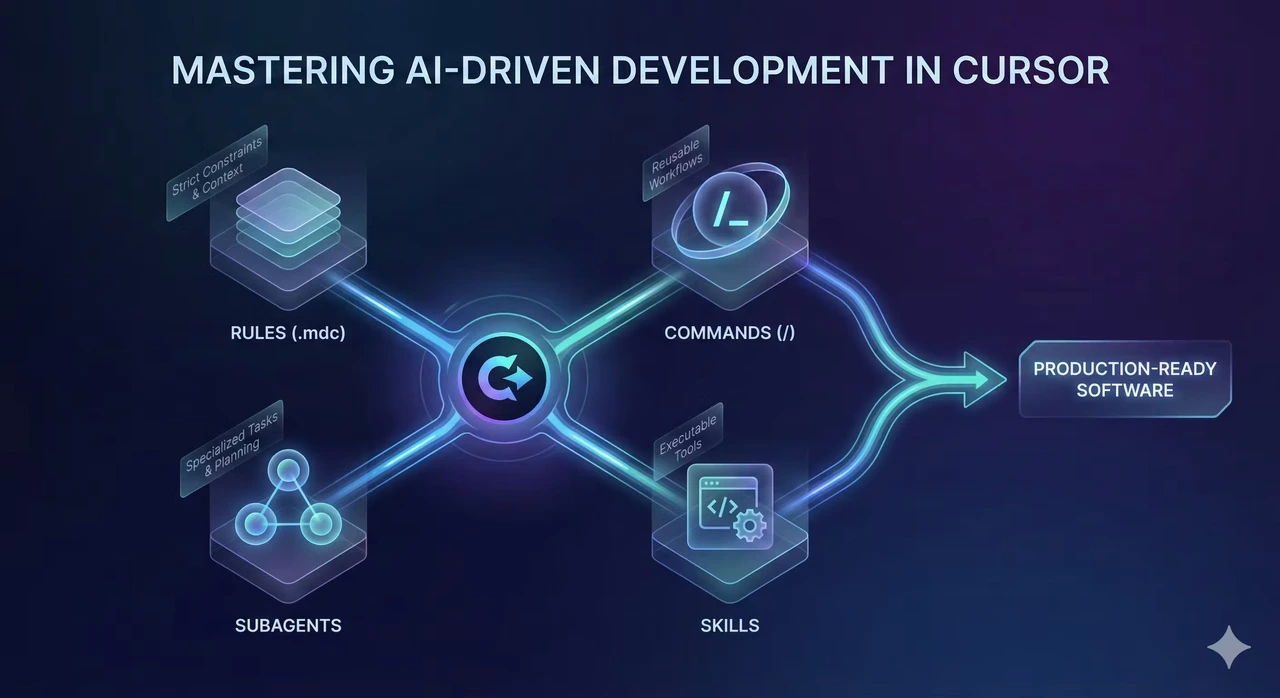
Cursor Tab
Cursor Tab is Cursor's AI-powered code completion engine, incorporating technology developed by the Supermaven team, which Cursor acquired in 2024.
Unlike traditional autocomplete tools, Cursor Tab predicts what you want to change next, not just what you're about to type. It can suggest multiple lines of code at once, recommend updates to related function calls after you change a function signature, and automatically move your cursor to the next suggested edit. You simply press Tab to accept each suggestion.
Cursor Tab offers unlimited completions on paid plans without consuming your AI model usage allowance, making it one of Cursor's most cost-effective features.
For developers who prefer writing most of their code themselves rather than relying on AI to generate entire functions, Cursor Tab alone can significantly speed up everyday coding tasks.
Cursor Agent
Cursor Agent is one of Cursor IDE's most powerful features. It allows you to describe a coding task in natural language and let AI handle much of the development process.
For example, you could ask:
"Add a date filter to the order list and write unit tests for the new feature."
Cursor Agent can then automatically search for relevant files, plan the necessary changes, edit code across multiple files, and run tests in the terminal. If a test fails, it can analyze the error message, make corrections, and run the tests again until the task is completed or requires your confirmation.
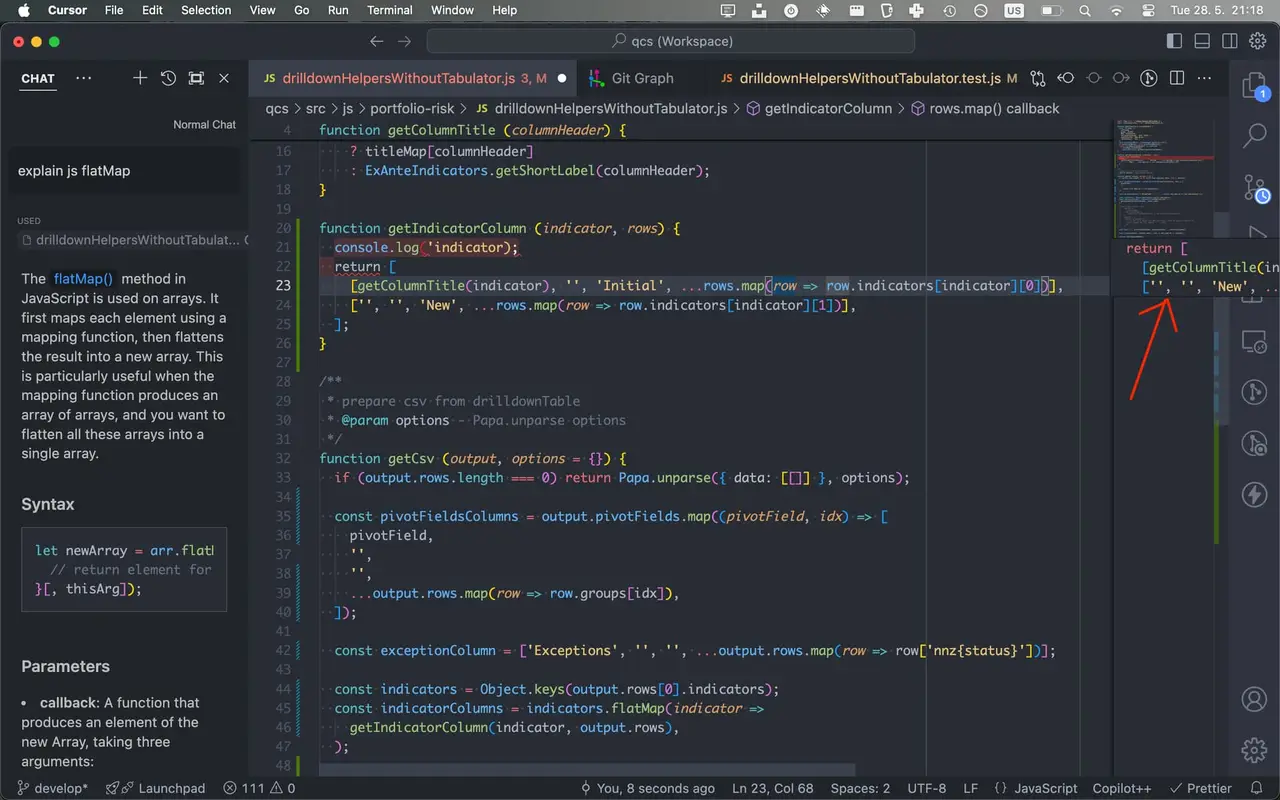
In newer versions of Cursor, Agent can also ask clarifying questions while continuing to explore your codebase. It can launch multiple subagents to handle different tasks in parallel or run as a Cloud Agent to complete coding tasks remotely and create pull requests (PRs) when finished.
Because Cursor Agent makes repeated AI model calls throughout a task, it can consume your usage allowance much faster than basic code completion. This is why many developers who rely heavily on AI-powered coding choose a Cursor account with higher usage limits to support more demanding workflows.
Cursor Chat
Cursor Chat, including the read-only Ask mode, is ideal when you want to ask questions without making changes to your code. You can use it to explain unfamiliar code, compare different implementation approaches, or understand what caused a specific error.
Like Cursor Agent, Chat can search your codebase for relevant information. However, Ask mode doesn't automatically modify files, making it a safer option when you only need explanations or coding advice.
A useful workflow is to start with Ask mode to understand your existing code and plan your changes, then switch to Agent once you're confident about the approach. This helps reduce unnecessary revisions and prevents Agent from wasting tokens on the wrong solution.
Multi-File Editing
Some coding tasks require changes across multiple files, such as renaming a core interface, converting callbacks to async/await, or adding consistent error handling to all API routes.
Cursor's multi-file editing capabilities make these tasks much easier. Instead of manually updating each file, you can let Cursor make changes across your codebase and review them in a unified diff view. You can then accept or reject individual changes rather than applying everything at once.
For smaller edits, press Cmd + K on Mac or Ctrl + K on Windows/Linux to open Cursor's inline editing feature. This lets you modify selected lines of code without affecting the rest of your project.
For the best results, use Cursor Agent for large-scale, multi-file refactoring and inline editing for quick, targeted changes. This approach gives you better control over your code while making the most of Cursor's AI-powered editing features.
Cursor Rules
Cursor Rules
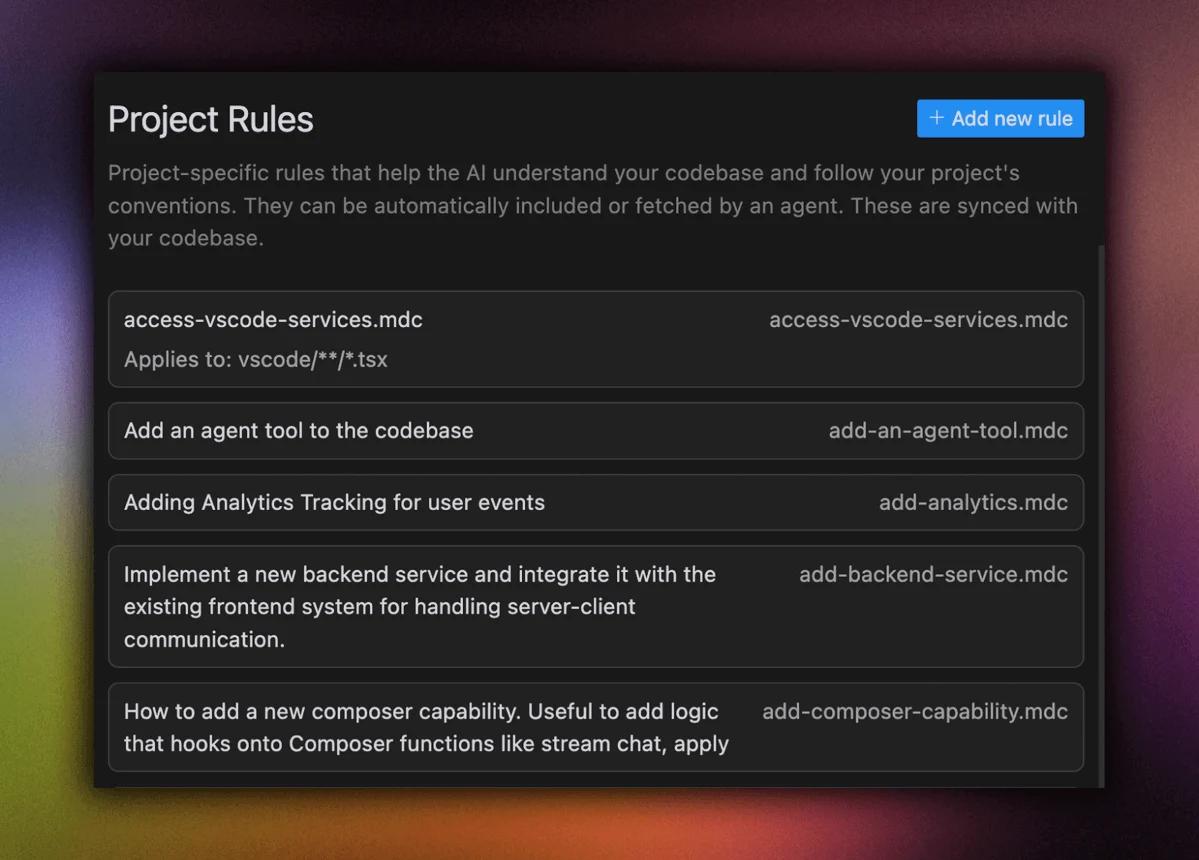
Cursor Rules let you define how AI should write code in your project. For example, you can specify framework versions, naming conventions, coding standards, or libraries that should not be used.
Although Cursor still supports the older .cursorrules file, the recommended approach is to create multiple .mdc files in the .cursor/rules/ directory. Each rule file can use frontmatter settings to control when it applies: automatically to every request, only to files matching specific paths, or when manually referenced.
Cursor also supports AGENTS.md files, allowing teams that use different AI coding tools to share consistent project instructions and development standards.
For example, you can create a rule file for React components with the following configuration:
---
description: Frontend component coding standards
globs: src/components/**/*.tsx
alwaysApply: false
---

- Use functional components and React Hooks instead of class components.
- Use Tailwind CSS for styling. Do not create new CSS files.
- All publicly exported components must also export their Props types.
With this rule in place, Cursor can automatically apply these coding standards when working with matching React component files.
Using Cursor Rules helps maintain code consistency, reduces repetitive instructions, and makes AI-generated code better aligned with your project's requirements.
Cursor Skills
Cursor Skills were officially introduced in January 2026 with the release of Cursor 2.4. The main difference between Cursor Skills and Cursor Rules is how and when they are used.
Cursor Rules define coding standards and instructions that AI should follow, while Cursor Skills provide task-specific workflows that Agent can use when needed.
Rules can occupy context space whenever they apply, whereas Skills are designed to load detailed instructions only when relevant to a task.
Each Skill is defined in a SKILL.md file and can include step-by-step instructions, scripts, and custom commands. When Cursor Agent identifies a task that matches a Skill, it can load the relevant instructions and follow the workflow.
This makes Cursor Skills particularly useful for automating repeatable development tasks without filling the AI's context window with unnecessary instructions.
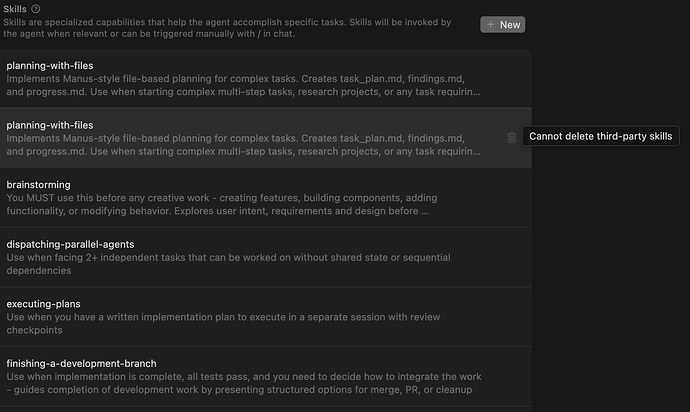
For example, you can create a "Release New Version" Skill that defines the exact steps for updating version numbers, generating a changelog, running the full test suite, and creating a Git tag. Once configured, you can trigger the Skill directly from Cursor's input box using the / command.
Cursor also recognizes Skills stored in directories such as .claude/skills and .agents/skills. This means that if you use multiple AI coding tools, you can reuse your existing Skills without having to create separate workflows for each tool.
Newer versions of Cursor even allow you to set a specific Skill as a custom mode, enabling Agent to follow its instructions throughout an entire conversation. This makes Cursor Skills especially useful for standardizing repetitive development workflows and improving consistency across projects.
Extensions and VS Code Compatibility
Since Cursor is built on VS Code, you can easily import your existing VS Code extensions, themes, keyboard shortcuts, and settings when launching Cursor for the first time. This makes switching from VS Code to Cursor relatively simple, especially if you're already familiar with the interface.
Cursor uses the Open VSX extension marketplace, where you can find popular developer tools such as ESLint, Prettier, GitLens, Docker, and extensions for various programming languages.
However, some official Microsoft extensions cannot be used in Cursor due to licensing restrictions. In many cases, Cursor offers alternative extensions with similar functionality.
If your development workflow depends heavily on a specific VS Code extension, it's worth checking its compatibility before switching to Cursor completely.
How to Use Cursor IDE
Now that you understand how Cursor works and what its main features do, let's walk through how to use Cursor IDE step by step.
This beginner-friendly Cursor tutorial covers the complete development workflow, from installing Cursor and creating your first project to writing code, debugging errors, and working with larger codebases. We'll also highlight common mistakes and practical tips along the way.
Download and Install Cursor
To get started, visit the official Cursor website and download the installer for your operating system. Cursor IDE is available for Windows, macOS, and Linux.
After installation, sign in using your email address, Google account, or GitHub account. During the initial setup, Cursor will also ask whether you want to import your existing VS Code extensions and settings.
New users start with the free Cursor Hobby plan and may be eligible for a limited trial of Pro features.
However, the free plan has usage limits on Agent requests and Cursor Tab completions, which can become restrictive when working on real development projects.
Once your trial ends, you can choose a paid Cursor plan based on your coding needs and AI usage. We'll compare Cursor subscription prices and explain how to get Cursor at a lower cost later in this guide.
Open or Create a Project
Once Cursor is installed, you can open an existing project by selecting File → Open Folder or clone a project directly from a Git repository.
If you're starting from scratch, create an empty folder and open it in Cursor. Then, use the Agent panel to describe what you want to build.
For example, you can enter the following prompt:
"Create a blog project using Next.js and TypeScript, including a blog listing page and individual article pages."
Cursor Agent can then generate the initial project structure, create the necessary files, and install dependencies.
This approach is especially helpful for beginners who want to build their first project with Cursor AI without manually setting up every configuration file.
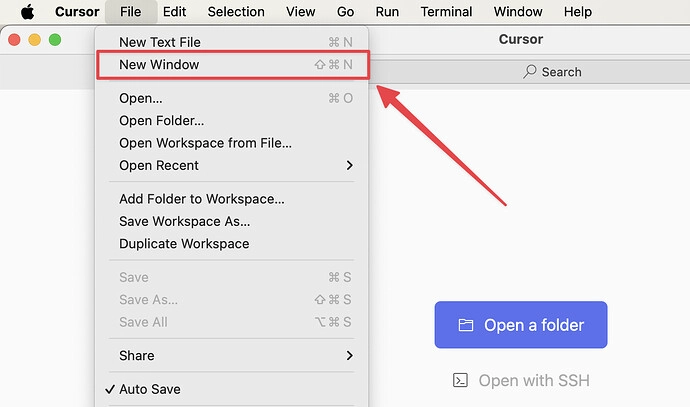
After opening your project in Cursor, it's a good idea to do two things first: wait for codebase indexing to finish and create a simple Cursor Rules file or AGENTS.md that defines your project's tech stack and test commands.
Spending a few minutes on this initial setup can significantly improve the accuracy and consistency of Cursor's AI-generated code, helping you avoid unnecessary errors and revisions later.
Choose an AI Model
You can find the model selector below the Agent input box in Cursor. Choosing the right AI model is fairly simple: use Auto or Composer for everyday coding and minor edits, as they offer fast performance without consuming your third-party model allowance. For more demanding tasks, such as software architecture design, complex bug fixing, or analyzing unfamiliar codebases, consider switching to advanced models like Claude or GPT.
AI model costs can vary significantly. With the same $20 usage allowance, you might be able to make hundreds of requests using lightweight models, while advanced reasoning models could use up that budget in just a few dozen requests.
If you regularly run out of your AI usage allowance before the end of the month, consider finding a more affordable Cheap Cursor Pro subscription instead of repeatedly paying for additional usage. This can help you manage your coding expenses while maintaining access to advanced AI models.
Ask Cursor to Write or Modify Code
When writing prompts for Cursor AI, being specific is more important than being brief. The clearer your instructions, the more likely Cursor is to generate code that meets your expectations.
Compare these two prompts:
Vague prompt:
"Optimize this page."
Specific prompt:
"@ProductList.tsx experiences scrolling lag when rendering more than 500 items. Implement virtual scrolling without adding new dependencies, and keep the existing Props interface unchanged."
The second prompt clearly identifies the target file, the problem, the desired solution, and the technical constraints. This gives Cursor Agent enough context to make relevant changes without unnecessary guesswork.
After Cursor generates or modifies code, avoid clicking Accept All immediately. Instead, review the diff for each file, paying particular attention to deleted code, unexpected changes, and newly added dependencies.
If you're unsure about a suggested modification, ask Cursor to explain why it made that change before deciding whether to accept it.
Use Cursor to Debug Code
When debugging with Cursor IDE, the easiest approach is to provide the complete error stack trace and explain how to reproduce the issue.
Cursor Agent can then locate the relevant code, identify possible causes, and run tests in the terminal to verify its proposed fixes.
You can also add terminal errors directly to your conversation using the terminal's context menu, rather than manually copying and pasting the output.
For intermittent bugs that are difficult to reproduce, newer versions of Cursor offer a dedicated Debug Mode. Instead of simply guessing what went wrong by reading the code, Debug Mode can insert logging statements at suspicious locations and ask you to reproduce the issue. It then uses the collected runtime information to help identify the underlying cause.
Paid Cursor plans also include access to Bugbot, a tool that automatically reviews GitHub pull requests and helps identify potential bugs before code is merged.
Together, these features make Cursor useful not only for writing code but also for troubleshooting errors and improving code quality.
Use Cursor for Large Projects
When working with large codebases, two common challenges are limited AI context and unexpected code changes. Cursor may not have enough relevant information to understand the entire project, or it may modify files outside the intended scope.
To make Cursor more reliable when handling large projects, follow these best practices:
- Exclude unnecessary files with
.cursorignore. Remove irrelevant directories, generated files, and large data files from codebase indexing to keep semantic search focused on useful code. - Create module-specific Cursor Rules. Add Rules files within relevant project subdirectories so Cursor can discover and apply coding instructions specific to each module.
- Break complex tasks into smaller steps. Instead of asking Agent to complete a large refactoring task all at once, divide the workflow into three stages: analyze the existing code, create an implementation plan, and execute the changes. Review the results at each stage before moving forward.
These practices help Cursor work more accurately with large repositories, reduce unnecessary AI model usage, and give you better control over complex coding tasks.

For tasks that can run in parallel, such as writing unit tests and creating documentation, you can launch multiple Agents in the Agents Window and assign different tasks to each one. For longer or more complex workflows, Cursor Cloud Agents can handle coding tasks in the cloud while you focus on other work.
However, large projects can consume AI usage allowances much faster, especially when multiple Agents are running simultaneously. For teams and developers who rely heavily on AI-powered coding, it's worth planning your Cursor subscription in advance. Choosing a plan with sufficient usage limits can help prevent unexpected interruptions and keep your development workflow running smoothly.
How Much Does Cursor Cost?
Cursor offers a free plan and several paid subscription options. The free Hobby plan is suitable for beginners who want to try Cursor IDE, but it comes with limits on Agent requests and Cursor Tab completions.
Paid plans include Pro, Pro+, and Ultra, each offering higher AI model usage allowances at different price points. For developers who use Cursor regularly, choosing the right plan and where to purchase it can make a significant difference in annual subscription costs.
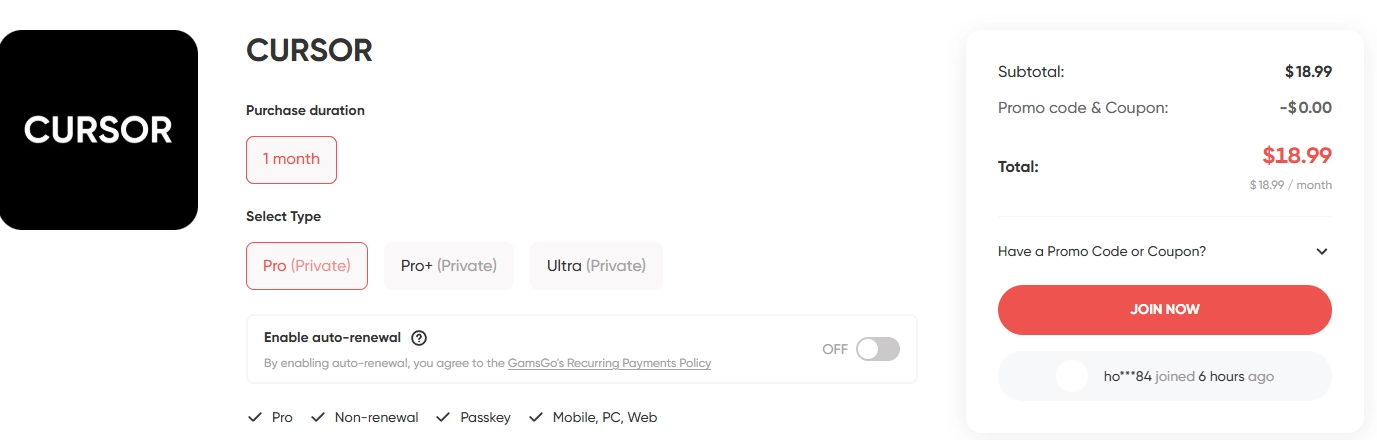
If Cursor's official pricing feels too expensive, you can also purchase a Cursor account through GamsGo. With an eligible paid plan, you can enjoy unlimited Cursor Tab completions and access to Agent features.
GamsGo is a London-based digital subscription platform offering discounted access to more than 200 popular subscription services worldwide, including streaming platforms, AI tools, productivity software, and gaming services. It also offers hundreds of other digital products across different categories.
Here's a comparison of Cursor's official monthly subscription prices and GamsGo's monthly prices
| Cursor Plan | Official Monthly Price | GamsGo Monthly Price | Discount | Annual Savings |
|---|---|---|---|---|
| Pro | $18.99 | 5% OFF | $12.12 | |
| Pro+ | $49.99 | 17% OFF | $120.12 | |
| Ultra | $129.99 | 35% OFF | $840.12 |
As the table shows, higher-tier Cursor plans offer greater potential savings through GamsGo. Over a year, you could save approximately $840 on Cursor Ultra or $120 on Cursor Pro+ compared with paying the listed official monthly prices.
If you regularly exceed the usage limits of Cursor Pro, upgrading to Pro+ or Ultra through GamsGo may be more cost-effective than repeatedly paying for additional AI model usage. Choosing a plan that matches your actual coding needs can help you control costs while maintaining access to the AI features you use most.
Who Is Cursor IDE For?
Cursor IDE is useful for a wider range of users than you might expect. Whether you're an experienced developer or just getting started with coding, Cursor's AI-powered features can help you work more efficiently.
For professional developers, Cursor's biggest advantage is automating repetitive coding tasks, allowing them to focus on software architecture, problem-solving, and technical decisions. For indie developers and startup founders, Cursor Agent can help handle development tasks that would otherwise require a small team, making it easier to build and launch projects with limited resources.
For coding beginners and students, Cursor acts like an AI coding tutor that's available whenever you need help. It can explain unfamiliar code line by line, answer programming questions, and help you understand why certain solutions work.
Cursor is also becoming useful for product managers, designers, and data analysts who don't code full-time. They can use Cursor to build prototypes, create automation scripts, and turn ideas into working applications without extensive programming experience.
For students and individual developers on a tight budget, upgrading from the limited free plan doesn't necessarily mean paying the full official price. You can buy Cursor Pro through GamsGo at a lower price and access more AI coding features for learning, building projects, and everyday development.
However, Cursor may not be the ideal choice for everyone. If you primarily work with Java or Kotlin in JetBrains IDEs, or your company has strict policies about sharing source code with external AI services, you should first evaluate whether Cursor fits your existing development environment and security requirements.
Cursor IDE vs Traditional Coding Workflow
To better understand the benefits of Cursor IDE, let's compare a typical software development workflow using traditional coding tools versus Cursor's AI-powered features.
| Development Stage | Traditional Coding Workflow | Cursor IDE Workflow |
|---|---|---|
| Understanding the codebase | Manually search through files, functions, and documentation. | Ask Cursor questions in natural language to locate and explain relevant code. |
| Planning a feature | Analyze requirements and identify which files need changes. | Use Ask mode to explore implementation options and generate a development plan. |
| Writing code | Write functions, components, and logic manually. | Use Cursor Tab for code completion or Agent to generate and modify code. |
| Editing multiple files | Update related files individually and check dependencies. | Let Agent make coordinated changes across multiple files. |
| Debugging errors | Read error messages, inspect code, and test possible solutions manually. | Ask Agent to analyze errors, suggest fixes, and run tests. |
| Testing and reviewing | Write tests, run them, and manually inspect code changes. | Use Agent to generate and execute tests, then review the suggested changes in the diff view. |
| Documentation | Write or update documentation manually. | Generate or update documentation with AI assistance. |
However, Cursor IDE doesn't make programming skills less important. In fact, as AI takes over more routine coding tasks, the ability to evaluate code quality, identify potential problems, and make sound architectural decisions becomes even more valuable.
Developers who get the most out of Cursor are often those with strong programming fundamentals. They know how to give AI clear instructions, review generated code, and recognize when a suggested solution needs improvement.
Conclusion
Cursor has become one of the most talked-about AI coding tools because it combines multiple powerful capabilities in a single, familiar development environment. Instead of relying on separate tools, developers can use AI model selection, codebase understanding, context management, and autonomous Agents directly within Cursor IDE.
If you're new to Cursor, the best way to get started is to begin with Cursor Tab and Ask mode to understand how its AI features work. Next, create Cursor Rules to define your project's coding standards. As you become more comfortable, gradually assign larger tasks to Cursor Agent and make it a habit to review code changes before accepting them.
If you've decided to use Cursor as your primary code editor, subscription costs and AI usage limits are also worth considering. Rather than working around the restrictions of the free plan or worrying about additional usage fees, you can explore Cursor discounts through GamsGo to find a plan that fits your coding needs and budget.
With the right workflow and subscription plan, Cursor can help you spend less time on repetitive coding tasks and more time building better software.
We’ve prepared an exclusive promo code for all blog readers:
Enjoy an additional 3% off on your next purchase!
FAQ
Is Cursor Better Than VS Code with GitHub Copilot?
Both tools have their strengths. GitHub Copilot is more affordable and offers tighter integration with the GitHub ecosystem. Cursor provides more advanced codebase understanding, multi-file editing, and autonomous Agent capabilities. It also allows users to switch freely between AI models from different providers.
What Is the Difference Between Cursor Rules and Cursor Skills?
Cursor Rules are coding standards that apply either continuously or based on specific file paths, taking up context space when active. Cursor Skills are workflows defined in SKILL.md files that are only loaded when relevant to a task or manually triggered. Use Rules for coding standards and Skills for task-specific workflows.
Does Cursor Send My Code to the Cloud?
Yes. Code snippets need to be sent to AI models to generate responses. Cursor offers a Privacy Mode that prevents your code from being used for training. You can also use .cursorignore to exclude sensitive files. Enterprise users should evaluate Cursor based on their company's security policies.
Can I Use My VS Code Extensions in Cursor?
Most VS Code extensions are compatible with Cursor. Cursor supports one-click importing of VS Code extensions and settings, with extensions available through the Open VSX marketplace. Some official Microsoft extensions cannot be used due to licensing restrictions, but Cursor generally provides alternatives.
Which Cursor Plan Should I Choose?
If you mainly use Cursor Tab for code completion and occasionally use Agent, the Pro plan should be sufficient. If you frequently run out of your usage allowance halfway through the month and incur additional charges, consider Pro+. For full-time developers who run Agent tasks extensively every day and frequently use Max Mode, Ultra offers a more convenient option.