Magis TV is worth exploring for viewers looking to watch live TV, movies, and series for free. Before getting started, it helps to understand what is free, which content is available, and how to use the app on phones and TVs.
An app that is free to download does not necessarily offer free access to all its content. Access methods and account requirements vary between versions, and some users may encounter login restrictions, payment prompts, or compatibility issues after installation.
This guide covers Magis TV’s free viewing options, installation steps, and TV setup. It also explains common payment prompts and compares free and low-cost alternatives to help you choose a service that suits your viewing needs and budget.
If the free options do not include what you want to watch, GamsGo offers Netflix accounts, Disney+ accounts, other streaming subscriptions, and IPTV plans, with savings of around 70% on selected offers compared with subscribing directly. Explore the latest deals to watch more movies, series, and live TV for less.
Is Magis TV Free?
Magis TV is a name used for apps and services that offer live TV and on-demand video over the internet. Content includes TV channels, movies, series, and anime, primarily for viewers in Latin America.
Whether Magis TV is free depends on the version and provider. Several websites and resellers use the name, and some services operate independently of one another. Their pricing, account requirements, and content access can therefore differ.
For example, magistv.ai offers paid subscriptions and advertises a six-hour free trial for live channels, movies, and series. A subscription is required to continue using that service after the trial ends.
Other websites describe their free versions as ad-supported: viewers can watch without paying a subscription fee, but ads appear during playback. Paid versions may include benefits such as ad-free viewing.
How to Watch Magis TV for Free
The steps below use an Android phone as an example and outline two options based on instructions published by the relevant websites: a free version and a limited-time trial.
Watch Free Content on Magis TV
Some websites provide instructions for installing and using a free version. The basic process involves downloading and installing the app, completing any required setup, and selecting free content.
- Choose the right APK
Check the download instructions for your chosen version and select an APK for Android phones or tablets. Confirm which content is free and whether an account is required.
| APK / Source | Compatible Devices | Listed Version | File Size | Link |
|---|---|---|---|---|
| Magis TV Mobile / magisttv.com | Android phones and tablets | 4.26.1 | 48.7 MB | View download page |
| Magis TV for TV / magisttv.com | Android TV, Google TV, and some Fire TV devices | 4.26.1 TV | 32.6 MB | View download page |
| Magis TV/magistvapk.net | Android phones; separate TV installation instructions are also provided | 6.5.5 | 38.2 MB for mobile | View download page |
| Magis TV/magistv.ai | Android phones and Android TV boxes | 6.11.2 | Not specified | View download page |
- Install the app
Open the downloaded APK and follow the installation prompts. If permission is required, grant it only to the browser or file manager opening the file, and keep your device’s security checks enabled. - Sign in if prompted
Launch the app and sign in or register if required. Account requirements differ between versions; versions that do not require an account may open directly to the content library. - Select free content
Browse the live TV, movie, or series categories and select a title or channel currently available for free. If an item requires a subscription, return to the catalog to check other available content. - Watch with ads, where available
If your version is ad-supported, ads may appear before or during playback. Follow the player’s prompts to continue watching. The way ads appear depends on the version you are using.
Request a Free Trial
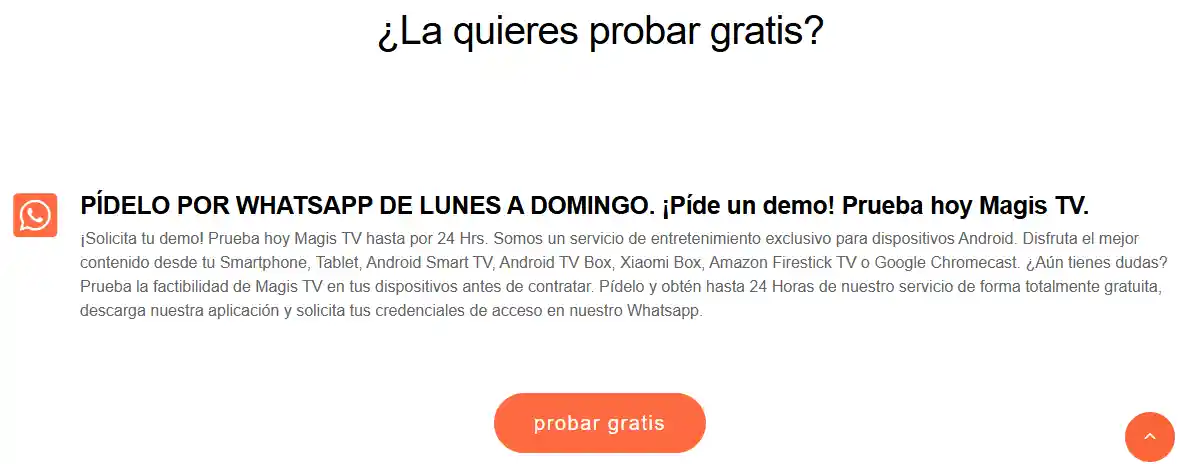
Some paid providers accept requests for a limited-time trial. For example, magistv.ai’s FAQ advertises a six-hour trial covering its live TV, movies, series, and anime. Trial details
- Contact the provider to request a trial
Use the support channels listed on the provider’s website to ask whether a trial is currently available. Confirm its duration, supported devices, and included content. - Get your login details and installation instructions
Once the trial is approved, obtain your login credentials and the installation guide for the correct app. Check whether the trial starts when the account is activated or when you first sign in. - Sign in and test playback
Use your trial account to sign in and test the channels and titles you want to watch. Check picture and sound quality, loading times, and device compatibility. - Use the trial before it expires
Check your account page for the expiry time. Continued access after the trial ends depends on the provider’s subscription terms.
How to Watch Magis TV on Your TV
The installation method depends on your TV’s operating system. Before starting, check the system and model under Settings → About, then choose the appropriate method. Playback and free access still depend on your app version and account permissions.
| TV or Device Operating System | Can It Install Android APKs Directly? | How to Watch |
|---|---|---|
| Android TV/Google TV | Possible on models that support sideloading | Install a compatible TV APK |
| Fire TV:Fire OS | Possible on models that support sideloading | Download the APK using Downloader |
| Fire TV:Vega OS | Android APK installation does not apply | Use an app built for this operating system |
| Samsung:Tizen | Cannot install Android APKs directly | Connect a compatible Android TV device |
| LG:webOS | Cannot install Android APKs directly | Connect a compatible Android TV device |
Fire TV models can run different operating systems, so the product name alone does not establish compatibility. Amazon’s app documentation distinguishes between the APK format used by Fire OS and the app format used by Vega OS.
Watch on Android TV or Google TV
On Android TV or Google TV devices that allow sideloading, you can install a TV APK through a file manager. Setting names may vary by brand.
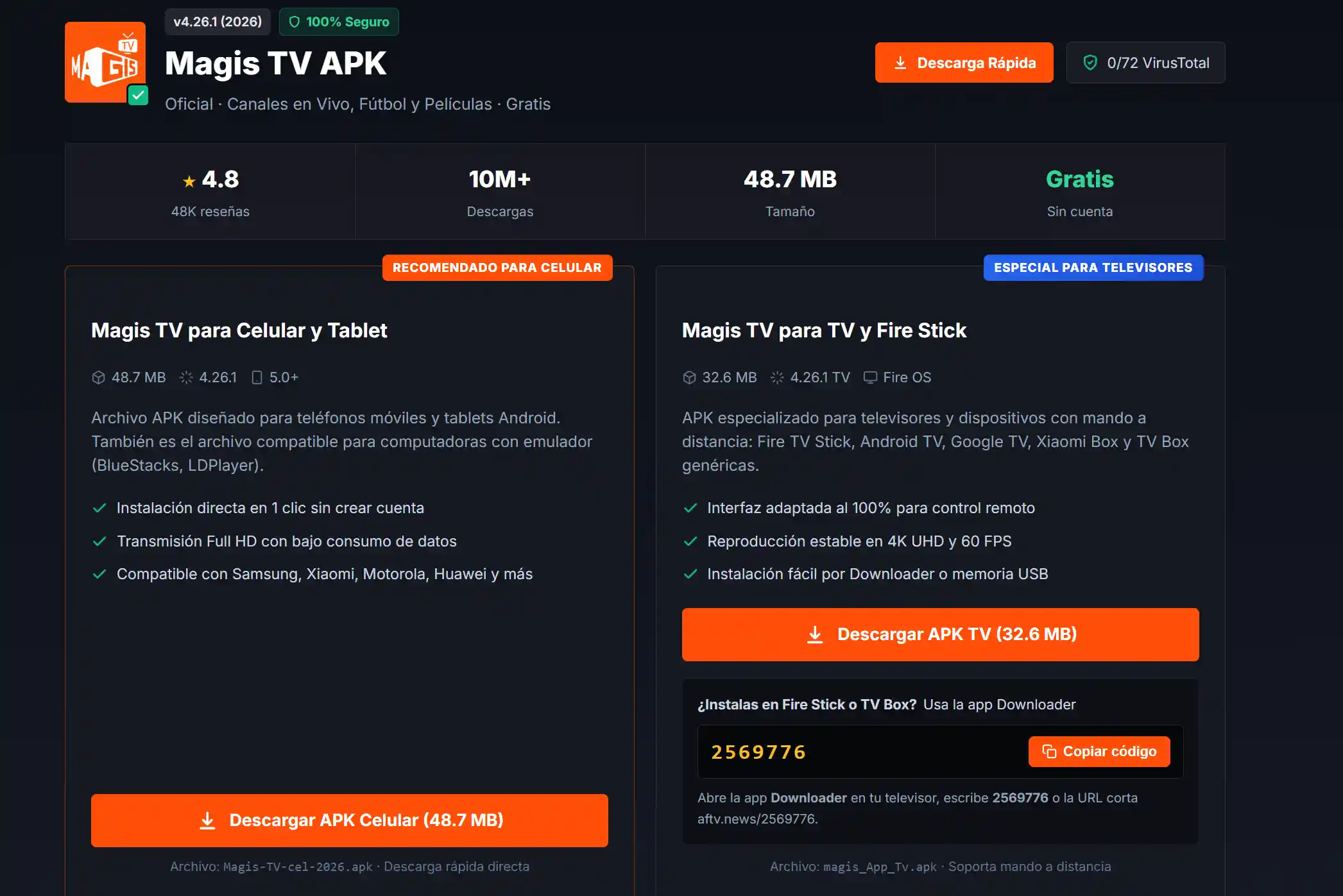
- Download the TV APK
On the download page for your chosen version, select the Android TV or TV Box APK and check the system requirements. Some websites provide separate files for phones and TVs. - Transfer the file to your TV
Save the APK to a USB drive, connect it to your TV, and open it with a file manager. If your device has no available USB port, use a compatible file transfer app instead. - Grant installation permission
Open the APK and, when prompted, enable “Install unknown apps” for the file manager you are using. Return to the installer to continue. If the setting is unavailable, consult your device manufacturer’s instructions. - Open the app and choose what to watch
Launch the app once installation is complete. If an account is required, sign in with the credentials supplied by the relevant provider, then select channels or titles included in your account.
Watch on Amazon Fire TV Stick
The following method applies to Fire OS devices that support sideloading. Models running Vega OS, such as the Fire TV Stick 4K Select, cannot use this Android APK installation process.
- Install Downloader
Search the Amazon Appstore for Downloader by AFTVnews, install it, and open the app. - Allow Downloader to install apps
Go to Settings → My Fire TV → Developer Options → Install Unknown Apps and enable installation permission for Downloader. Menu names may vary by model. - Download the TV APK
In Downloader, enter the address of the TV download page for your chosen version. Open the page, select the appropriate APK, and follow the installation prompts once the download finishes. - Launch the app and sign in
Open Magis TV from your apps list, or launch it through Settings → Applications → Manage Installed Applications. Then sign in as required by your version.
Watch on Samsung or LG Smart TVs
Samsung TVs running Tizen and LG TVs running webOS cannot install Android APKs directly. Instead, connect a compatible Android TV device via HDMI and install and run the app on that device.
- Connect an external streaming device
Connect a compatible Android TV box or Google TV device to an HDMI port on your TV. Set up power and network access according to the device’s instructions. - Switch to the correct TV input
Use your TV remote to open Input or Source and select the HDMI port connected to the streaming device. Its home screen should then appear. - Install and open the app
Follow the Android TV or Google TV steps above to install a compatible version. Use the external device’s remote to sign in and choose what to watch.
Related Articles
01 Best Streaming Services 2026: Top 36, Free Options Included → 02 How to Get a Netflix Discount in 2026: 6 Legal Ways to Save → 03 How to Get Apple TV for Free in 2026: 7 Verified Ways →
Why Is Magis TV Asking You to Pay?
A payment prompt in Magis TV may relate to an expired trial, restricted content, or the provider’s pricing model. First, check whether the prompt concerns an optional upgrade or access to the entire service.
Some providers offer only a limited free trial. For example, magistv.ai advertises a six-hour trial, after which a subscription is required to continue using its service.
Some websites list ad-free viewing or additional movies and series as paid benefits. A prompt on an upgrade page may be promoting extra features rather than indicating that all content requires payment.
Other services using the Magis TV name operate on a subscription basis. Downloading and installing the app may be free, but watching requires an active account, which can trigger login, activation, or renewal prompts.
If you see a payment prompt, check the expiry date in your account settings or order details and confirm what the charge covers. For an optional upgrade, return to the catalog to check free content. If your account has expired, follow the relevant provider’s renewal rules.
What Can You Use If Magis TV Doesn’t Have What You Want?
If Magis TV does not have the channels, movies, or series you want, consider another service based on your viewing needs. Free platforms can broaden your everyday options, while paid services may be a better fit for specific titles, originals, or sports events.
| Viewing Needs | Platforms to Consider | Free or Paid | Best For |
|---|---|---|---|
| Live TV and themed channels | Pluto TV, Plex | Free channels and on-demand libraries available | Everyday live viewing, themed channels, movies, and series; availability varies by region |
| Free movies and series | Tubi | Free with ads | Viewers who want to browse an existing movie and TV library without a subscription |
| Original series and movies | Netflix | Paid subscription | Netflix originals, movies, series, and documentaries |
| Movies and on-demand video | Prime Video | Subscription content plus separate rentals and purchases | Titles included with a subscription, alongside movies and shows available to rent or buy separately |
| Family entertainment and major franchises | Disney+ | Paid subscription | Disney, Pixar, Marvel, Star Wars, and National Geographic content |
| Sports | DAZN, F1 TV | Mainly subscription-based; some events may cost extra | DAZN’s sports coverage varies by region. F1 TV focuses on Formula 1 content, with live access depending on location and plan. |
Before choosing a service, confirm that your preferred titles or events are available in your region and included in the plan. For paid subscriptions, compare the available offers, usage conditions, and prices on GamsGo to keep costs within your budget.
Watch More for Less with GamsGo
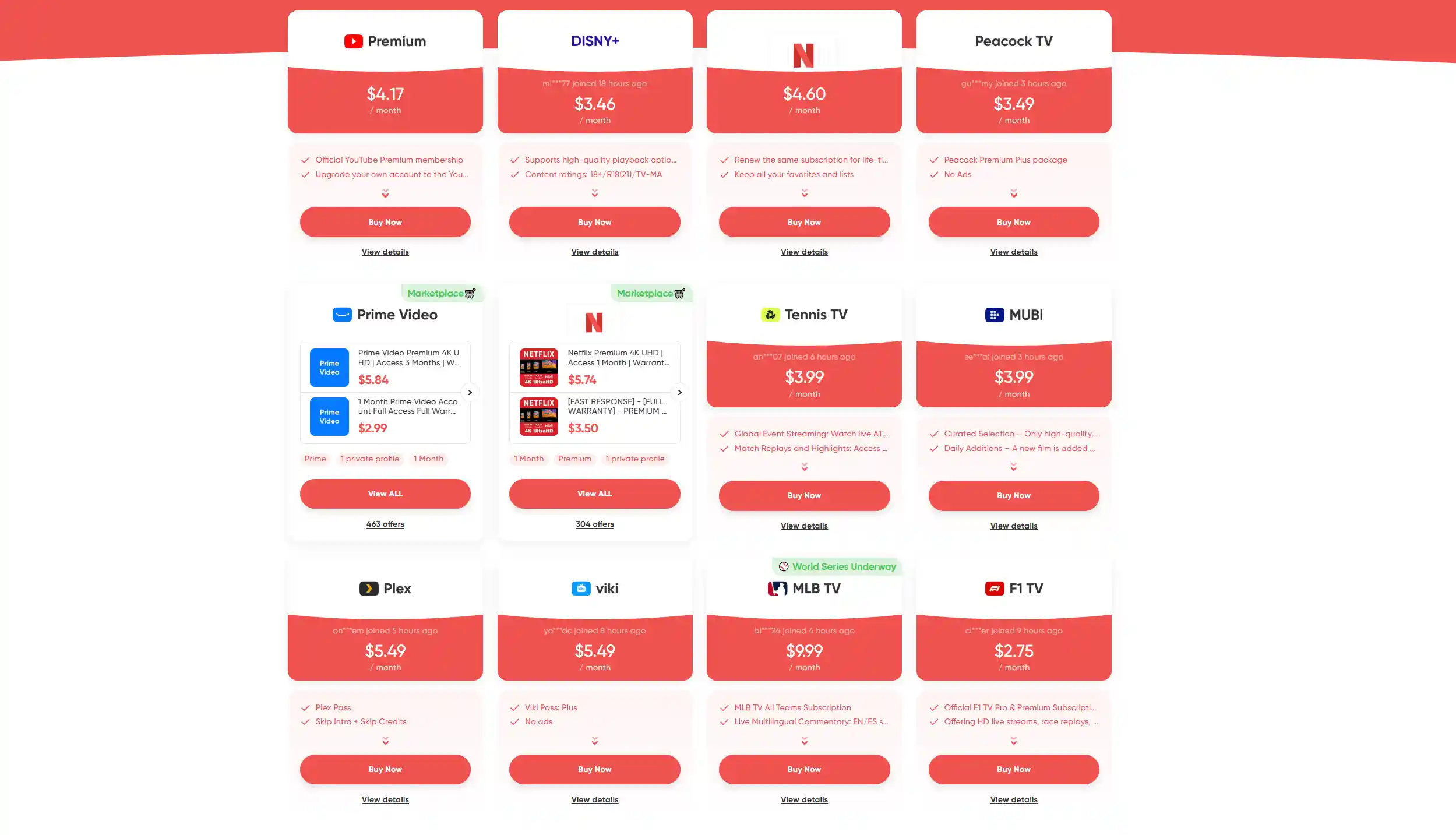
If Magis TV’s free content does not meet your needs, GamsGo offers popular streaming subscriptions and IPTV plans that can help you watch more movies, series, and live TV for less.
GamsGo brings together shared account slots and subscription plans from multiple sellers. Options include Netflix, Disney+, Prime Video, Hulu, and other major platforms, with selected offers costing around 70% less than subscribing directly.
For live channels or sports, consider services such as Xstorm IPTV or DAZN based on the channels and events you want. Check that the relevant content is available in your region.
GamsGo also provides payment protection and after-sales support. If a product does not match its description, contact the platform for help reviewing the issue and resolving it under the applicable order protection terms.
Conclusion
Magis TV’s free options vary by version and provider, with some offering free content or limited-time trials. Check the account requirements, available content, and device compatibility before choosing how to watch on your phone or TV.
If the free options do not meet your needs, explore streaming subscriptions and IPTV plans on GamsGo to find movies, series, and live TV that suit your budget.
FAQs
Is Magis TV completely free?
Not every version of Magis TV is entirely free. Some websites offer free content or ad-supported versions, while other providers require a paid subscription after a limited trial. Downloading the APK for free does not necessarily unlock all content.
Can I use Magis TV without an account?
Some versions let you browse content without an account, while others require registration, login, or activation. Accounts from different providers may not be interchangeable, so follow the instructions for your specific version.
Can I watch Magis TV for free with ads?
Some websites describe their free versions as ad-supported, but this option is not available across all services using the Magis TV name. Check whether your version offers free viewing with ads and which content is included.
Can I install Magis TV on a Samsung or LG smart TV?
Samsung TVs running Tizen and LG TVs running webOS cannot install Android APKs directly. You can connect a compatible Android TV or Google TV device via HDMI and install the app on that device instead.
Can I keep watching after my Magis TV free trial ends?
Once a trial ends, you generally need a subscription to continue using that provider’s paid service. A trial account does not provide permanent free access. Any free content offered by a different version should be checked separately.
Related Articles