Adobe Lightroom is an essential editing tool for many photographers and bloggers. According to Adobe’s published figures, Lightroom had approximately 3.4 million monthly users in the European Union alone during the first half of 2025. Creative Cloud Pro, which includes Lightroom and Photoshop, also surpassed 7 million subscribers.
Trying it for free comes with conditions. The official trial lasts seven days and requires payment details, with billing starting afterward unless you cancel. Depending on the subscription you choose, you may enter an annual commitment with an early cancellation fee. For some users, the first charge arrives before they have properly explored masking or AI noise reduction.
This guide covers seven official ways to access Lightroom for free or evaluate it temporarily in 2026, explaining how long each option lasts and who it suits.
Is Adobe Lightroom Free in 2026?
The full version of Adobe Lightroom isn't free, but Adobe offers a 7-day free trial and a free mobile version with no time limit. Desktop and web access, cloud syncing, RAW photo editing, and AI masking features require a paid subscription. After the free trial ends, Lightroom subscription prices are as follows:
| Plan | Monthly Price | Included Apps | Cloud Storage | Generative Credits |
|---|---|---|---|---|
| Lightroom | US$11.99 | Lightroom + Lightroom Classic | 1TB | 250/month |
| Photography | US$19.99 | Lightroom + Lightroom Classic + Photoshop | 1TB | 1,000/month |
| Creative Cloud Pro | US$69.99 | 20+ apps, including Lightroom and Photoshop | 100GB | 4,000/month |
Creative Cloud Pro is currently available at a Black Friday promotional price of US$29.99/month for the first year, with the offer ending on November 27.
If you only need to edit photos, the Lightroom plan should be enough. However, if you regularly use Photoshop for background removal and photo compositing, the Photography plan offers better value.
Lightroom vs. Lightroom Classic
Lightroom is the cloud-focused version available on mobile, desktop, and the web. Lightroom Classic is a desktop application built around locally stored photos. Both are included in the Lightroom subscription and trial described here.
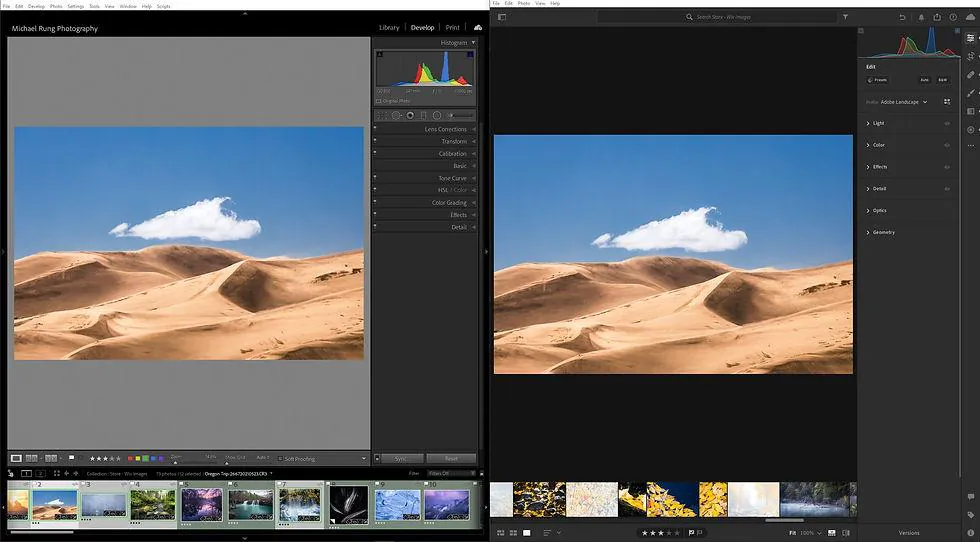
The cloud-based version of Lightroom stores your original photos in Adobe's cloud storage, so you can start editing on your phone and continue on your computer with the same adjustments. Lightroom Classic, on the other hand, stores photos on your local hard drive and organizes them using a Catalog system.
Its interface is more complex, but it's more reliable when managing photo libraries containing tens of thousands of images. That's why many wedding and event photographers prefer it.
| Feature | Lightroom | Lightroom Classic |
|---|---|---|
| Supported Platforms | Desktop, mobile, and web | Desktop only (Windows and macOS) |
| Photo Storage | Cloud storage | Local hard drive |
| Ease of Use | Beginner-friendly | Steeper learning curve with more professional features |
| Best For | Hobbyists, mobile photographers, and social media creators | Professional photographers, wedding and event photographers, and users with large photo libraries |
| Included in Free Trial | Yes | Yes |
If you mainly take photos with your phone or frequently switch between devices when editing, Lightroom is a good place to start. If you shoot RAW photos with a camera and regularly import hundreds of images at once, it's worth spending more time exploring Lightroom Classic during your free trial.
You can also try both versions during the free trial. They use the same Adobe ID, and once you enable syncing in Lightroom Classic, your selected photo collections will appear in the cloud-based version. Editing the same set of photos in both applications is the easiest way to compare their workflows and see which one suits you better.
7 Proven Ways to Get Adobe Lightroom Free
The seven options below include website and in-app trials, a team trial, Adobe’s refund window, the free mobile version, institutional access, and browser-based access. Some are separate access routes rather than additional free periods. In particular, the refund window requires an initial payment, and Lightroom Web’s full editing features require an eligible trial or subscription.
1. Claim the Official Seven-Day Free Trial on Adobe.com
Start a trial through Adobe’s website to evaluate the full Lightroom experience for seven days, including supported mobile, desktop, and web features and Lightroom Classic.
- Open Adobe’s Lightroom free trial page and click Start free trial.
- Choose Lightroom, Photography, or Creative Cloud Pro.
- Sign in or create a free Adobe ID.
- Enter your payment details and review the billing and cancellation terms.
- Open the Creative Cloud desktop app and install Lightroom or Lightroom Classic.
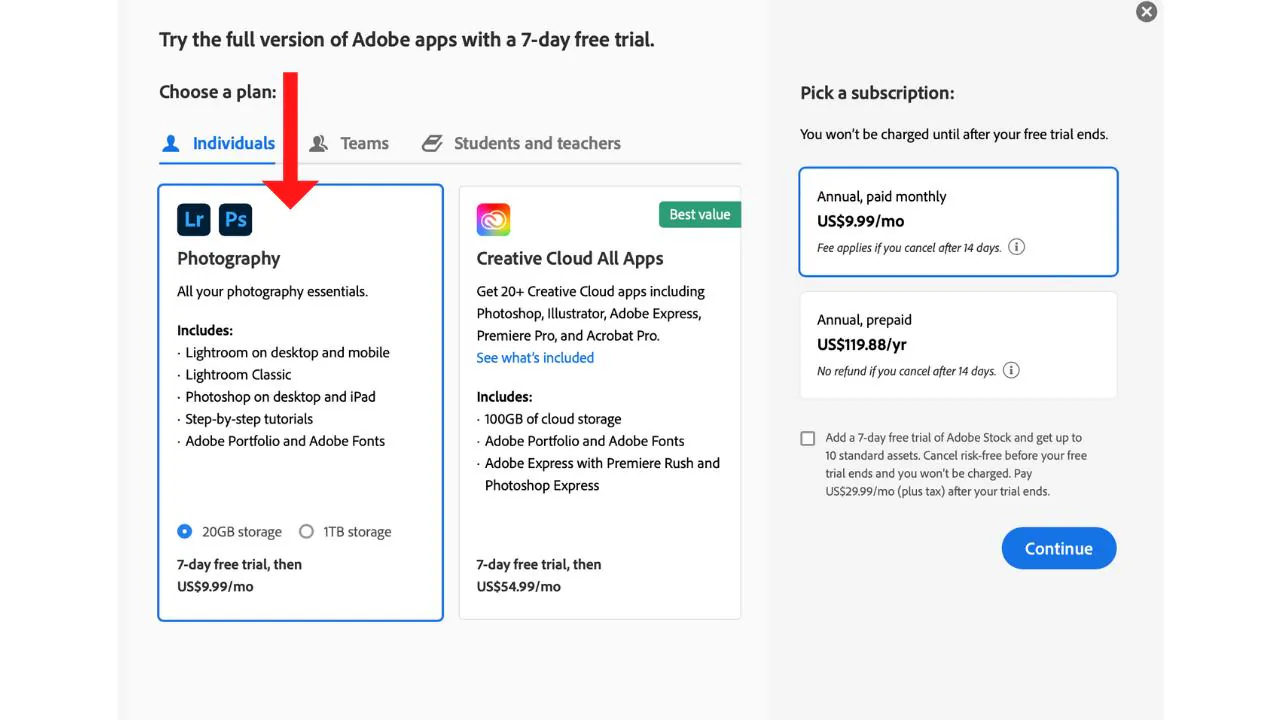
Billing starts after the seven-day trial unless you cancel. Set a reminder around day six so you have time to decide. To make the most of the trial, start with features that show Lightroom’s strengths.
First, try AI Denoise on supported night shots or high-ISO photos, where noise reduction can make a noticeable difference.

Next, test Generative Remove to remove distracting people or objects. Finally, try automatic masks for people and skies to make local adjustments without manually brushing every area. These features can help you judge whether a subscription fits your editing needs.
2. Get the In-App Free Trial on Lightroom Mobile
In the Lightroom mobile app, selecting a premium tool such as masking or healing may display a trial offer. The trial is typically seven days, but check the duration and renewal price shown before confirming.
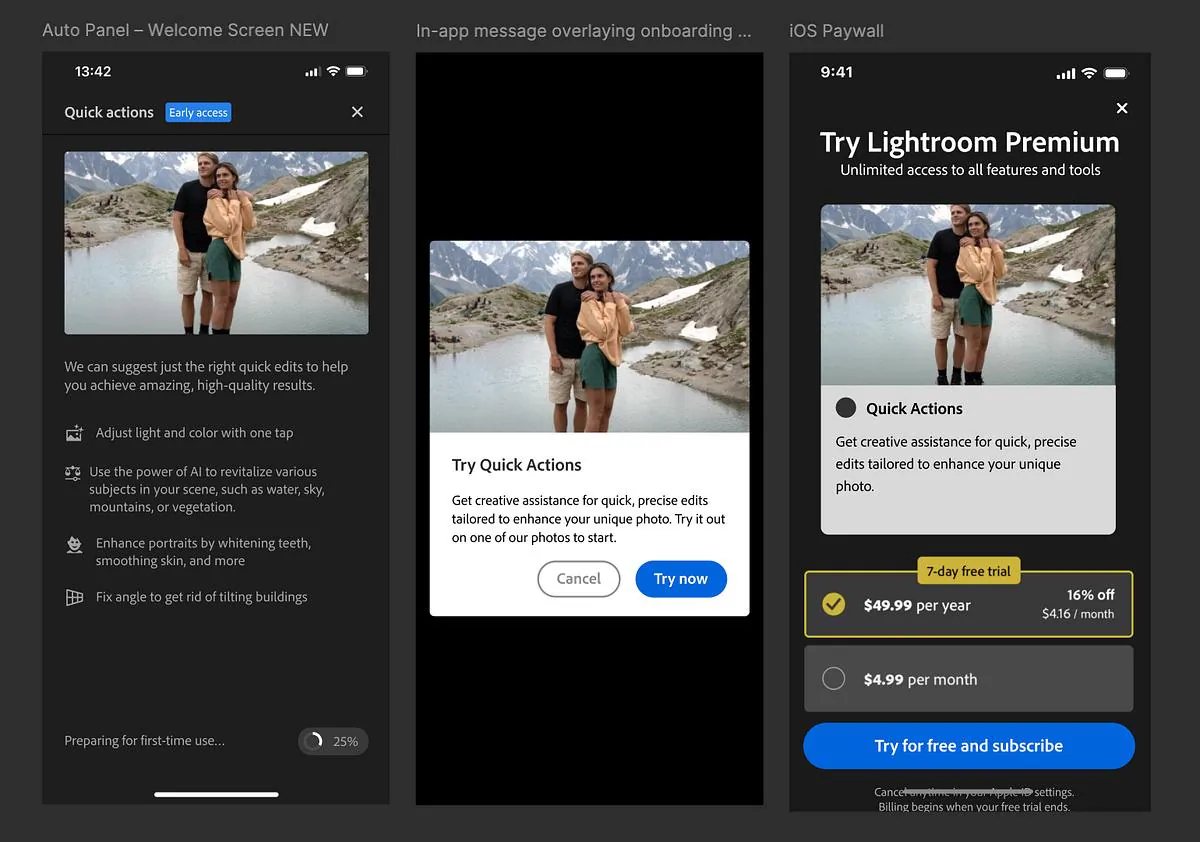
This subscription is handled through Apple or Google, so the app store processes billing. To cancel, use your Apple subscription settings or Google Play’s subscription menu. An app-store subscription generally cannot be canceled through Adobe’s account page.
3. Try Creative Cloud Pro for Teams for 14 Days
Creative Cloud Pro for teams offers a stated 14-day trial that includes Lightroom—twice the length of the individual trial.
The described team trial also includes:
- 1 TB of cloud storage per member.
- An Admin Console and 24/7 technical support.
- The option to invite up to nine additional members during the trial.
Billing begins after the trial unless you cancel. Review the offer’s refund terms carefully; the supplied terms describe a full refund when cancellation takes place within 14 days of the initial charge. Previous team-trial users may not be eligible for another trial.
Cloud storage is reduced after cancellation, with the supplied offer stating a 5 GB allowance. Download important photos before ending access and check the storage limit shown in your account.
4. Understand Adobe’s 14-Day Money-Back Guarantee
Adobe’s eligible individual subscriptions offer a full refund when canceled within 14 days of the initial paid order. Check the terms attached to your specific purchase.
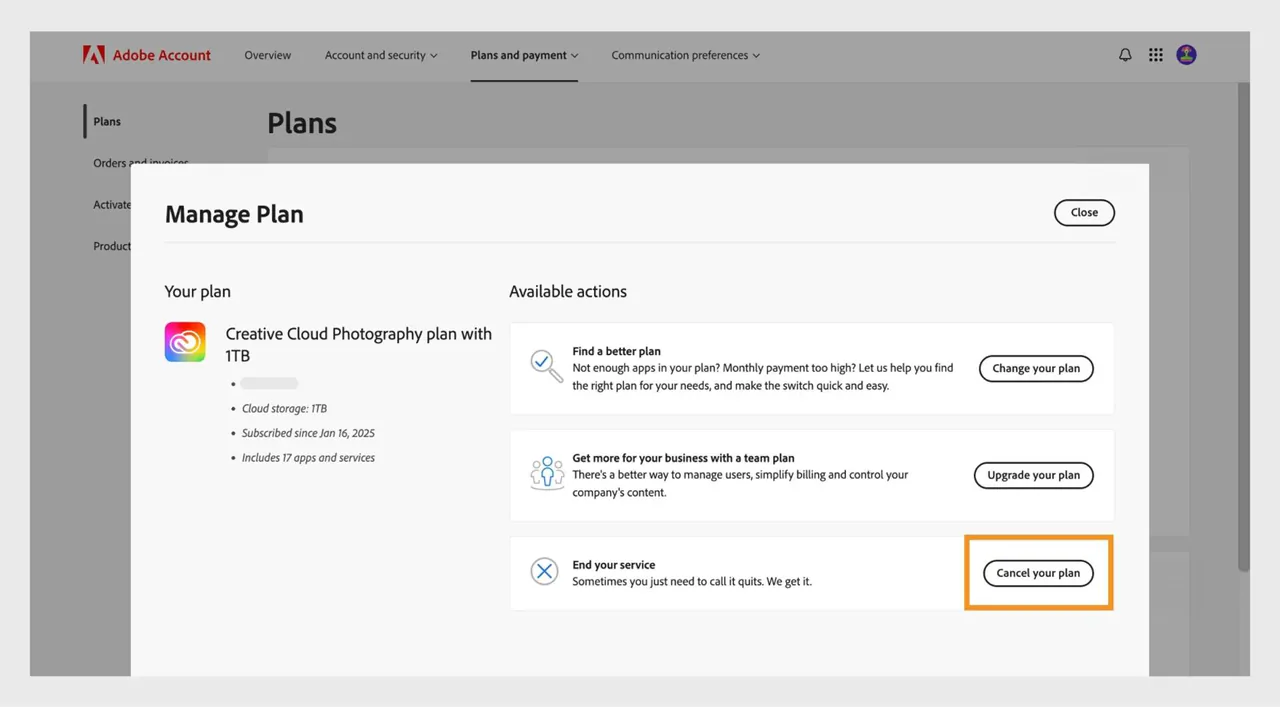
When combined with the 7-day free trial, you can use the individual plan for up to 21 days. Here's how the timeline works:
| Day | What Happens |
|---|---|
| Day 1 | Start your free trial |
| Day 8 | Free trial ends, and your first payment is charged |
| Day 21 | Last day to cancel and receive a full refund |
Your card will be charged during the refund period, and the payment will only be refunded after you cancel your subscription through Adobe Account > Plans and Payment > Manage Plan.
After Day 21, the annual contract becomes binding, and canceling your subscription may result in an early termination fee.
5. Use the Free Version of Lightroom Mobile
Lightroom Mobile’s free version has no trial deadline and does not require payment details. It provides everyday tools such as exposure, color adjustments, curves, selected presets, and cropping, along with basic photo organization and sharing.
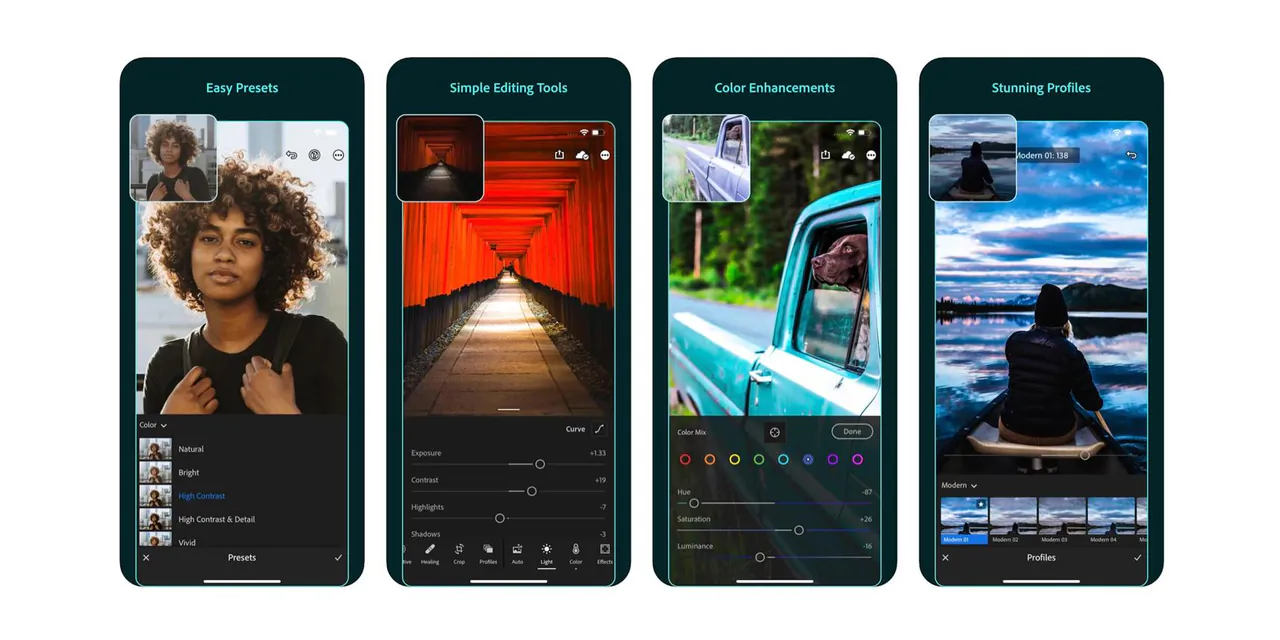
Premium features can include:
- Cloud storage and syncing across devices.
- Healing and masking tools.
- Geometry corrections.
- Batch editing.
- Supported RAW editing workflows.
- AI-powered search.
Feature availability can vary by device and app version. If you mainly edit phone photos and JPEGs, the free version may cover your needs. Frequent RAW editing and local adjustments are more likely to require an upgrade.
6. Access Lightroom Through Your School or Workplace
If your school or employer provides a Creative Cloud license that includes Lightroom, you may be able to use the full application without purchasing a personal subscription. Access lasts while your institution continues to authorize it.
Students and teachers can check their school’s IT services page or try signing in to Adobe with their institutional email address. Verification may require a school email, student ID, or proof of enrollment.
Employees can ask their IT department whether a team or enterprise license is available. Before graduating or leaving a job, download important cloud photos or arrange personal access, since institutional authorization may end.
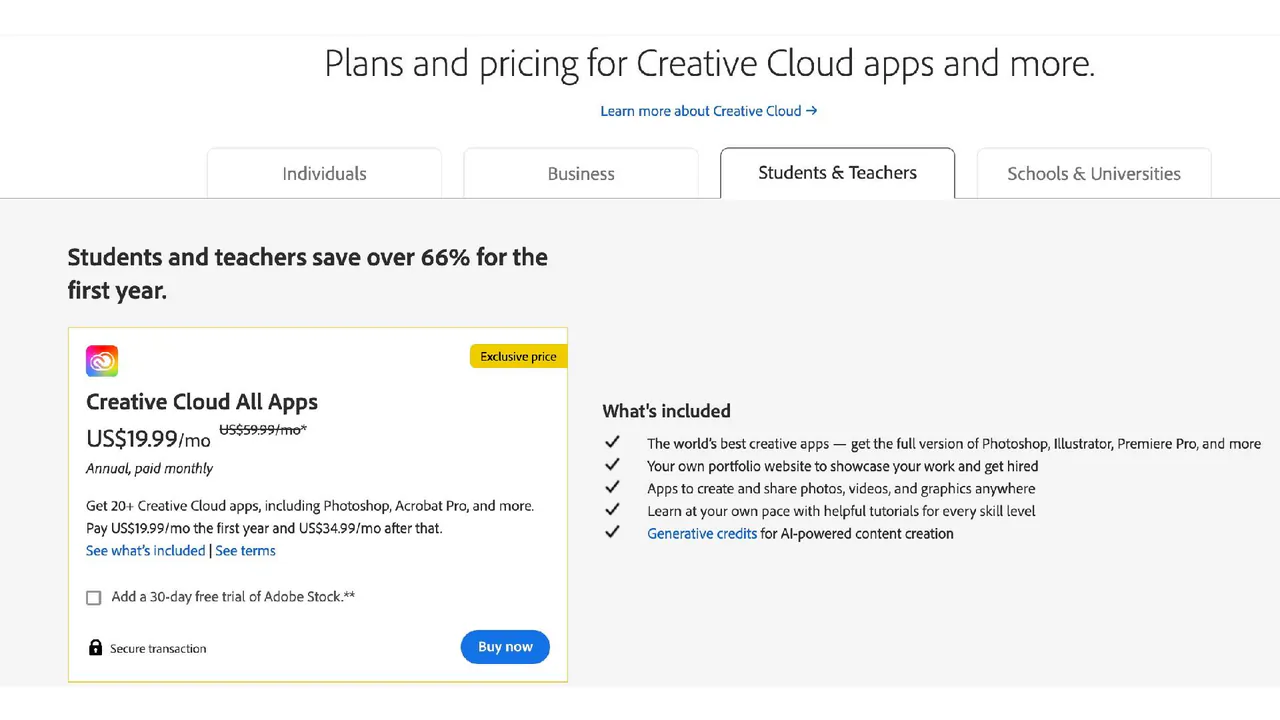
If your school does not provide a license, Adobe also offers student and teacher pricing. The supplied offer lists Creative Cloud Pro, including Lightroom, at US$15.99 per month for the first year. Check current eligibility, pricing, and renewal terms before purchasing.
7. Use Lightroom Web in Your Browser
Open lightroom.adobe.com and sign in to edit through your browser without installing desktop software. Supported sign-in options include an Adobe ID and available Google, Facebook, or Apple account connections. Eligible new users can select Try Lightroom now to start a trial.
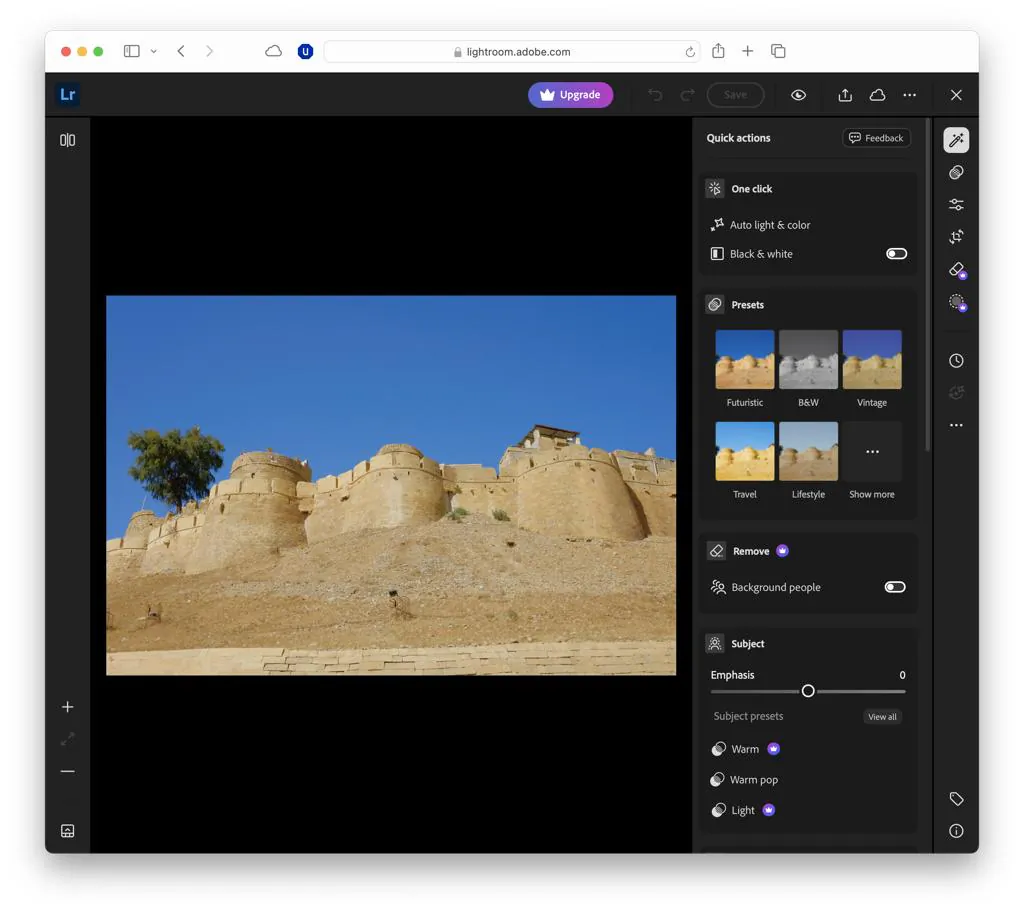
Lightroom Web is useful on a Chromebook or another computer where installation is inconvenient. Photos and edits synced to Adobe’s cloud remain accessible across supported devices.
Unlike the free mobile version, full web editing is available only during an eligible trial or paid subscription. Using a browser does not provide a separate unlimited free version.
Which Adobe Lightroom Method Is Best for You?
If you want to experience the full desktop version of Lightroom, start with Adobe's official 7-day free trial and use the refund period to get up to two additional weeks. Studios and small teams can choose the team free trial, while those who only edit photos on their phones can use the free mobile version.
Here's a comparison of all seven methods:
| Method | Free Access Duration | Credit Card Required | Full Features | Best For |
|---|---|---|---|---|
| Adobe Official Free Trial | 7 days | Yes | Yes | Users who want to try the desktop version |
| Mobile App Free Trial | About 7 days | Yes | Yes | Mobile photographers |
| Creative Cloud Pro for Teams | 14 days | Yes | Yes | Studios and small teams |
| 14-Day Refund Period | Up to 21 days | Yes (refundable) | Yes | Users who need more time to decide |
| Lightroom Free Mobile App | Unlimited | No | No | Everyday JPG photo editing |
| School or Employer License | While enrolled or employed | No | Yes | Students and employees |
| Lightroom Web Version | During the trial period | Yes | Yes (web-based tools) | Users editing photos on shared or public computers |
The Cheapest Way to Keep Lightroom After Your Trial
If you want to continue using Lightroom, GamsGo offers Adobe Creative Cloud access without requiring you to sign Adobe’s annual contract directly. Compared with the stated Creative Cloud Pro standard price of US$69.99 per month, it provides a lower-cost option worth comparing.
Get Adobe Creative Cloud on GamsGo
Founded in 2020 and headquartered in London, GamsGo offers more than 200 subscription services. Its Adobe Creative Cloud account listings include access to applications such as Lightroom, Lightroom Classic, and Photoshop. Check the product description for the exact apps and account arrangement included.
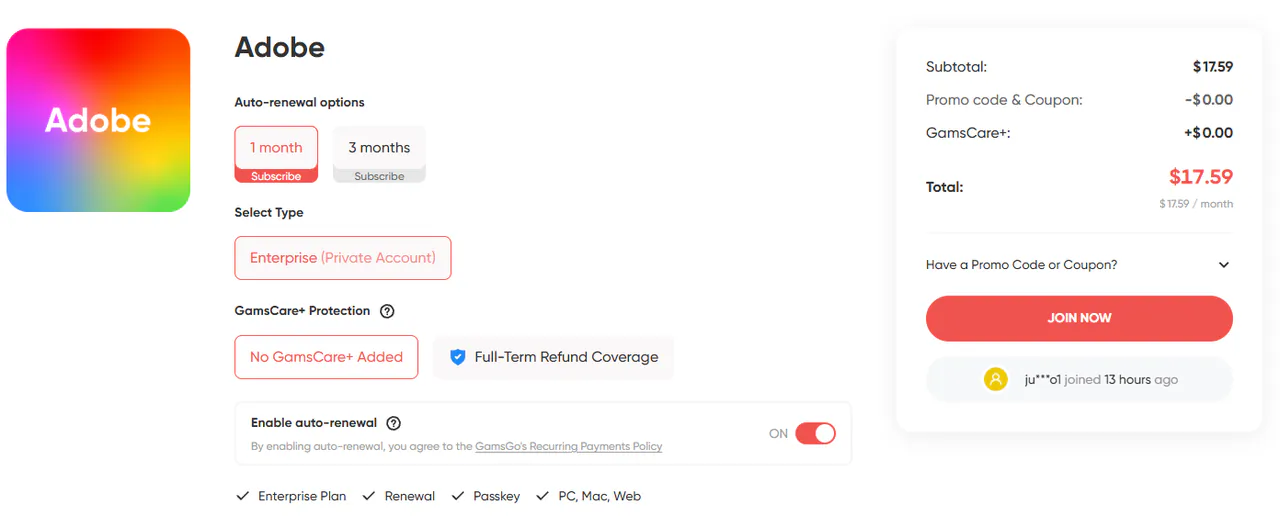
Plans are available for 1 month or 3 months. Pay only for the time you need without committing to Adobe's annual contract.
| Plan | Price | Monthly Cost | Subscription Period | Includes Lightroom | Savings vs. Official |
|---|---|---|---|---|---|
| Adobe Creative Cloud Pro (Official) | US$69.99/month | US$69.99 | Annual plan, billed monthly | Yes | — |
| GamsGo Adobe Creative Cloud 1 Month | US$17.59 | US$17.59 | 1 month | Yes | Save US$52.40 (75%) |
| GamsGo Adobe Creative Cloud 3 Months | US$49.59 | Approx. US$16.53 | 3 months | Yes | Save US$160.38 (76%) |
Beyond pricing, GamsGo also offers several after-sales protections:
- Eligible unresolved account issues can receive a refund, with a stated timeframe of 1–24 hours, subject to after-sales terms and payment processing.
- Transaction protection is included with every order.
- 24/7 live customer support is available for account and setup questions.
- More than 50 payment methods are supported overall, with available options depending on your country and checkout.
If you also work with documents or video, GamsGo offers options for UPDF Pro, and VEED.io account.
Conclusion
The full version of Lightroom requires a subscription, but there are several ways to evaluate it or use selected features without paying. The official individual trial lasts seven days, the stated team trial lasts 14 days, and eligible institutional licenses provide access while authorization remains active. Lightroom Mobile’s free tools have no trial deadline.
The refund window can provide additional evaluation time after an initial charge, but it should not be treated as a separate free trial. Always check your cancellation deadline and commitment terms.
If you want to continue after trying Lightroom, you can buy an Adobe Creative Cloud account on GamsGo for access to Lightroom, Photoshop, and other included creative apps without signing Adobe’s annual contract directly.
FOR BLOG READERS
FAQ
Can I Get the Adobe Lightroom Free Trial More Than Once?
Usually not. Adobe generally offers one trial per product per Adobe ID, and repeatedly creating accounts to obtain trials may conflict with its terms. Individual and team trial offers have separate eligibility requirements, so previous individual-trial use does not necessarily determine eligibility for a team offer.
Does the Lightroom Free Trial Add Watermarks to Exported Photos?
No. The full trial does not automatically add watermarks, and exports are not restricted to a lower resolution simply because you are using a trial. You can still choose to add your own watermark through supported export settings.
What Happens to Lightroom Classic When My Trial or Subscription Ends?
Your locally stored catalog and photos remain on your computer. Lightroom Classic enters a restricted mode that generally lets you view, organize, and export existing photos, while the Develop and Map modules become unavailable. An eligible subscription restores the paid features.
Can I Use Lightroom Presets Without a Subscription?
Some presets work in Lightroom Mobile’s free version. Premium presets and adjustments that depend on paid tools may require a subscription. Availability can vary by preset, device, and app version.
Can I Buy Lightroom with a One-Time Payment Instead of a Subscription?
No current version of Lightroom or Lightroom Classic is sold as a perpetual license. Adobe discontinued sales of the older Lightroom 6 perpetual version. Older licenses also lack current features and support for newer camera RAW formats, so they are not equivalent to a current subscription.
What Are Some Free Alternatives to Lightroom?
On desktop, darktable and RawTherapee offer free, open-source RAW processing and non-destructive editing workflows. On mobile, Google’s Snapseed offers free photo-editing tools. Their interfaces, cloud features, and AI capabilities differ from Lightroom, so the best fit depends on your device and editing needs.
Related Articles
Adobe Acrobat Free Trial: 7 Ways to Use Acrobat Free in 2026