Claude is an AI assistant developed by Anthropins, it can help users write content, summarize documents, analyze data, generate code, and develop new ideas.
Although Claude has a simple interface, beginners may still have questions about account registration, plan selection, file uploads, and prompt writing. These issues can affect the accuracy and usefulness of its responses.
In this guide, you will learn how to use Claude for account setup, file uploads, content writing, code generation, and data analysis. You will also explore its main features and decide whether upgrading to Claude Pro is worth it.

How to Choose the Right Claude Plan for Your Needs
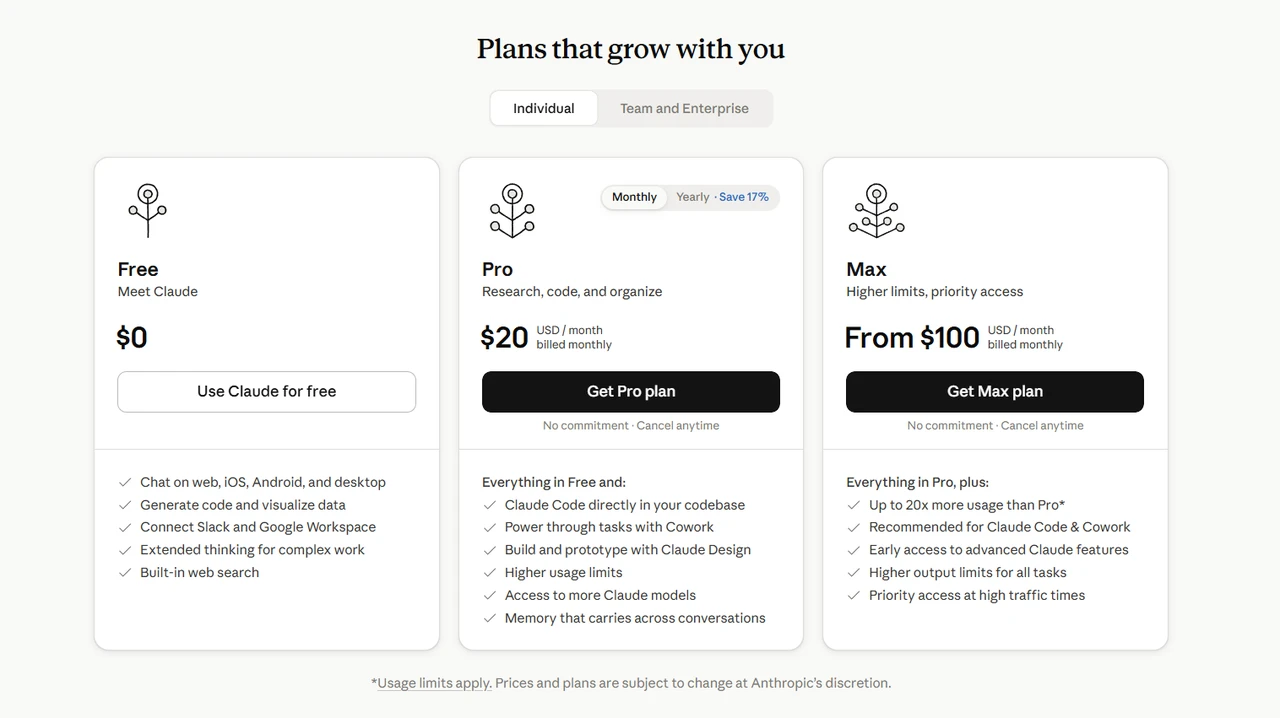
Before using Claude AI, it helps to understand how its plans differ. Claude offers both free and paid options, so you can choose a plan based on how often you use AI and the type of work you need to complete. Here is a comparison of the main Claude plans:
| Claude Plan | Best For | Key Features | Price |
|---|---|---|---|
| Claude Free | General users, students, light AI users, and beginners who want to try Claude | Includes core AI chat features for everyday questions, editing, simple writing, study support, and file analysis. It works well for occasional use, but usage and access to advanced features are limited. | Free |
| Claude Pro | Professionals, developers, researchers, content creators, and frequent AI users | Includes everything in Free with higher usage limits. It provides access to more capable Claude models, Claude Code for coding support, Projects for organizing work, file processing, complex reasoning, and long document analysis. It is suitable for regular writing, development, research, and professional tasks. | $20 per month or $200 per year |
| Claude Max 5x | Power users, developers, and people who rely on AI workflows | Provides five times the Pro usage capacity per session for users who work with Claude throughout the day. It supports longer coding sessions, large file analysis, and complex project workflows. | $100 per month |
| Claude Max 20x | Daily power users who rely on Claude for most of their work | Provides twenty times the Pro usage capacity per session, higher output limits, early access to advanced features, and priority access during busy periods. It is designed for demanding daily workflows. | $200 per month |
| Claude Team | Small teams, startups, and business departments | Designed for collaboration with shared workspaces, centralized billing, team administration, access controls, and higher usage. It is suitable for groups that use Claude together on projects. | Standard seats: $25 per user per month, or $20 per user per month with annual billing. Premium seats: $125 per user per month, or $100 per user per month with annual billing. A minimum of two users is required. |
| Claude Enterprise | Large companies and organizations | Provides enterprise administration, security controls, single sign-on, organization-wide search, role-based access, audit logs, and custom data retention. It is built for organizations that need to deploy Claude at scale. | $20 per user per month, billed annually, plus usage charged at Claude API rates |
If you only need everyday chat, simple writing, or occasional AI help, the Free plan can cover the basics. Claude Pro is a better fit for users who regularly analyze files, create professional content, write code, or use AI throughout the day. To get a higher usage Claude account, you can also buy cheap claude accounts through GamsGo. The platform provides clear order records, transaction protection, and 24/7 customer support for users who plan to use Claude for writing, coding, and file analysis over the long term.
How to Get Started with Claude AI
Getting started with Claude is simple. You can use it on the official Claude website or through the official desktop and mobile apps. First, create an account and then choose the Free or Pro plan based on your needs.
Step 1. Create a Claude Account
Follow these steps to start using Claude:
- Open the official Claude website.
- Click Sign Up.
- Choose Continue with Google or enter your email address and select Continue with email. If you use email, open the secure login link sent to your inbox. When signing in from another device, Claude may ask you to enter a verification code on the original device.

Step 2. Choose Claude Free or Pro
After trying Claude, choose the plan that matches your workload. Start with Claude Free when you only want to explore its capabilities. Consider Claude Pro when you need regular long document analysis, large amounts of content creation, software development, or professional research.
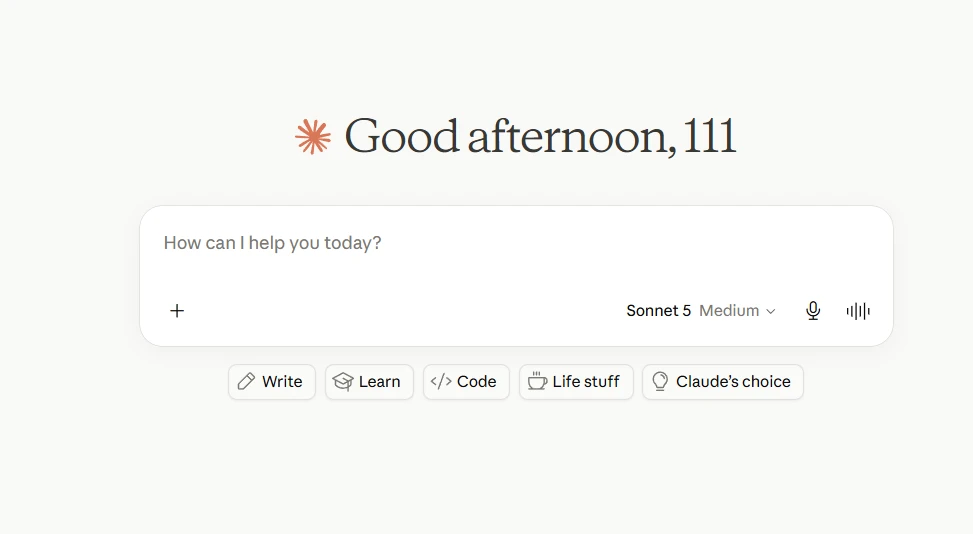
Step 3. Start Your First Conversation
After creating your account, you can try Claude for free and use features such as chat, writing, and document analysis. You can upgrade to Claude Pro later if your usage increases.
How to Use Claude for Different Tasks
When using Claude AI, clear instructions can help it handle many tasks, including content creation, data analysis, software development, and idea planning. The following sections cover some of the best ways to use Claude.
How to Write Better Prompts in Claude
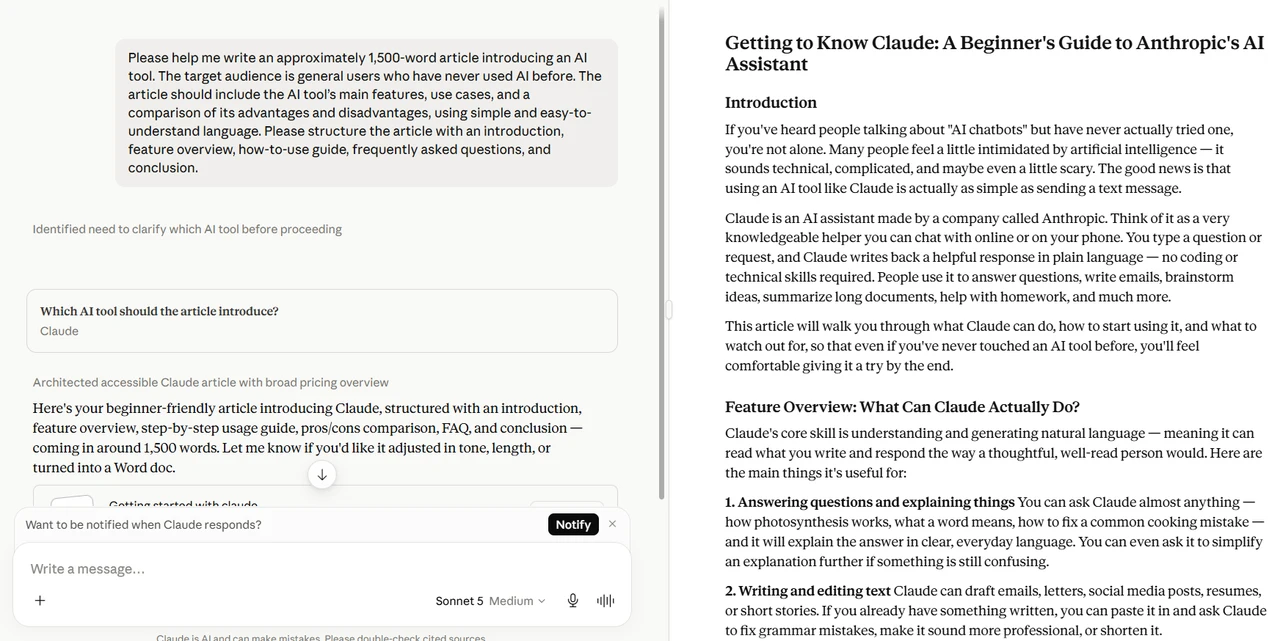
When you first use Claude, its answers may not seem accurate enough. In many cases, the prompt does not provide enough detail. A strong prompt should explain the goal, background, output format, examples, and limits. The more useful context you provide, the more accurate Claude can be. Here is an example:
- Vague prompt: Write an article about AI tools.
- Detailed prompt: Write an approximately 1,500-word introduction to AI tools for general readers who have never used AI. Cover the main features, common use cases, advantages, and disadvantages of AI tools. Use simple language and organize the article into an introduction, feature overview, instructions, FAQ, and conclusion.
How to Upload and Analyze Files in Claude
Claude can analyze uploaded files based on their content. Supported formats include PDF, DOCX, CSV, TXT, HTML, ODT, RTF, EPUB, JSON, XLSX when code execution and file creation are enabled, and common image formats such as JPEG, PNG, GIF, and WebP. To upload a file:
- Start a new Claude conversation.
- Click the plus button, choose Add files or photos, and select the file you want to upload.
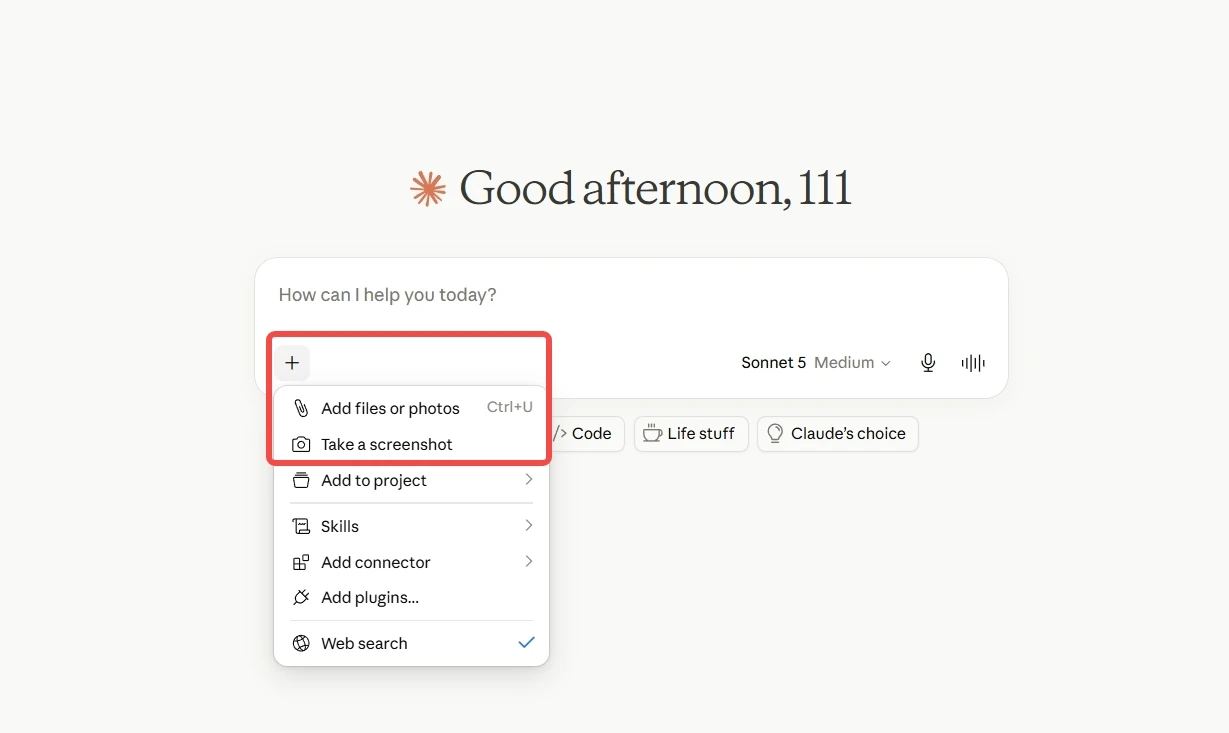
- Wait for Claude to finish processing the file.
- Ask your question about the file.
How to Use Claude for Writing Content
Do not begin with only a task. First, tell Claude who you are, who the target audience is, and what writing style you need. This context helps Claude understand your goal and reduces repeated revisions. Follow these steps:
- Explain the writing context: Tell Claude your role, target readers, topic, and where the content will be used.
- Define the writing requirements: Specify the tone, structure, length, format, and any wording Claude should avoid.
- Review and improve the result: Give feedback on the first draft and ask Claude to revise the title, structure, tone, or specific details.
- Save effective prompt templates: Store prompts that work well in Claude Projects, Notion, or Google Docs. Next time, replace the topic to create content with a consistent style.
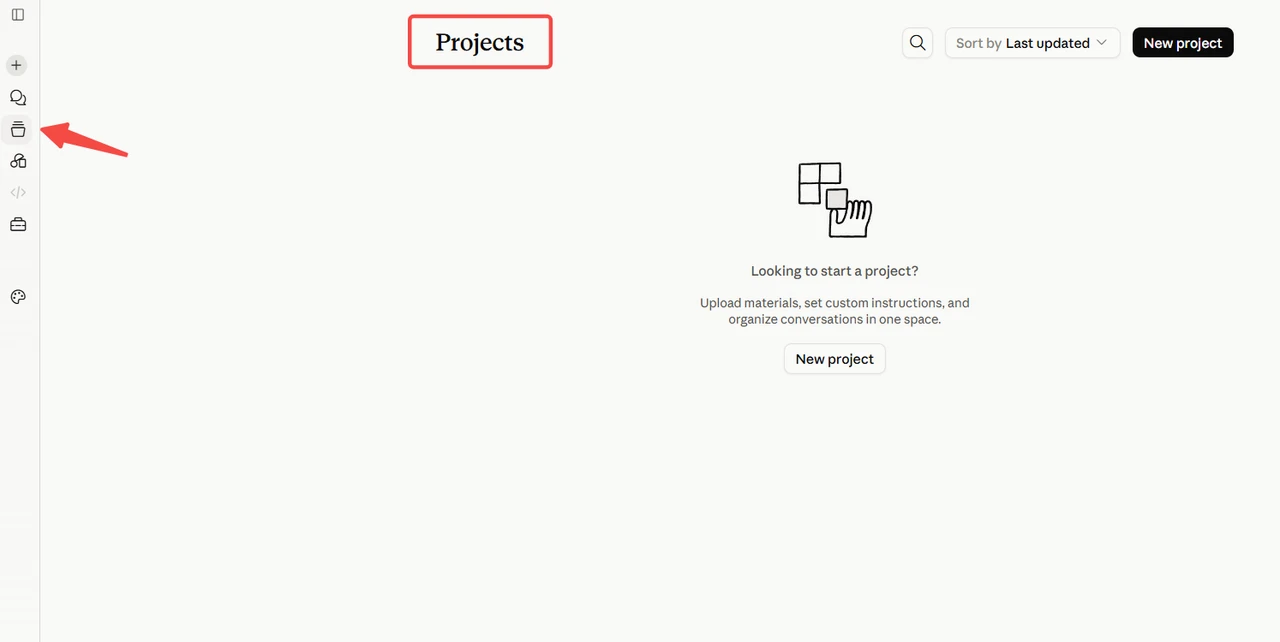
How to Use Claude for Summarizing Documents
After uploading a document, do not only type, "Summarize this file." Explain how the document will be used, what information matters, and which output format you prefer. Specific instructions usually produce a summary that better matches your needs. Follow these steps:
- Upload the document: Add a PDF, Word document, or another supported file to Claude, then briefly explain the file type and purpose.
- Define the key points: Tell Claude what to extract, such as main ideas, important data, research findings, risks, or action items.
- Set the summary format: Specify the length, language, and structure. You can request paragraphs, bullet points, a table, or an executive summary.
- Check the source document: Confirm that important numbers, dates, quotations, and conclusions match the original, then ask follow-up questions about anything missing.
How to Use Claude for Data Analysis
When using Claude for data analysis, explain the data source, field definitions, analysis goal, and the question you want to answer. Clear context helps Claude select a suitable method and produce more useful findings. Follow these steps:
- Explain the data context: Tell Claude where the data came from, the date range, the main fields, and what each field represents.
- Define the analysis goal: State what you want to learn, such as sales trends, user behavior, anomalies, metric changes, or relationships between variables.
- Choose the output format: Ask Claude to present the results as a table, bullet points, an analysis report, or chart recommendations, and explain the key numbers and findings.
- Verify and continue the analysis: Check the calculations, numbers, and conclusions. Then ask Claude to compare specific metrics or investigate the initial findings in more detail.
How to Use Claude for Coding
When using Claude for coding, describe the project, programming language, technical environment, and feature you want to build. Complete context helps Claude generate code that fits your project and reduces compatibility issues and later revisions. Follow these steps:
- Explain the project context: Tell Claude the project type, use case, programming language, framework, and runtime environment.
- Define the development requirements: Describe the feature, inputs, outputs, code structure, performance needs, and any technologies that must not be used.
- Test and improve the code: Run the code in the real environment, then share error messages or test results with Claude so it can identify and fix problems.
- Review code security: Check the generated code for security risks, logic errors, and dependency issues. Always complete a human review before using it in production.
How to Choose the Right Claude Model for Your Needs
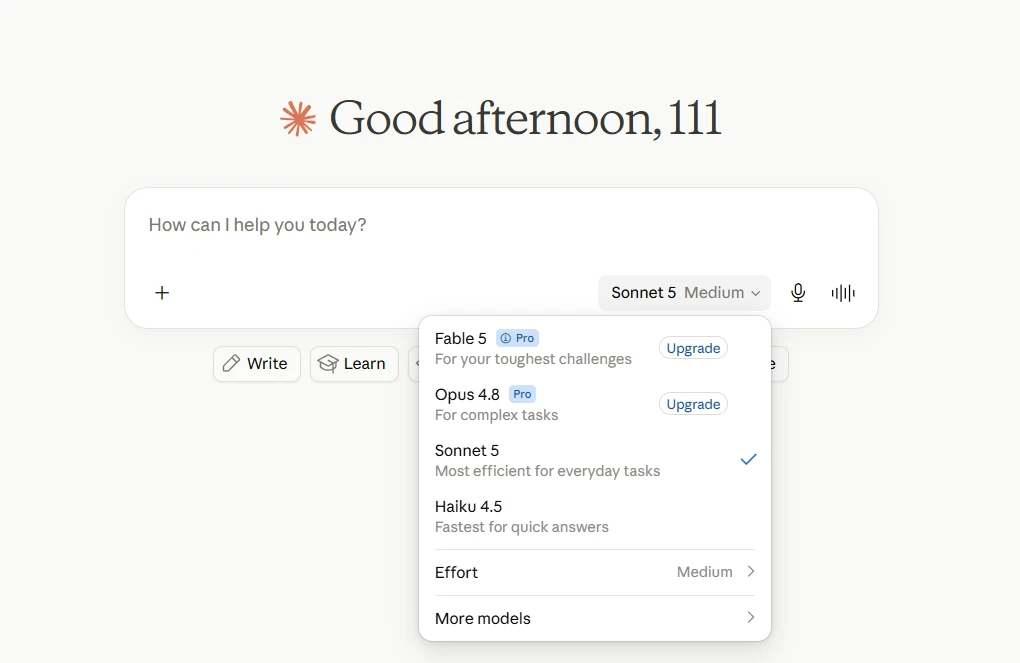
Claude currently offers four main models. The prices below are Claude API rates, not Claude subscription prices:
- Claude Haiku 4.5: Best for fast responses and simple tasks
Claude Haiku 4.5 is the fastest and most cost-effective model in the Claude family. It is designed for simple, frequent tasks. Choose Haiku when you need quick information, short text generation, sentence editing, or repeated workflows.
API pricing: $1 per million input tokens and $5 per million output tokens
- Claude Sonnet 5: A balanced model for most users
Claude Sonnet 5 combines strong intelligence with fast performance and is a practical choice for coding, agent workflows, writing, analysis, and everyday work. If you are unsure which Claude model to choose, Sonnet is a useful starting point for most tasks.
API pricing: Introductory pricing is $2 per million input tokens and $10 per million output tokens through August 31, 2026. Standard pricing after that date is $3 per million input tokens and $15 per million output tokens.
- Claude Opus 4.8: Best for complex reasoning and in-depth analysis
Claude Opus 4.8 is built for complex agentic coding, enterprise work, and difficult problems that require careful multi-step reasoning. Compared with Sonnet, it is a better fit for demanding professional tasks than for simple everyday chat.
API pricing: $5 per million input tokens and $25 per million output tokens
- Claude Fable 5: Best for ambitious, long-running projects
Claude Fable 5 is Anthropic's most capable widely available model for ambitious, long-running work. It is designed for large software projects, professional research, enterprise analysis, and multi-stage workflows that require planning, execution, testing, and review with less supervision.
API pricing: $10 per million input tokens and $50 per million output tokens
Conclusion: Start Using Claude Today
You now have a clear understanding of how to use Claude. This guide covered account creation, choosing between Claude Free and Pro, writing content, summarizing documents, analyzing data, generating code, and brainstorming ideas. You also learned how to upload files and improve prompts for more accurate and useful responses.
Like other AI assistants, Claude works best when you test different prompts and refine your instructions. Add relevant background, define the output format, or divide complex work into smaller steps. As you continue using Claude AI, you will discover the methods that fit your personal, academic, or professional needs.
Now it is time to try Claude yourself. Open Claude, start your first conversation, upload a document, or ask it to support your next project. With clear prompts and regular practice, Claude can become a reliable AI assistant that helps you work efficiently and create with confidence.
FAQ
Is Claude free to use?
Yes. Claude offers a Free plan, which is a simple way to learn how to use Claude. After creating an account, you can use chat, writing, and file analysis features. The Free plan has usage limits, and access may be more limited during busy periods.
Can Claude analyze PDFs?
Yes. Claude can analyze uploaded PDF files, summarize their content, extract key points, answer questions, and help organize research reports. File analysis is one of the best uses for Claude, especially for students, researchers, content creators, and business users.
Does Claude Save My Chat History?
Claude keeps your conversations in chat history so you can review them and continue previous work. You can rename or delete individual chats, and you can also delete multiple conversations from the Chats section.
Is Claude better than ChatGPT?
Claude and ChatGPT are both leading large language model products. Claude is well suited to long document processing, natural writing, and complex reasoning. ChatGPT offers a broad tool ecosystem, image generation, and many integrations. The better choice depends on the tasks and features you need.
Should I upgrade to Claude Pro?
Claude Free is enough for occasional AI use. Claude Pro is more suitable when you use AI every day for writing, development, research, or large document workloads. Higher usage limits, priority access during busy periods, and access to more Claude models can improve the experience for regular users.
Related Articles: