When building a PC, you might budget $400 for the CPU, $200 for the motherboard, and $500+ for the graphics card. But then Microsoft wants you to fork over another $139 for a Windows license ($199 for Pro).
What makes it worse is that Windows 10 support ended on October 14, 2025. If you keep using it, you won't get security updates anymore, and Microsoft's extended support costs an additional $30.
And while a free windows 11 key might seem tempting when found on random forums, most are illegally resold volume licenses that could stop working at any time.
The good news is you don't have to hunt for activation codes or worry about getting scammed. Below, I'll show you all the legitimate ways to get Windows 11 for free or cheap, so you can spend that money on parts that actually matter.
Quick Overview: Ways to Get Windows 11
Here are the most recommended ways to get Windows 11 in 2025. Click the links below to jump to the method that fits your needs:
- Still using an old Windows 10 device?
👉 Method 1: Official Free Windows 11 Upgrade - Want the most affordable lifetime key?
👉 Method 2: Buy Windows 11 Key Cheaply via GamsGo - Have a valid education email (.edu)?
👉 Method 3: Education Discount - Are you a developer or IT professional?
👉 Method 4: MSDN Subscription
How to Download Windows 11 for Free
No matter which activation method you choose, the first step is to Install Windows 11 using a clean system image from Microsoft. Never download system images from sketchy third-party sites.
Option 1: Use the Official Media Creation Tool
This is Microsoft's official tool that automatically downloads the system and writes it to a USB drive.
- What You'll Need: Get a USB drive with at least 8GB of space. (Back up your files first!)
Download the Tool: Go to Microsoft's official download page. Scroll to "Create Windows 11 Installation Media" and download via
MediaCreationTool.exe.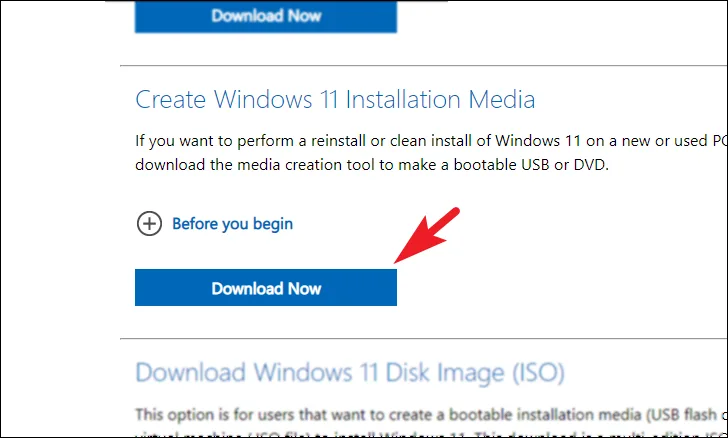
Run and Select: Launch the tool, accept terms, and choose "USB flash drive" when prompted.
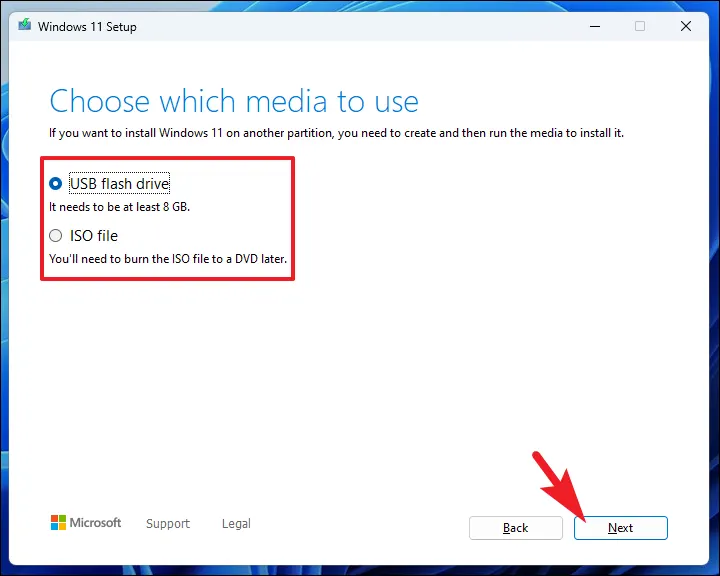
- Start Creating: Select your USB drive from the list. (If it doesn't show up, unplug and replug it, then click "Refresh drive list.") Click "Next" and the tool will automatically download Windows 11 and create the bootable drive.
- Finish: Select your USB drive, click Next, and wait for the "Your USB flash drive is ready" message.
Option 2: Use Rufus (For Older PCs)
If you need to bypass hardware requirements (like TPM 2.0), Rufus is your best option.
Download Rufus: Get the portable version from the Rufus website.
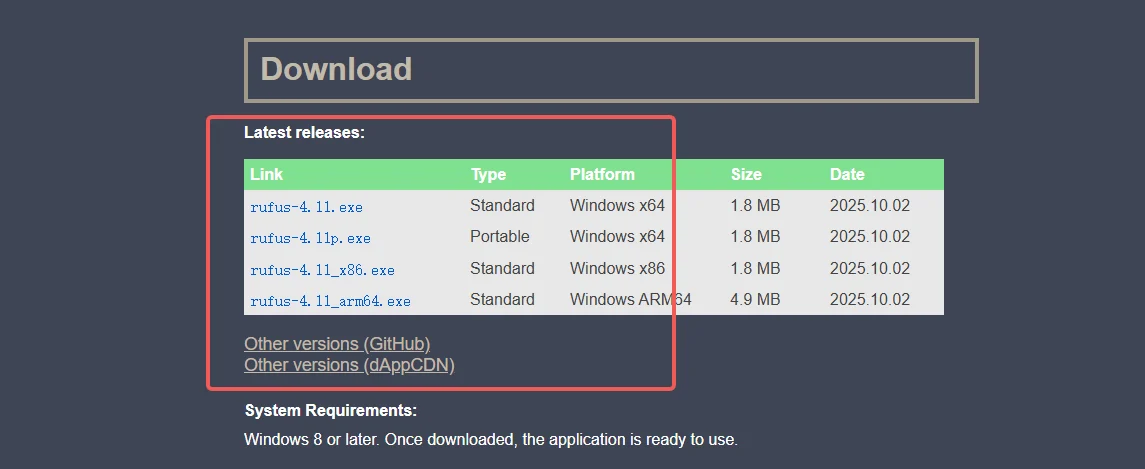
- Load Image: Select your USB drive and the Windows 11 ISO file.
- Partition Scheme: Check your BIOS Mode (Win+R > msinfo32). If UEFI, choose GPT. If Legacy, choose MBR.
- Bypass Restrictions: Click START. If installing on an older PC, check "Remove requirement for 4GB+ RAM, Secure Boot and TPM 2.0."
Once installed, you'll likely see an activation watermark and have locked personalization settings. But you don't need to pay full retail price to fix this. Below are the best legitimate ways to get a free Windows 11 key or buy Windows 11 for cheap.
Method 1: Official Free Windows 11 Upgrade
Price: Free | Difficulty: ⭐ | Rating: ⭐⭐⭐⭐⭐
If you already have a computer running genuine Windows 10, you can upgrade to Windows 11 completely free.
| ✅ Pros | ❌ Cons |
| Zero cost. Your license carries over automatically. | Must pass TPM 2.0 hardware checks. Backing up files is recommended. |
Upgrade Steps
1. Check Compatibility
Before upgrading, make sure your device meets the hardware requirements. Most computers made after 2018 qualify, but TPM 2.0 might be disabled in the BIOS.
Download Microsoft's official PC Health Check tool, and it will list any hardware that doesn't meet requirements.
2. Enable TPM 2.0: If unsupported, enter BIOS (F2/Del) and enable PTT (Intel) or fTPM (AMD) under Security settings.
3. Once compatibility checks pass, open "Settings → Update & Security → Windows Update."
- If your device qualifies, you'll see a prominent "Upgrade to Windows 11" option.
- Click "Download and install." The system will download about 5GB, and you can keep using your computer.
- When ready, click "Restart now." The whole process takes 30 to 60 minutes, with multiple automatic restarts.
After upgrading: The system automatically inherits your Windows 10 activation, and all files and apps remain intact.
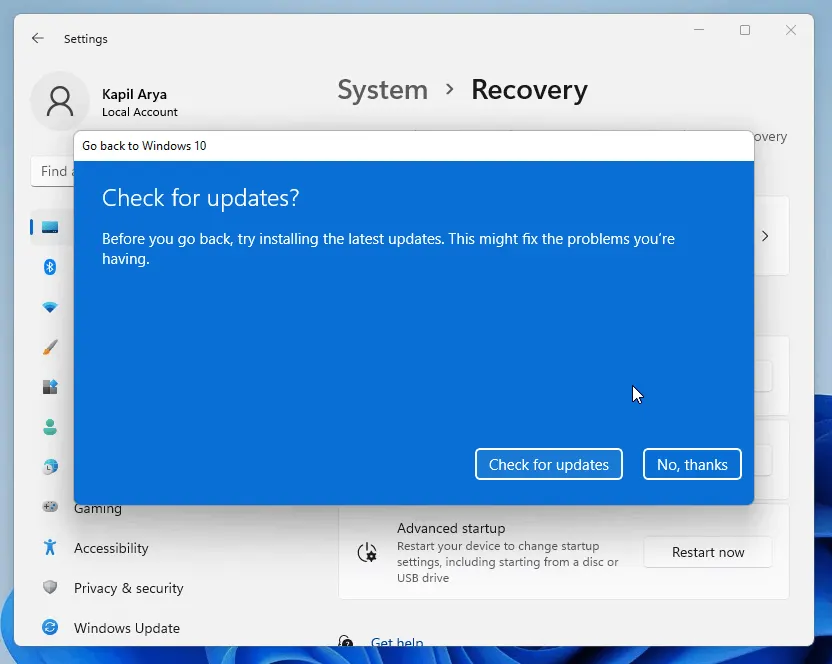
Rollback option: If you run into compatibility issues, you can roll back to Windows 10 within 10 days through "Settings → System → Recovery".
Method 2: Buy Windows 11 Key Cheaply via GamsGo
Price: $1.99 - $8.99 | Difficulty: ⭐ | Rating: ⭐⭐⭐⭐⭐
If you don't qualify for a free upgrade and want to buy windows 11 without the full retail price tag, GamsGo offers a secure alternative.
| ✅ Pros | ❌ Cons |
| Starting at just $1.99. Instant delivery (5 mins). Genuine license support. | Not completely free. |
How to Get a Win 11 Key on GamsGo
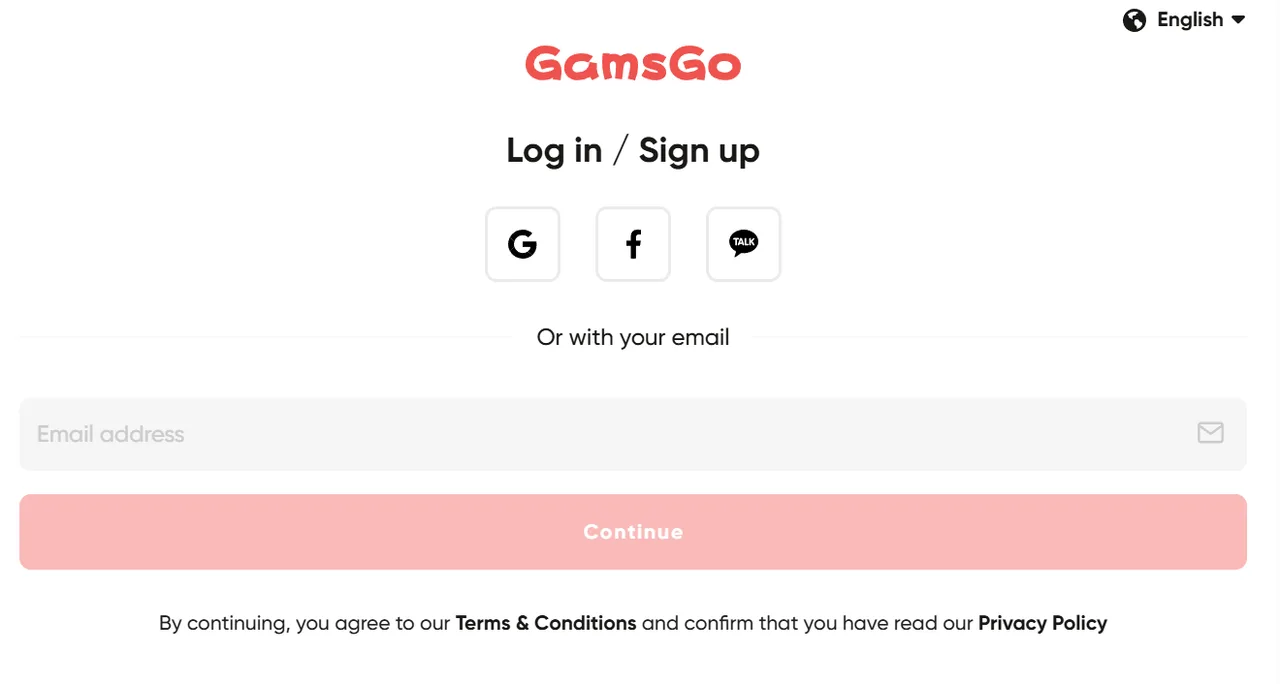
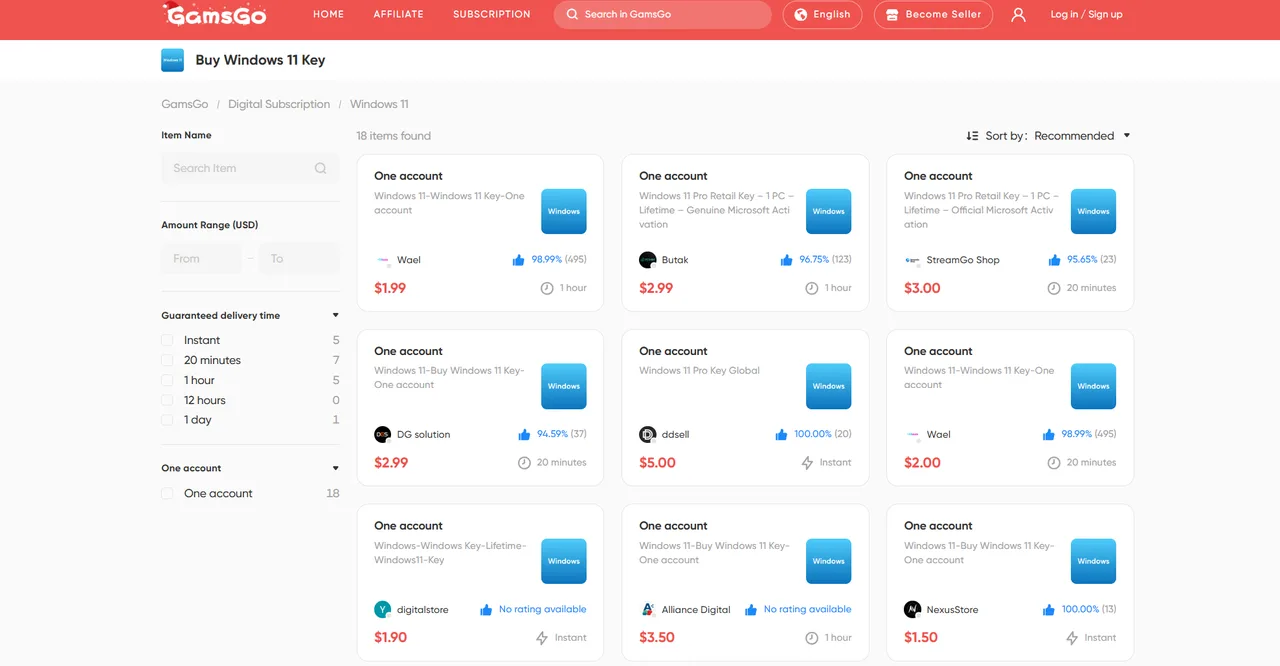
Visit GamsGo: Go to the GamsGo and create an account.
Search: Type "Windows 11" in the search bar.
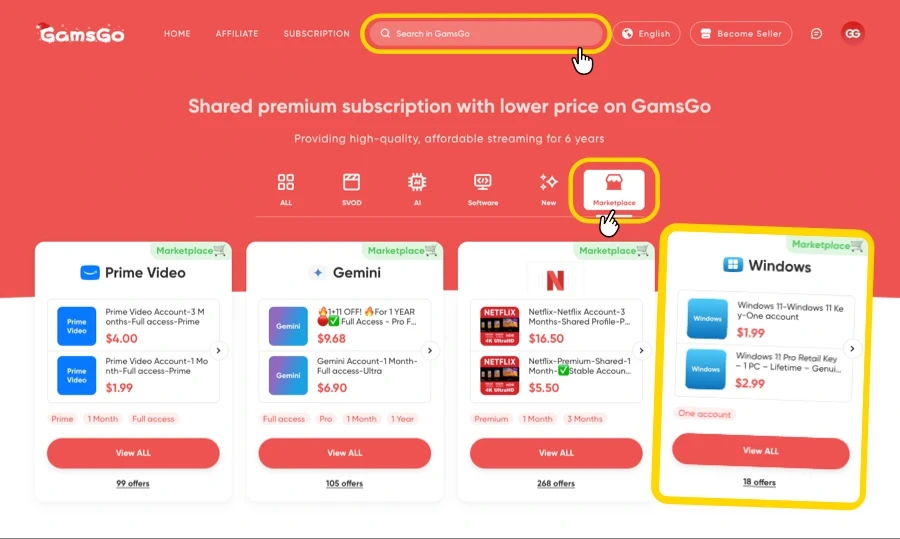
Select Package: We recommend the Windows 11 Pro key for the best features.
- Select your preferred international payment method (like Visa/Mastercard or PayPal) and complete payment.
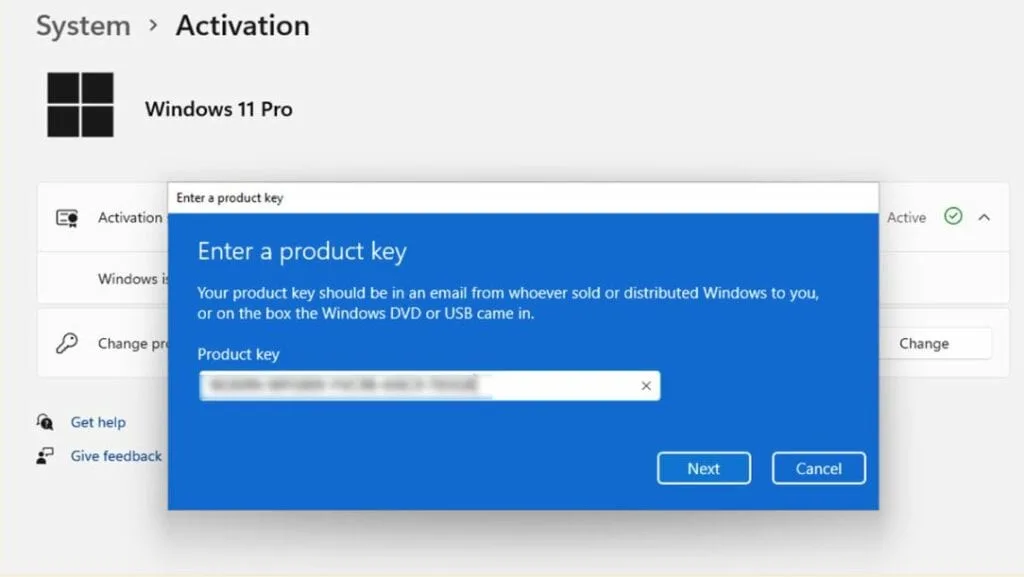
Activate: After payment, receive your code via email. Go to Settings > System > Activation and enter your new win 11 key.
Why Choose GamsGo?
- Save over 60%: Windows 11 Home costs $139 on Microsoft's site, and Pro costs $199.99, but on GamsGo you get genuine licenses for just $1.99 to $8.99.
- Bank-level payment security: Certified with PCI DSS v4.0 international payment security standards. Credit card info is encrypted by third parties, and the platform supports Apple Pay, Google Pay, and PayPal.
- Instant automatic delivery: Within 2 minutes of payment, the 25-character product key is automatically sent to your email.
- Genuine compliance guarantee: Strictly vets supplier credentials to ensure keys comply with Microsoft licensing agreements.
Method 3: Education Discount
Price: Free or Low Cost | Difficulty: ⭐⭐ | Rating: ⭐⭐⭐⭐
If you're a student, teacher, or education worker, you can get Windows 11 Education edition for free or at an extremely low price through education channels.
| ✅ Pros | ❌ Cons |
| Most powerful features: Education edition equals Enterprise edition. Completely free: Many schools have already paid the fees. | Requirements: Need .edu email or student ID verification. Limited duration: May lose access to keys after graduation. |
If you're willing to spend time verifying your identity, here are the ways to do it:
1️⃣ Get It Directly Through Your School (Recommended)
Many universities and colleges have education agreements with Microsoft.
- Contact your school's IT department or visit the campus portal to see if they offer "Microsoft software downloads" or "campus licensed software".
- Common platforms: OnTheHub, Microsoft Azure Education, school-run download sites.
💡 Tip: If your school website doesn't clearly explain this, just email the IT department asking "Do you provide Windows Education edition licenses?"
2️⃣ Microsoft Education Store (Official Channel)
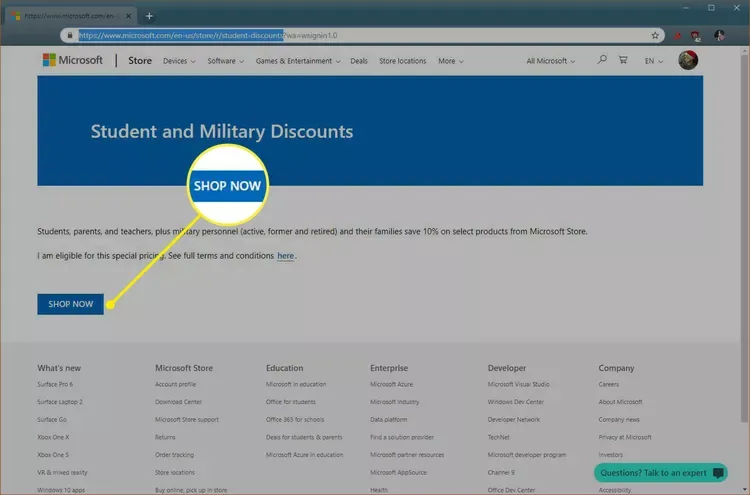
Visit the Microsoft Education Store and verify your student status using your school email.
- Students in some countries can get free access through Azure Dev Tools for Teaching.
- After verification passes, you may get special pricing or free licenses.
3️⃣ Get It Through Community College (For US Users)
If you're not currently a student, you can get student status by enrolling in a community college course.
- US community colleges have low tuition ($50-100 per class).
- Choose a one-credit online course for the lowest cost (like PE, art appreciation).
- After registering, you get a .edu email and student status to apply for education licenses.
Method 4: MSDN Subscription
Price: Expensive (or corporate paid) | Difficulty: ⭐⭐⭐ | Rating: ⭐⭐⭐
MSDN subscription is Microsoft's paid service for developers. Subscribers get access to lots of software licenses, including Windows 11.
| ✅ Pros | ❌ Cons |
| Includes multiple Windows 11 Pro/Enterprise keys. Keys can be linked to your Microsoft account. Extra perks: SQL Server, Windows Server, etc. | Expensive: Standard subscription ~$1,199/year. Technically only for development and testing use. |
1️⃣ Free Developer Account (Visual Studio Dev Essentials)
Good for users who want to legally try Enterprise features. This plan only lets you download Windows 11 Enterprise evaluation version (works for 90 days).
2️⃣ Paid Visual Studio Subscription
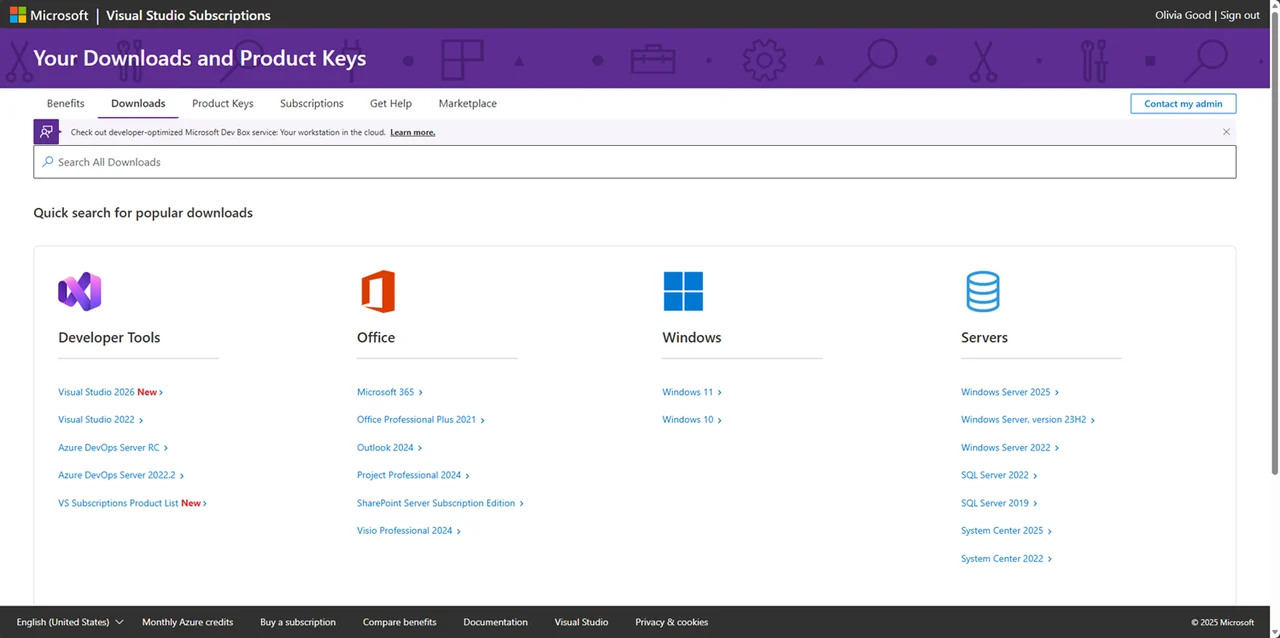
Pro subscription costs about $1,199 for the first year (renewal $799/year). You get Windows 11 Pro/Enterprise retail keys, usually 5 activation codes per product. These are retail keys, so even if your subscription expires, already activated systems typically stay active.
Note that the monthly payment option ($45/month) only includes IDE (Integrated Development Environment, software for writing code) access and doesn't give you Windows download rights.
3️⃣ Microsoft Partner Success (For Small Businesses)
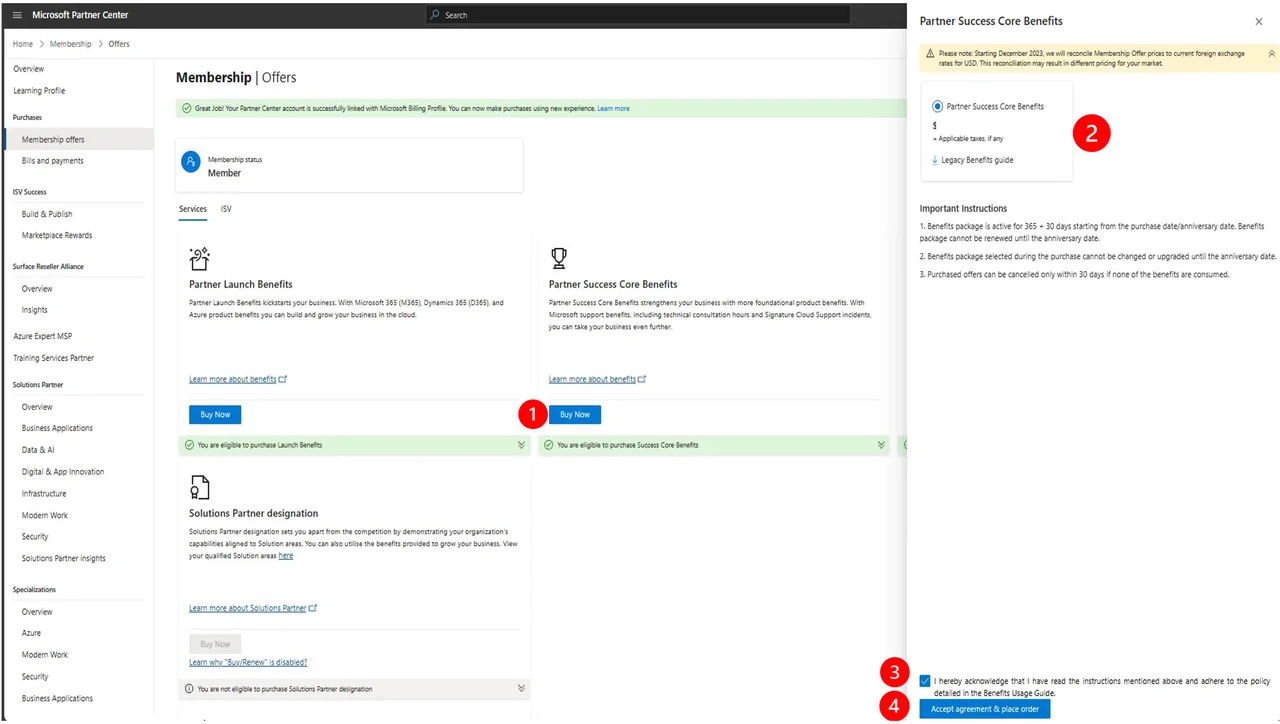
If you're a freelancer or small company, you can choose Partner Success Launch (about $345/year). This gives you multiple Windows 11 licenses and Office 365 accounts.
💡 Tip: If you have an LLC in the US, applying for Partner Success Launch for just over $300 can solve all your company's (including multiple home devices) Windows and Office licensing needs at great value. But if you're just an individual trying to save the $199 official price, MSDN subscription is a terrible deal. Go with one of the other methods mentioned earlier instead.
Comparison: Which Method is Best?
To help you visualize the differences and find the perfect balance between cost and convenience, we’ve summarized the four main methods below. Whether you prioritize a $0 budget or instant activation, this comparison table will help you make an informed decision at a glance.
| Method | Price | Best For | Rating |
| Upgrade from Windows 10 | Free | Existing users | ⭐⭐⭐⭐⭐ |
| Buy key via GamsGo | $1.99+ | Regular users / New builds | ⭐⭐⭐⭐⭐ |
| Education Discount | $0 - $100 | Students | ⭐⭐⭐⭐ |
| MSDN Subscription | $1,199+ | Developers | ⭐⭐ |
Which one should you choose?
There are far more ways to get genuine Windows 11 than most people realize. For most users, I recommend this priority order:
- Windows 10 users → Choose official free upgrade first (Method 1)
- Regular users → Buy discounted keys from platforms like GamsGo (Method 2)
- Students/educators → Get it through your school or education store (Method 3)
- Developers/small businesses → MSDN subscription or Action Pack (Method 4)
GamsGo is currently the best value third-party platform option. With bank-level payment security and instant delivery, you can get the exact same license as the official version for $1.99 to $8.99.
💡 Recommendation: Try GamsGo to get your genuine Windows 11 activation sorted instantly.
FAQ
Should I choose Windows 11 Home or Pro?
For regular home users, Home edition is plenty. Pro adds BitLocker encryption, Remote Desktop, and Hyper-V, mainly for business users and IT pros.
Will Windows 11 still activate after changing hardware?
Retail keys or digital licenses linked to your Microsoft account can reactivate through the troubleshooter after hardware changes. OEM keys tie to the motherboard and usually can't reactivate after replacing it.
Are GamsGo Windows 11 keys genuine?
Yes, GamsGo's Windows 11 keys are genuine licenses from bulk purchases and authorized resellers, complying with Microsoft agreements. After activation, the status matches official purchases with full updates and features.
Related Articles
How to Get HBO Max for Free in 2025
13 Proven Ways to Get Spotify Premium Free in 2025
How to Get Disney Plus for Free in 2025